
SOAR Integration Overview: CrowdStrike Fusion SOAR
Overview
The GreyNoise Integration for CrowdStrike Fusion SOAR consists of:
- A Fusion SOAR App (GreyNoise SOAR Actions) that provides a set of GreyNoise actions that can be added to workflows and run by analysts.
- A set of SOAR playbooks that implement common GreyNoise use cases for triage, early warning, and compromise detection.
The GreyNoise integration enables IP enrichment and internet noise filtering within the CrowdStrike Falcon platform. This integration allows security teams to look up and classify IP addresses as benign scanners, malicious actors, or unknown entities; query the GreyNoise dataset using GNQL; and investigate CVEs that are actively exploited across the internet. By leveraging Falcon Fusion SOAR workflows, organizations can automate IP triage, suppress false positives from mass-scanning activity, and prioritize response efforts to threats that represent genuine targeted attacks against their environment.
Fusion SOAR App
The GreyNoise SOAR Actions app is available in the Falcon Unified Content Library. Install and configure it to expose GreyNoise threat intelligence as reusable SOAR actions.
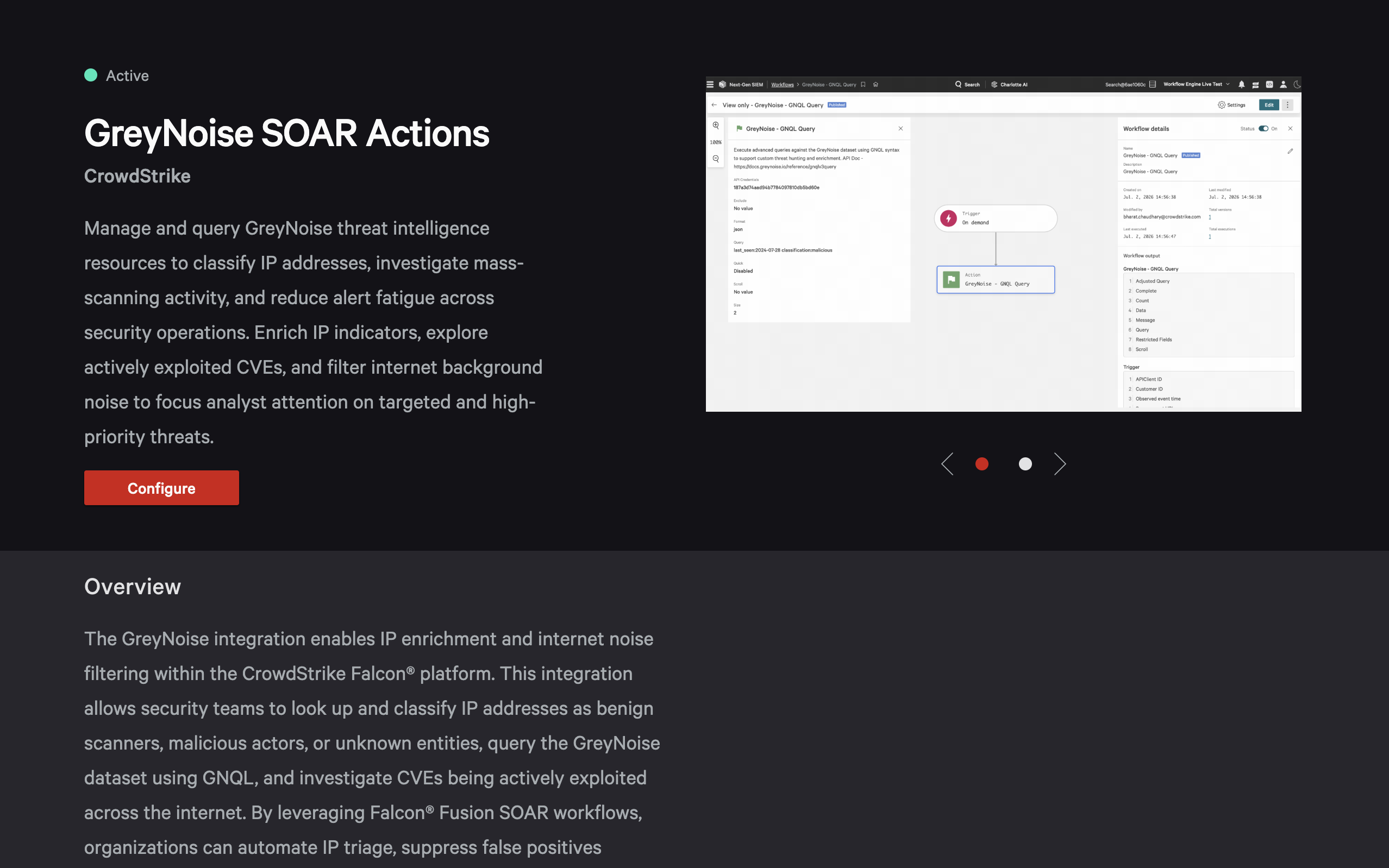
Install and Configure
Find and open the app
- Navigate to Fusion SOAR → Content Library.
- Click Apps.
- Search for
GreyNoise. - Open the GreyNoise SOAR Actions app.
Generate an API key
- Log in to your GreyNoise account at https://viz.greynoise.io.
- Navigate to your account API key management page.
- Generate a new API key if one does not already exist.
- Copy and securely save the API key.
Add configuration in Fusion SOAR
- In the Fusion SOAR platform, open the GreyNoise SOAR Actions app listing.
- Click Configure and provide the following fields:
- Name: A recognizable configuration name (for example,
GreyNoise-Integration) - API Key: Paste the value obtained in the previous step
- Name: A recognizable configuration name (for example,
- Click Save to complete the configuration.
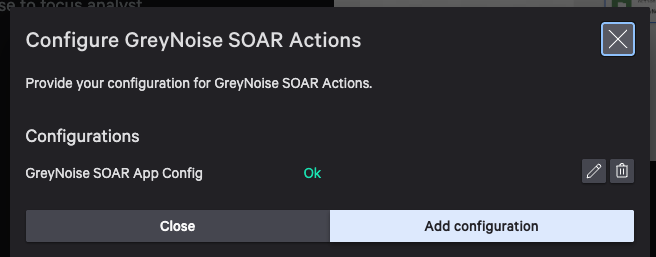
Verify configuration
- Ensure that the configuration is saved successfully.
- Run a test action (for example, GreyNoise - Ping) to verify connectivity and confirm the integration is functioning as expected.
Once configured, these actions can be used on demand or embedded in Fusion workflows to enrich alerts, assess threat activity, and drive automated response decisions.
Available SOAR Actions
The GreyNoise SOAR Actions app includes the following actions:
- GreyNoise - Tag Metadata
- GreyNoise - IP Context
- GreyNoise - GNQL V3 Recall
- GreyNoise - GNQL Query
- GreyNoise - Get Callback IP Overview
- GreyNoise - Bulk Enrich CVEs
- GreyNoise - List CVE Records
- GreyNoise - Ping
- GreyNoise - Get Callback IP Details
- GreyNoise - Multi-IP Context
- GreyNoise - List Callback IPs
- GreyNoise - GNQL Stats
- GreyNoise - IP Timeline Field Summary
- GreyNoise - Retrieve CVE Information
- GreyNoise - Community API
- GreyNoise - GNQL Recall Stats
- GreyNoise - Query GNQL Metadata
SOAR Playbooks
GreyNoise provides three Fusion SOAR playbooks aligned to common SOC automation use cases. Search for greynoise in the Falcon Unified Content Library to find them under Playbook.
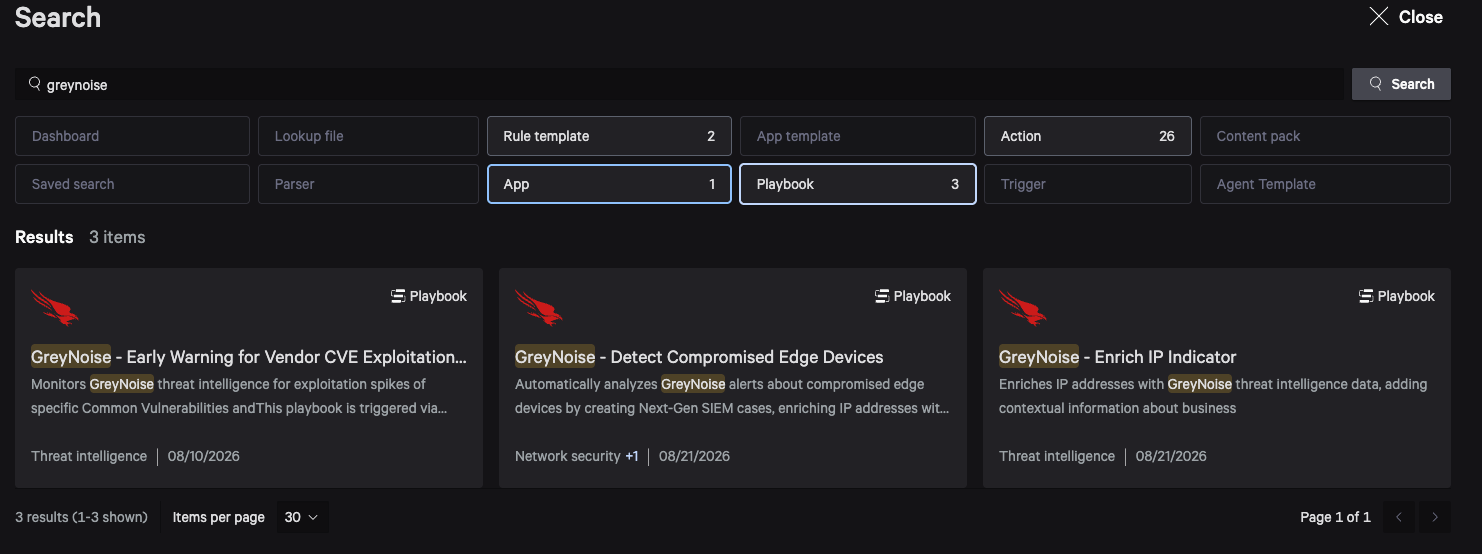
The playbooks cover the first three scenarios described in 5 Ways GreyNoise Drives Better Decisions in SOAR:
| Playbook | Use case |
|---|---|
| GreyNoise - Enrich IP Indicator | IP enrichment for faster triage and response |
| GreyNoise - Early Warning for Vendor CVE Exploitation Spikes | Early warning for vendor CVE exploitation spikes |
| GreyNoise - Detect Compromised Edge Devices | Detect compromised edge devices |
GreyNoise - Enrich IP Indicator
Goal
Use this playbook to enrich a single IPv4 address with GreyNoise data while you investigate an NG-SIEM case. Run it on demand, or duplicate or link it from other workflows to automate IP enrichment.
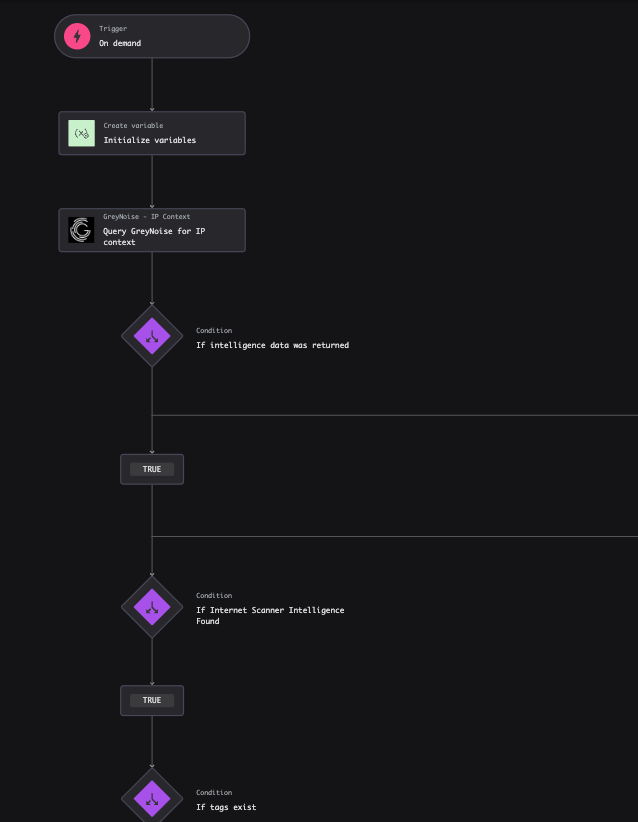
Requirements
- Create an NG-SIEM case that includes IP indicators.
- Configure the GreyNoise API in the SOAR app.
Setup
- In the Fusion SOAR Content Library, open the playbook.
- In the Fusion SOAR Workflow Editor, select Customize Playbook.
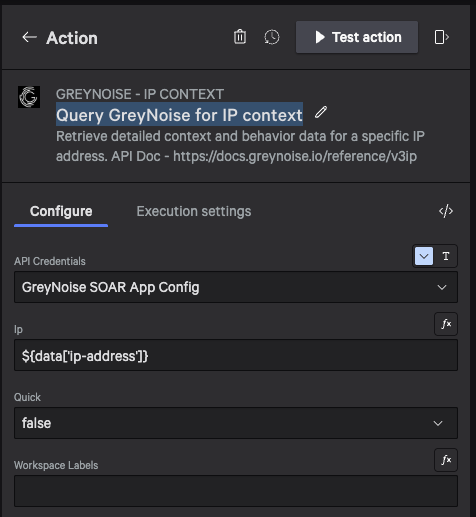
- Select the Query GreyNoise for IP context action, then select your configured credentials from API Credentials.
- Click Next, then publish the workflow.
Execution
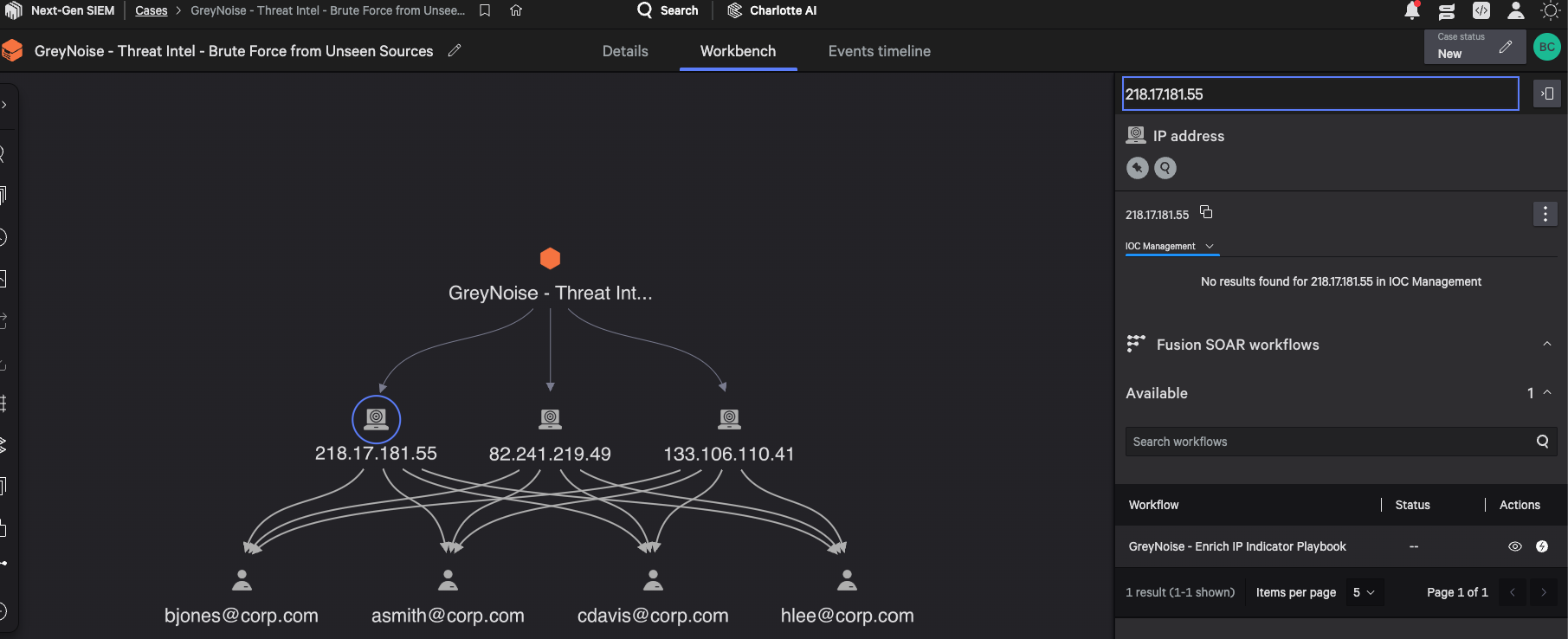
- In an NG-SIEM case, open the Workbench and select an IP indicator in the graph.
- In the workflow section, run the GreyNoise - Enrich IP Indicator playbook.
Outcome
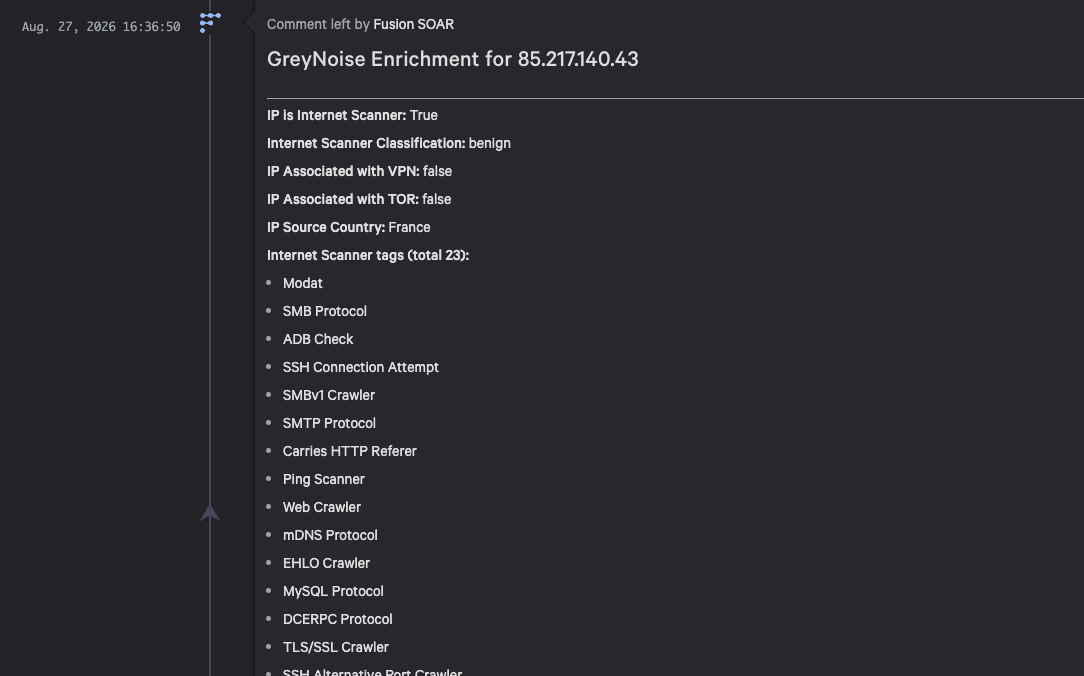
The playbook adds GreyNoise context to the case and updates its severity.
GreyNoise - Early Warning for Vendor CVE Exploitation Spikes
Goal
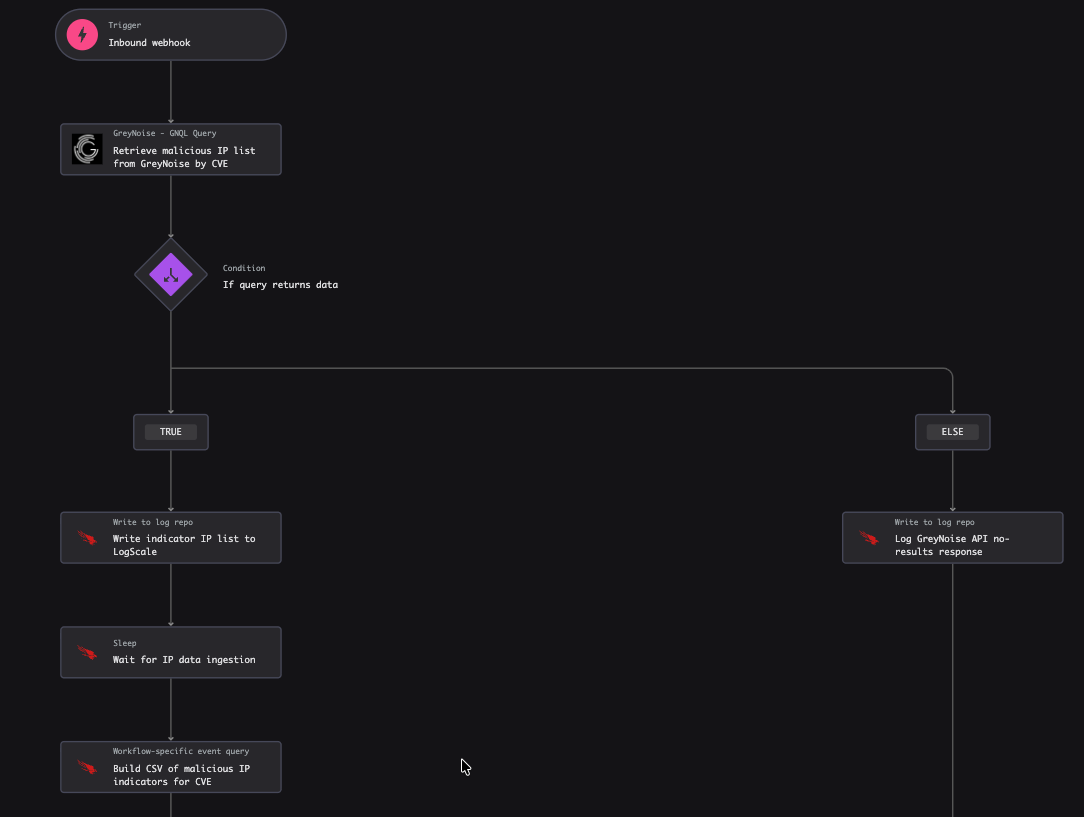
Use this playbook to notify your team when exploitation of known vulnerabilities spikes. A cluster of events over a short period can provide early warning of new, unknown exploits.
Requirements
- Create or identify a GreyNoise Vendor/CVE Feed.
- Configure the GreyNoise API in the SOAR app.
Setup - CrowdStrike Workflow
- From the Fusion SOAR Content Library, select Open on the Playbook
- Once in the Fusion SOAR Workflow Editor, select Customize Playbook
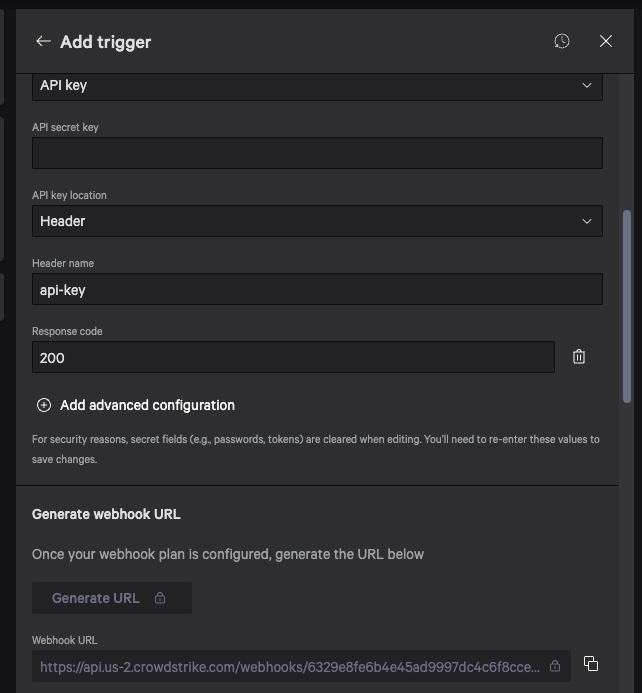
- Select the Incoming Webhook action
- Provide it with a unique Webhook name
- Provide a unique UUID-4 value in the API Key field (this allows GreyNoise to successfully auto to the Webhook)
- Copy this ID value to use in the
Setup - GreyNoise Event Feedstep
- Copy this ID value to use in the
- Click Generate URL
- Copy this URL value to use in the
Setup - GreyNoise Event Feedstep
- Copy this URL value to use in the
- Click Next
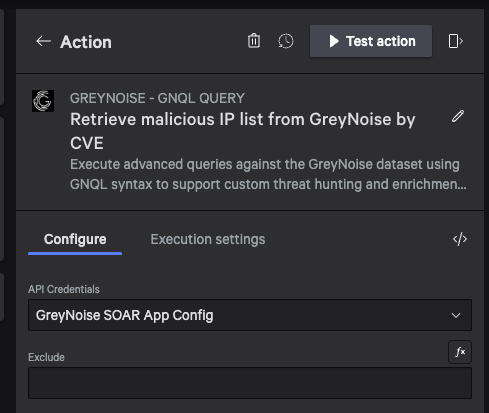
- Select the Retrieve malicious IP list from GreyNoise by CVE action
- Select the appropriate API credential configured
- Click Next
- Publish the Workflow and ensure it is enabled
Setup - GreyNoise Event Feed
- Navigate to the GreyNoise Visualizer.
- Select Automation → Feeds.
- Create an event feed or open the existing event feed you want to use.
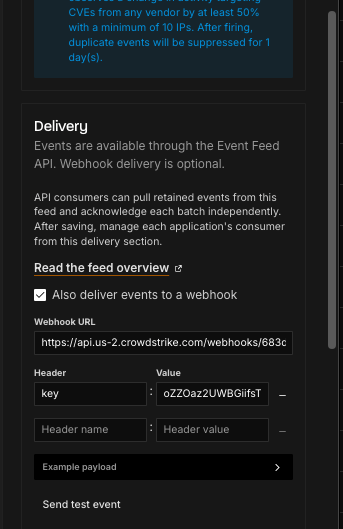
- In the Delivery section, select Also Send to Webhook.
- In the Webhook URL field, paste the URL from the previous step
- In the Header section, add a header with the following
- Key:
api-key - Value: The unique ID created during the Workflow Setup
- Key:
- Use the
Send Test Eventbutton to confirm the Webhook is able to receive from the Event Feed
Execution
- The Event Feeds will send events to the Webhook as they occur
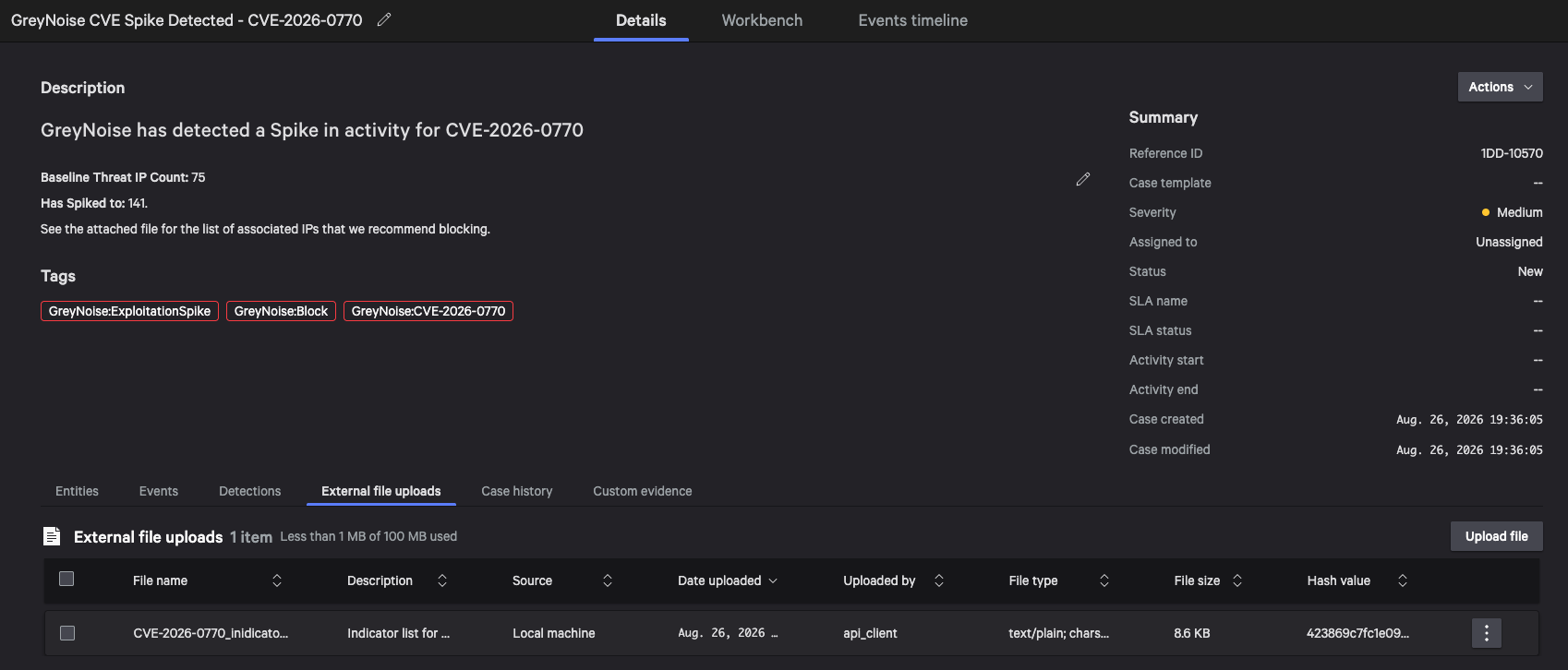
- When the Webhook receives an inbound event, the Workflow creates a new Case with NG-SIEM
Outcome
- Spikes in mass scanning for CVEs related to Vendors within your infrastructure are documented and can be correlated together as an Early Warning signal.
- Each Case also contains a list of IP addresses that have recently been scanned for the exploit and can be used for additional Next-Gen SIEM searches or to feed perimeter blocklists
GreyNoise - Detect Compromised Edge Devices
Goal
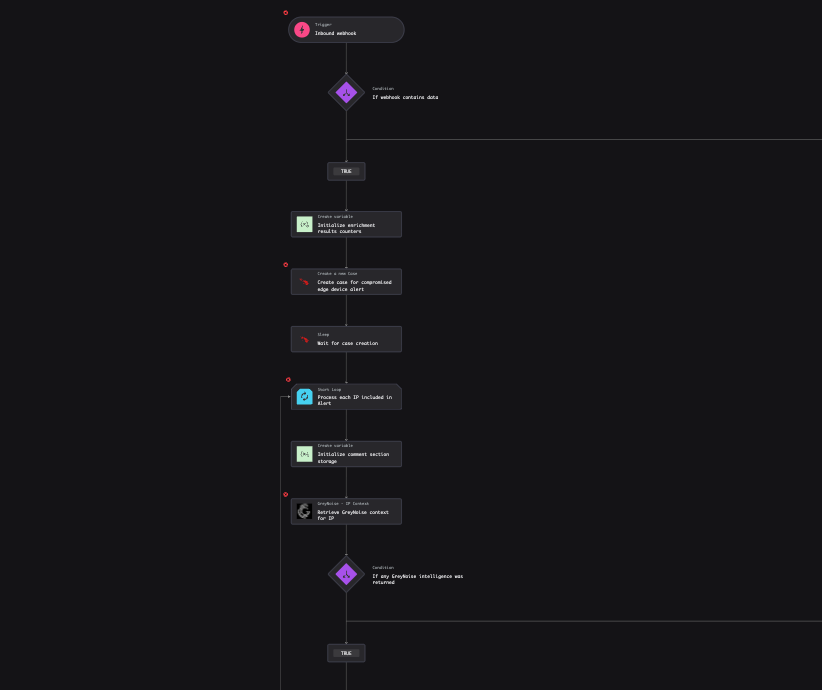
Use this playbook to investigate potential compromise when your externally facing infrastructure performs unexpected outbound perimeter scans.
Requirements
- Configure a GreyNoise alert with your external IP addresses or CIDR ranges.
- Configure the GreyNoise API in the SOAR app.
Setup - CrowdStrike Workflow
- From the Fusion SOAR Content Library, select Open on the Playbook
- Once in the Fusion SOAR Workflow Editor, select Customize Playbook
- Select the Incoming Webhook action
- Provide it with a unique Webhook name
- Provide a unique UUID-4 value in the API Key field (this allows GreyNoise to successfully auto to the Webhook)
- Copy this ID value to use in the
Setup - GreyNoise Event Feedstep
- Copy this ID value to use in the
- Click Generate URL
- Copy this URL value to use in the
Setup - GreyNoise Event Feedstep
- Copy this URL value to use in the
- Click Next
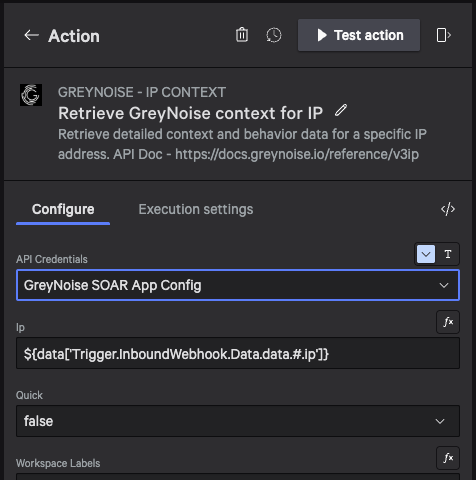
- Select the
Retrieve GreyNoise context for IPaction- Select the appropriate API credential configured
- Click Next
- Publish the Workflow and ensure it is enabled
Setup - GreyNoise IP Alert
- Navigate to the GreyNoise Visualizer.
- Select Automation → Alerts.
- Create an alert or open the existing alert you want to use.
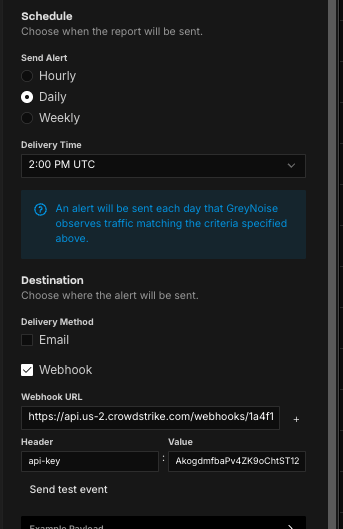
- In the Destination section, select Webhook.
- In the Webhook URL field, paste the URL from the previous step
- In the Header section, add a header with the following
- Key:
api-key - Value: The unique ID created during the Workflow Setup
- Key:
- Use the
Send Test Eventbutton to confirm the Webhook is able to receive from the Event Feed
Execution
- The Alert will send events to the Webhook as they occur
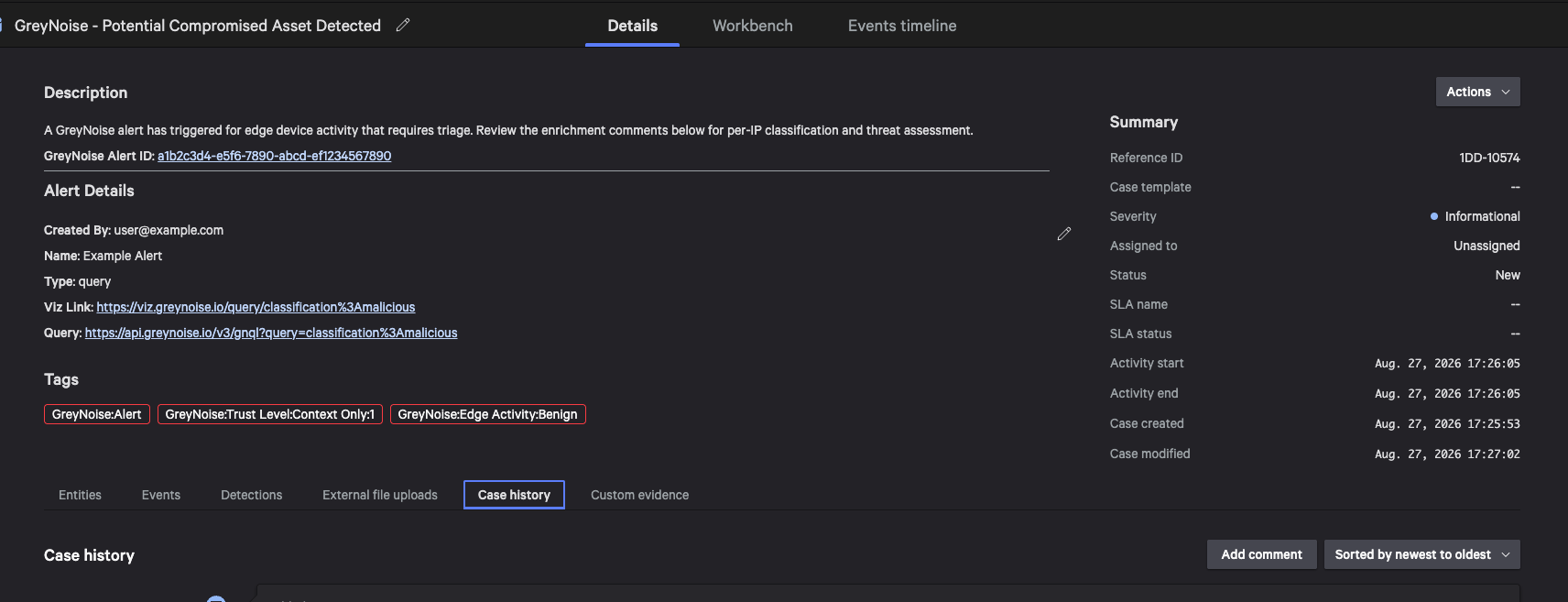
- When the Webhook receives an inbound alert, the Workflow creates a new Case with NG-SIEM
Outcome
When a device on your perimeter scans GreyNoise, the alert creates an NG-SIEM case. Review the case to determine whether the affected asset is compromised.
Updated about 2 months ago