
Microsoft Sentinel Installation Guide
Compatibility Matrix
- Platform: Microsoft Sentinel (Azure cloud-native SIEM)
- Browser: Google Chrome, Mozilla Firefox.
- Azure Requirements: Sentinel log analytics workspace with Azure AD Contributor access
- Azure Region: Any region where Sentinel is deployed
- OS: Platform independent.
Prerequisites
Gather all required credentials and information before starting deployment. Missing or incorrect values will cause the deployment to fail.
Azure AD Application
The GreyNoise connector uses Azure AD for authentication to Sentinel APIs. If you do not have any Azure AD Application and its credentials handy, follow the MS Sentinel Official documentation below to create an Azure AD Application.
Official Reference: How to register an app in Microsoft Entra ID
Official Reference: Add and manage app credentials in Microsoft Entra ID
Assign Role to Sentinel Workspace
- Navigate to Sentinel Workspace Access Control
- Go to your Sentinel workspace in the Azure Portal
- Select Access Control (IAM) from the left menu
- Reference: Microsoft Sentinel permissions
- Add Role Assignment
- Click Add > Add role assignment
- Role: Search for and select Microsoft Sentinel Contributor
- Assign access to: Select User, group, or service principal
- Members: Search for and select your app registration name
- Click Review + assign
- Detailed steps: Assign Azure roles via the portal
Configure API Permissions
Follow this section here to add 'ThreatIndicators.ReadWrite.OwnedBy' permission to the AAD App: API Permissions
Installation
Installation is available from the Microsoft Sentinel Content Hub.
Prerequisites
| Parameter | Value Format |
|---|---|
| Resource Group | Existing resource group name where you want to install the solution |
| Function App Name | GreyNoise function app name that you want to give |
| Workspace ID | Log Analytic Workspace resource ID where this solution is going to be installed |
| Tenant ID | Azure AD tenant ID |
| Client ID | Application ID of the Azure AD app registration |
| Client Secret | Password/secret for the Azure AD app registration |
| GreyNoise API Key | API key from GreyNoise account |
| GreyNoise Classifications | Comma-separated list of threat classification types to pull from GreyNoise, such as malicious, suspicious, unknown, or benign. Recommended values: malicious,suspicious,benign. |
| App Insight Resource ID | Azure Application Insights resource identifier |
New Installation - Microsoft Sentinel Content Hub
- Navigate to Content Hub
- Log into Azure Portal and search for Sentinel.

- Go to your Microsoft Sentinel workspace
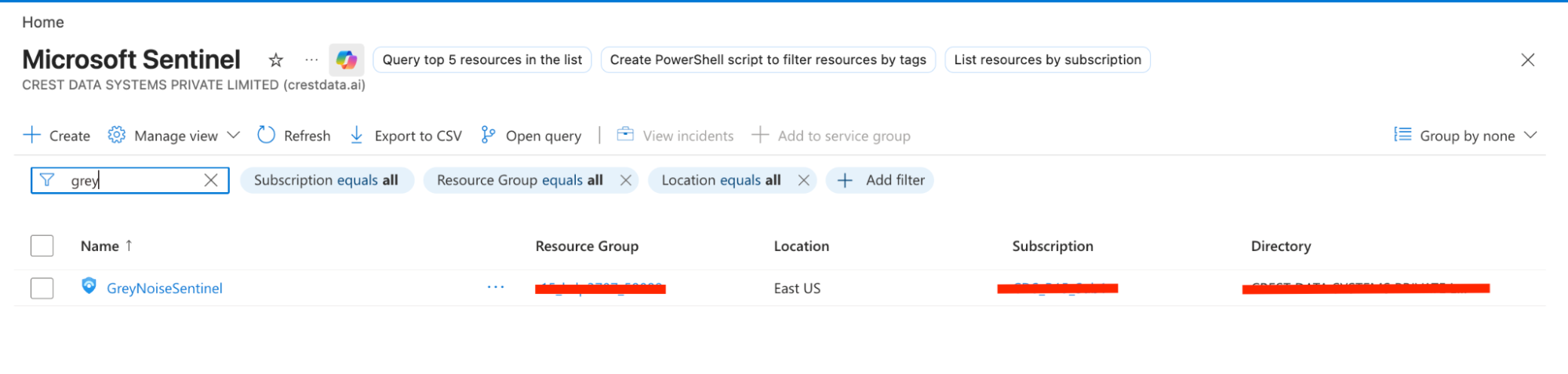
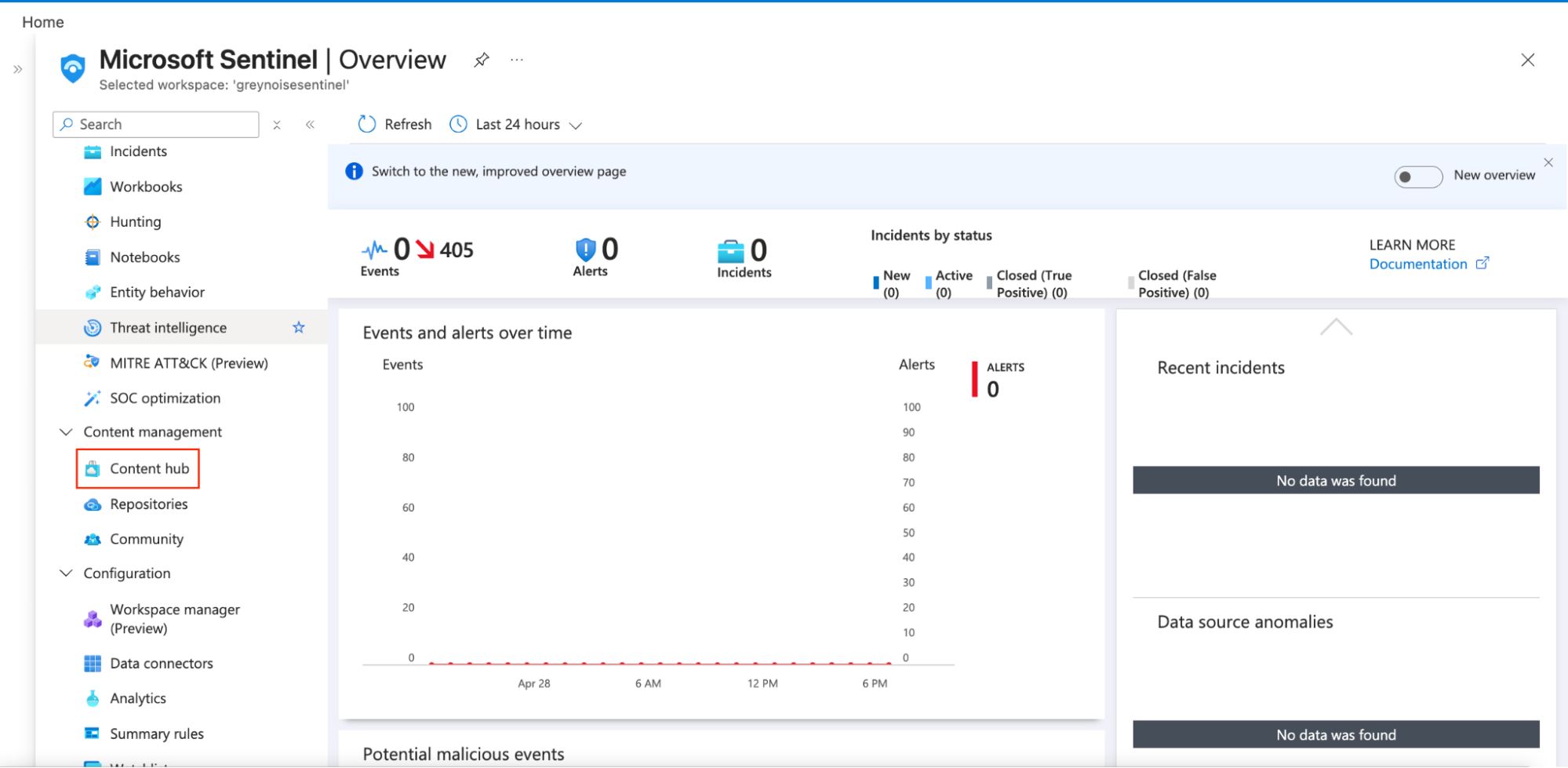
- Select Content Hub from the left navigation menu
- Search for "GreyNoise" in the search bar
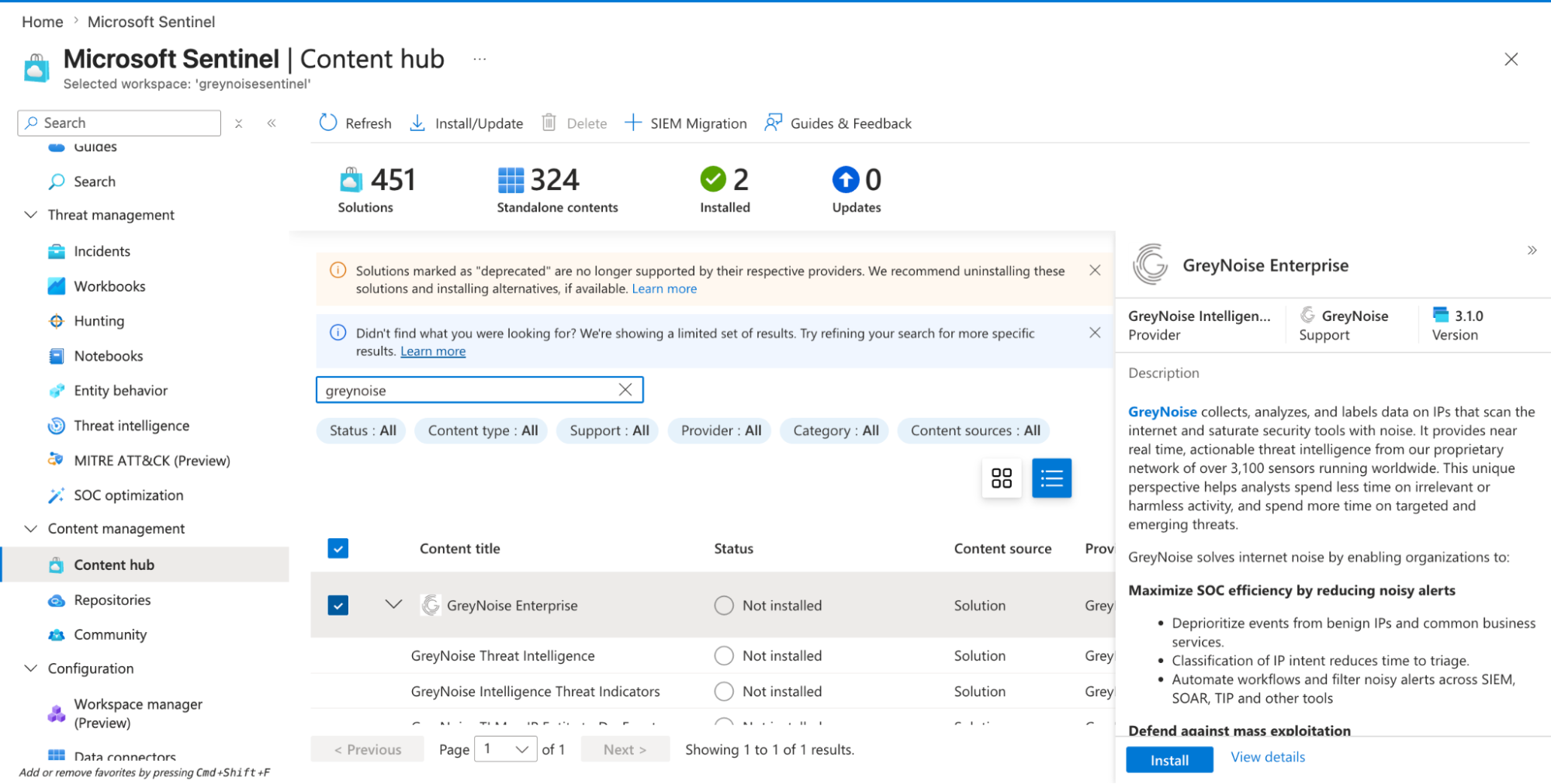
- Install the Solution Pack
- Click the Install button
- The system displays installation progress
- Once complete, the button changes to Manage
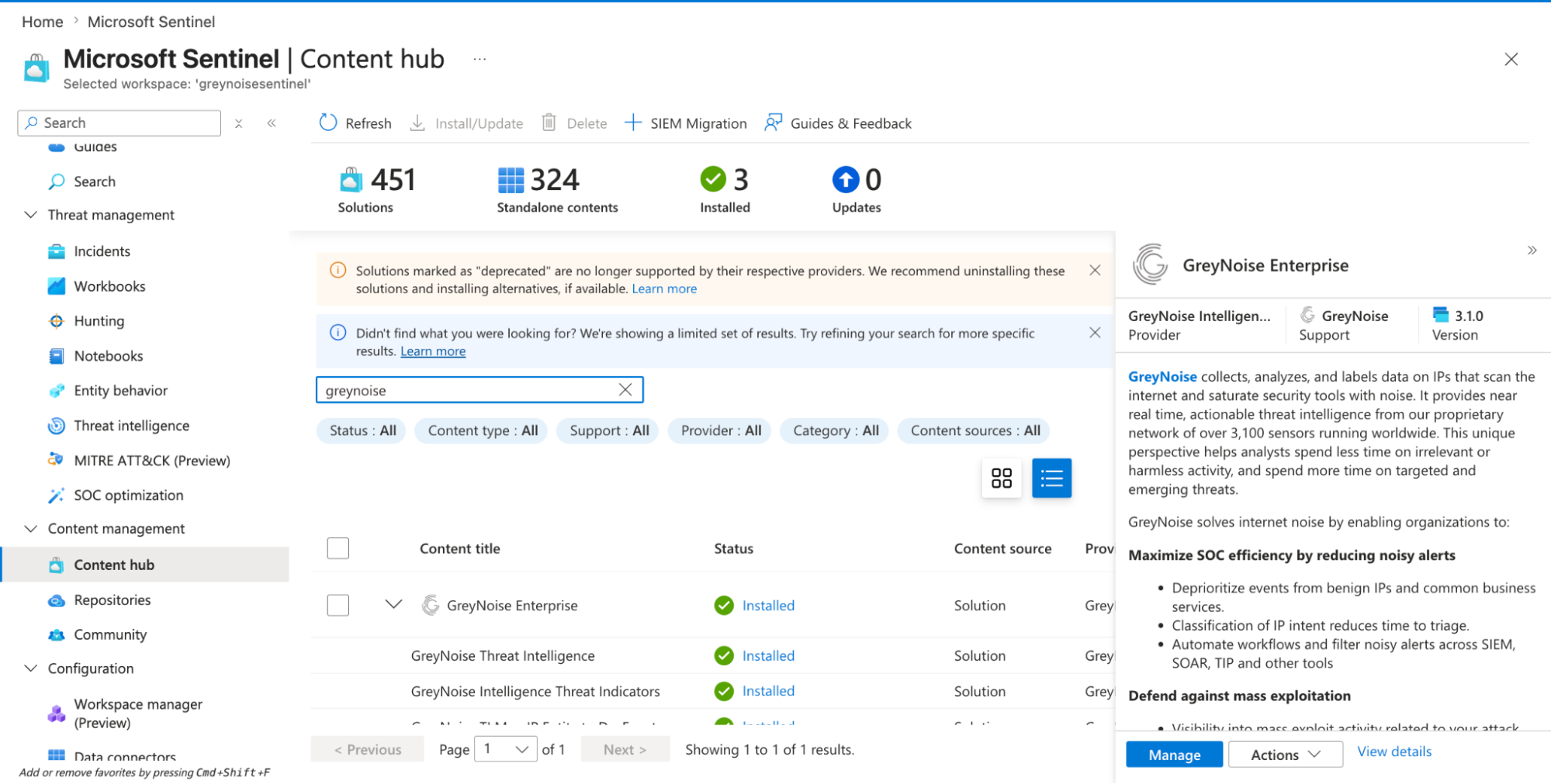
- Access Data Connector Page
- After installation, click the Manage button
- Select Data Connectors from the menu
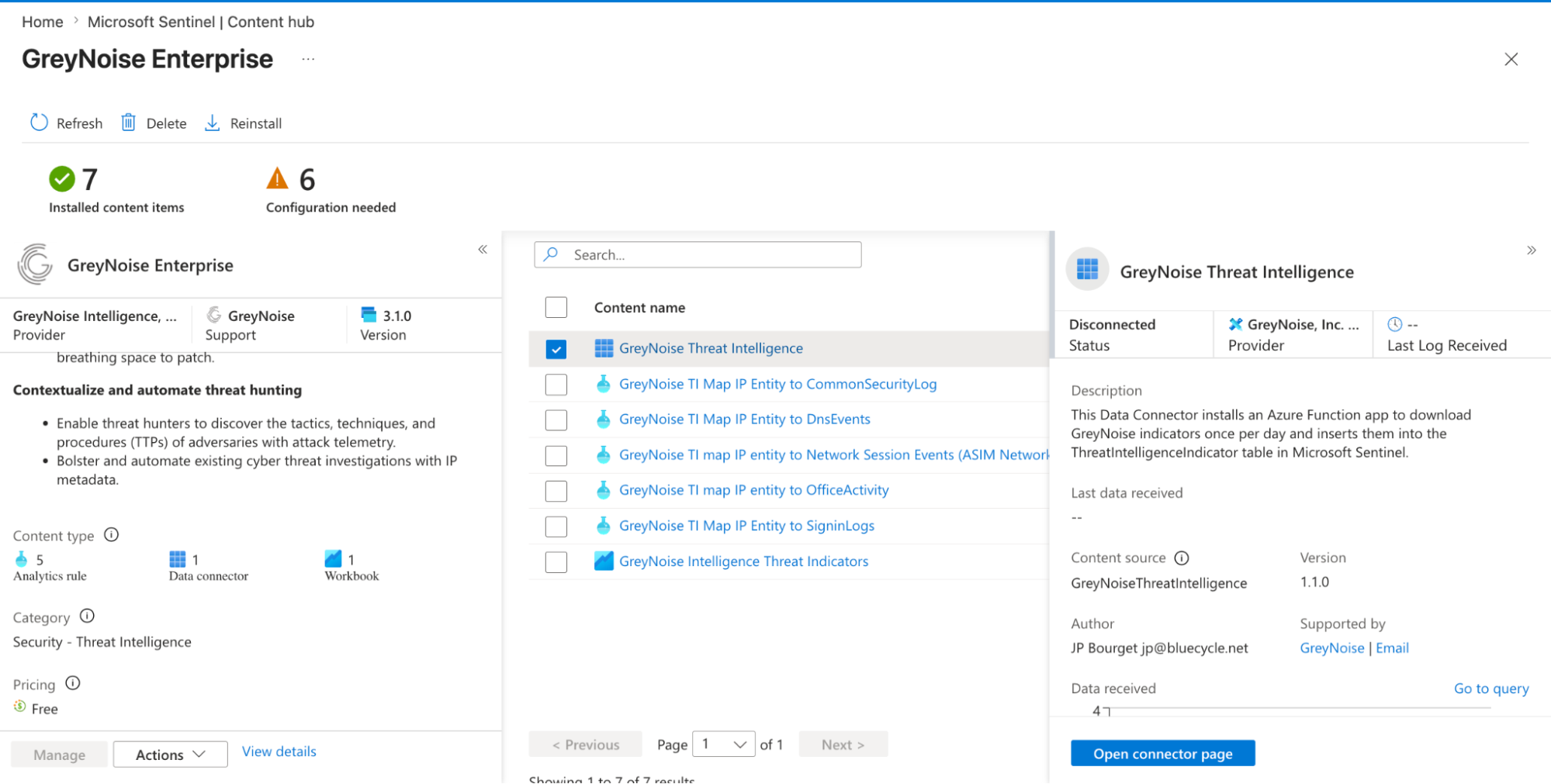
- Click to open the connector configuration page
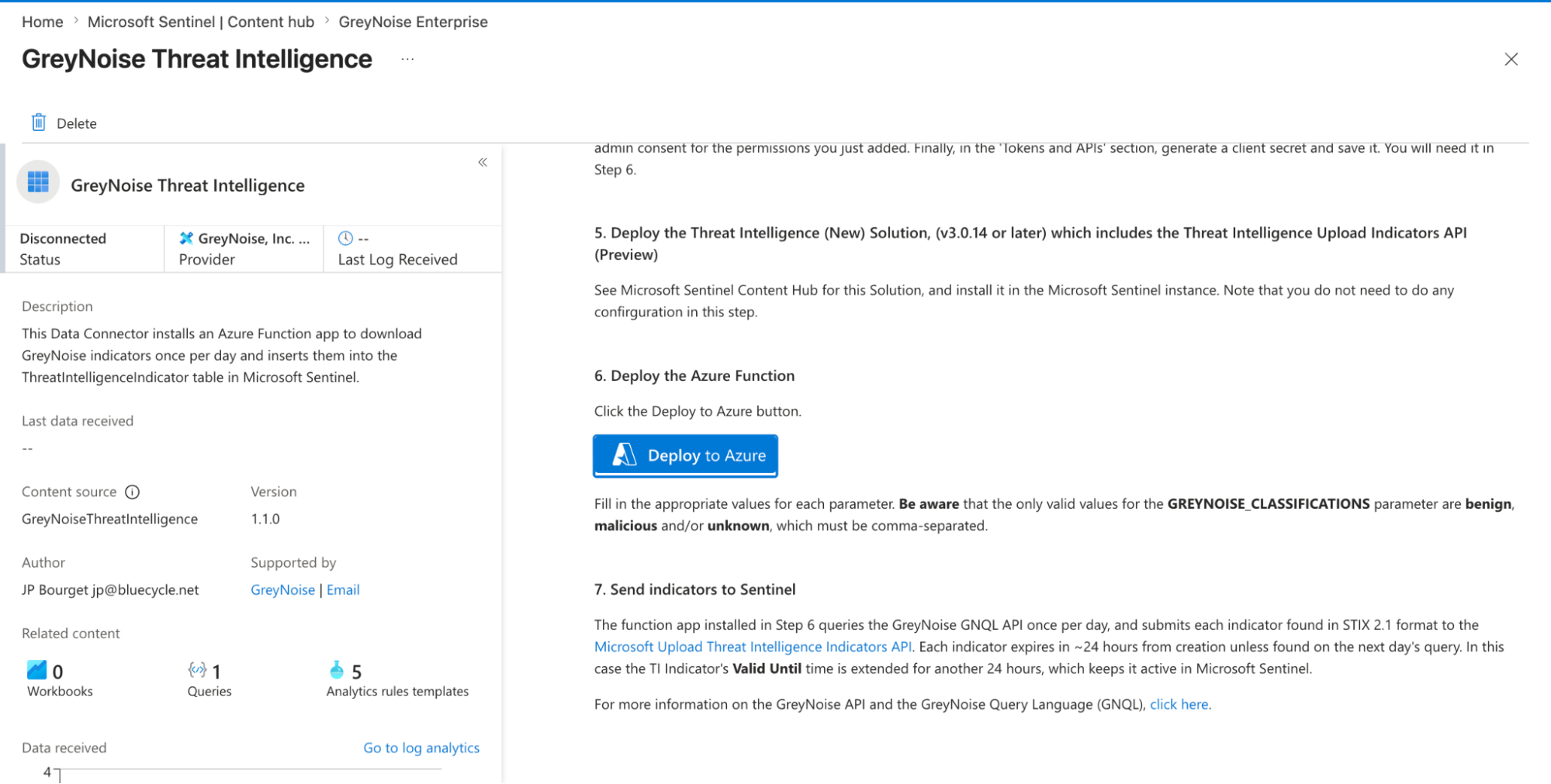
- Configure the Data Connector
- You will be asked to provide the input values below
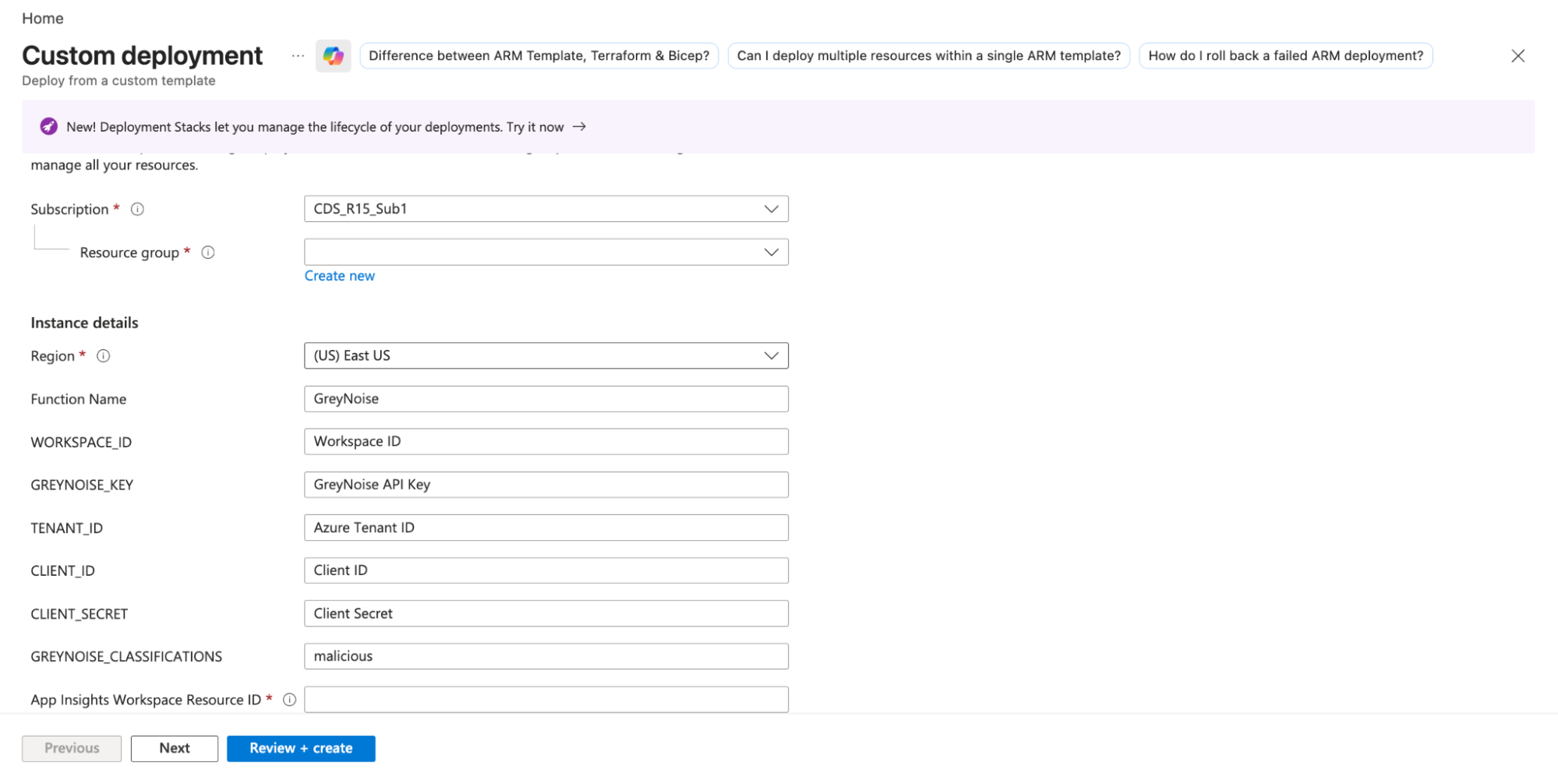
- After providing all values, click on the review button
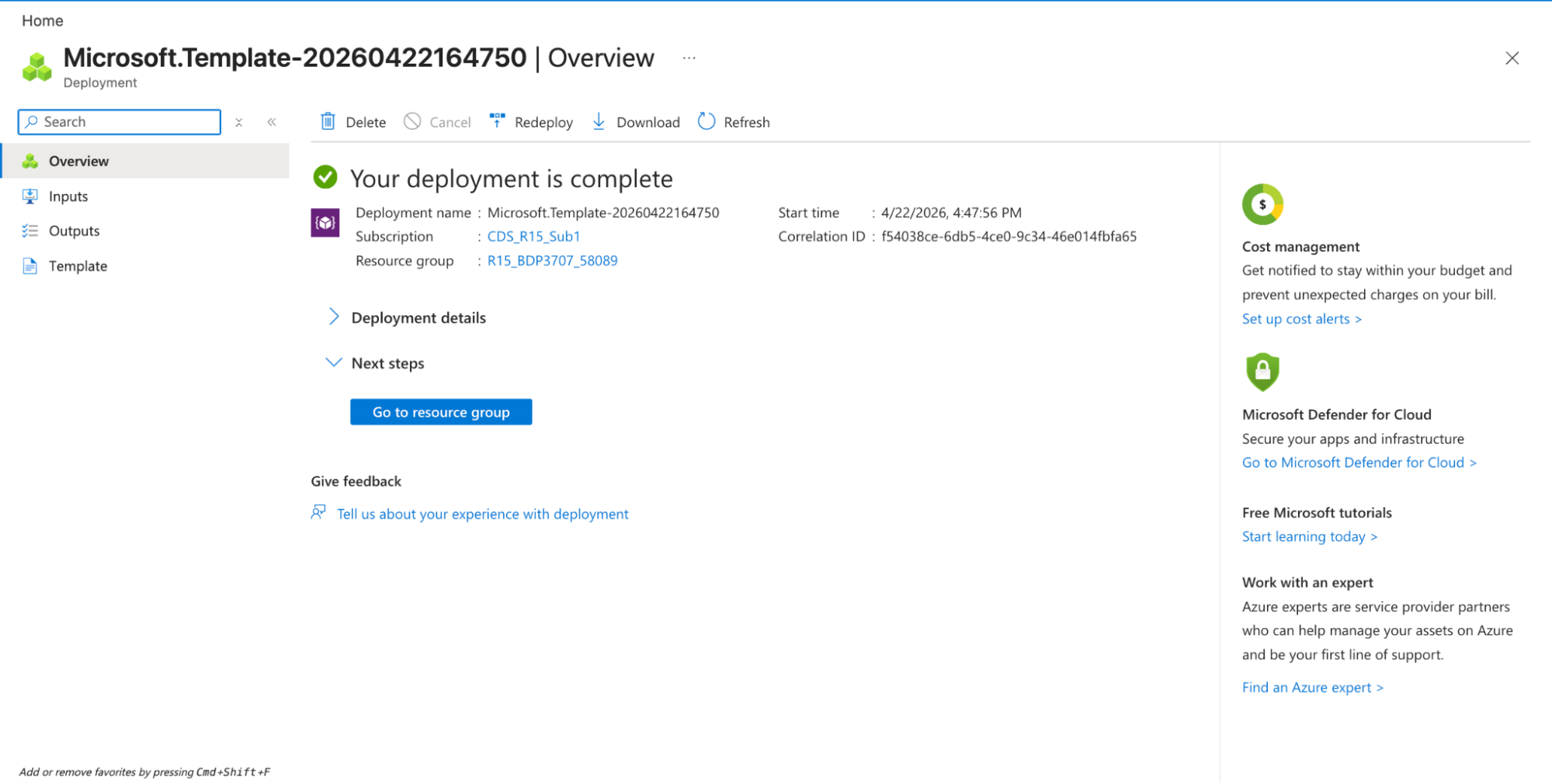
3. Then, click on create
4. A deployment completed message will be displayed
Manually testing the function App
Since the Function App runs only on a set schedule, it may be necessary to run it manually to confirm that everything is working as expected.
By default, the option to "Run" is disabled, and a confusing message is shown:
Running your function in the portal requires the app to explicitly accept requests from https://portal.azure.com. This is known as cross-origin resource sharing (CORS). Click here to add https://portal.azure.com to the allowed origin configuration
To grant the ability to run the app manually, follow these steps:
- Go to the Function App in the Azure Portal.
- Open API and then click CORS.
- Add https://portal.azure.com as an allowed origin and click Save
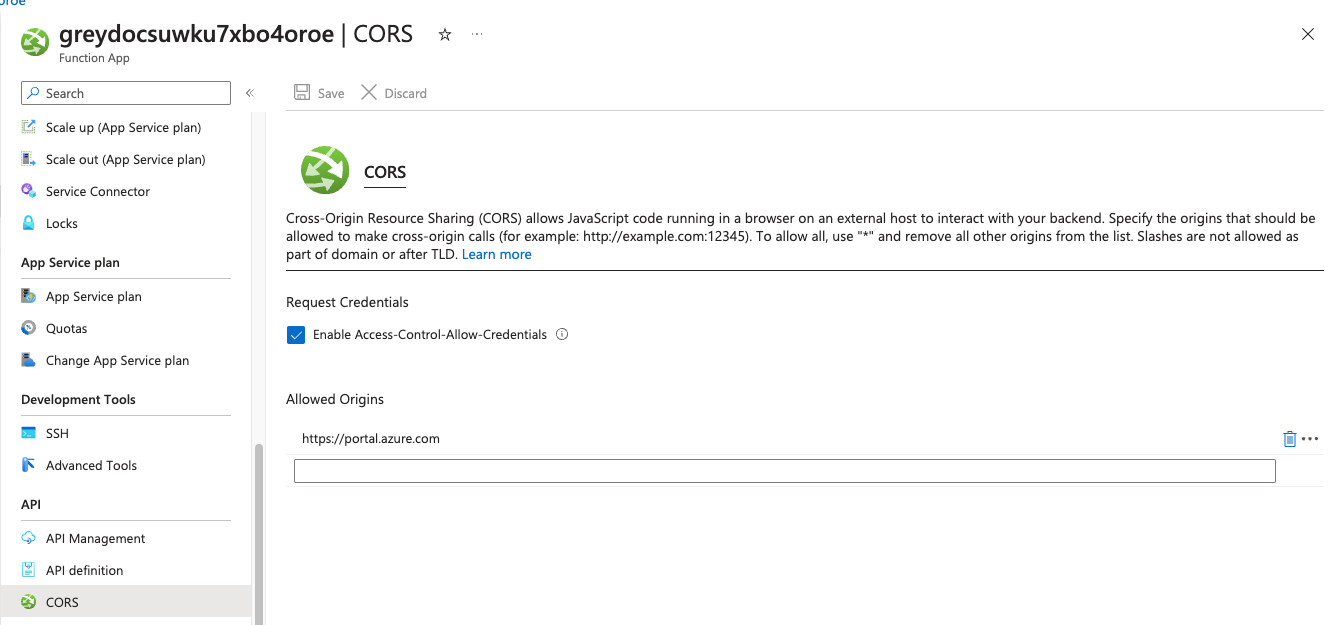
Once enabled, this allows manual execution of the function app.
- Open the GreyNoiseAPISentinelConnector function in the Function App, then select Test/Run and click Run to execute the function manually.
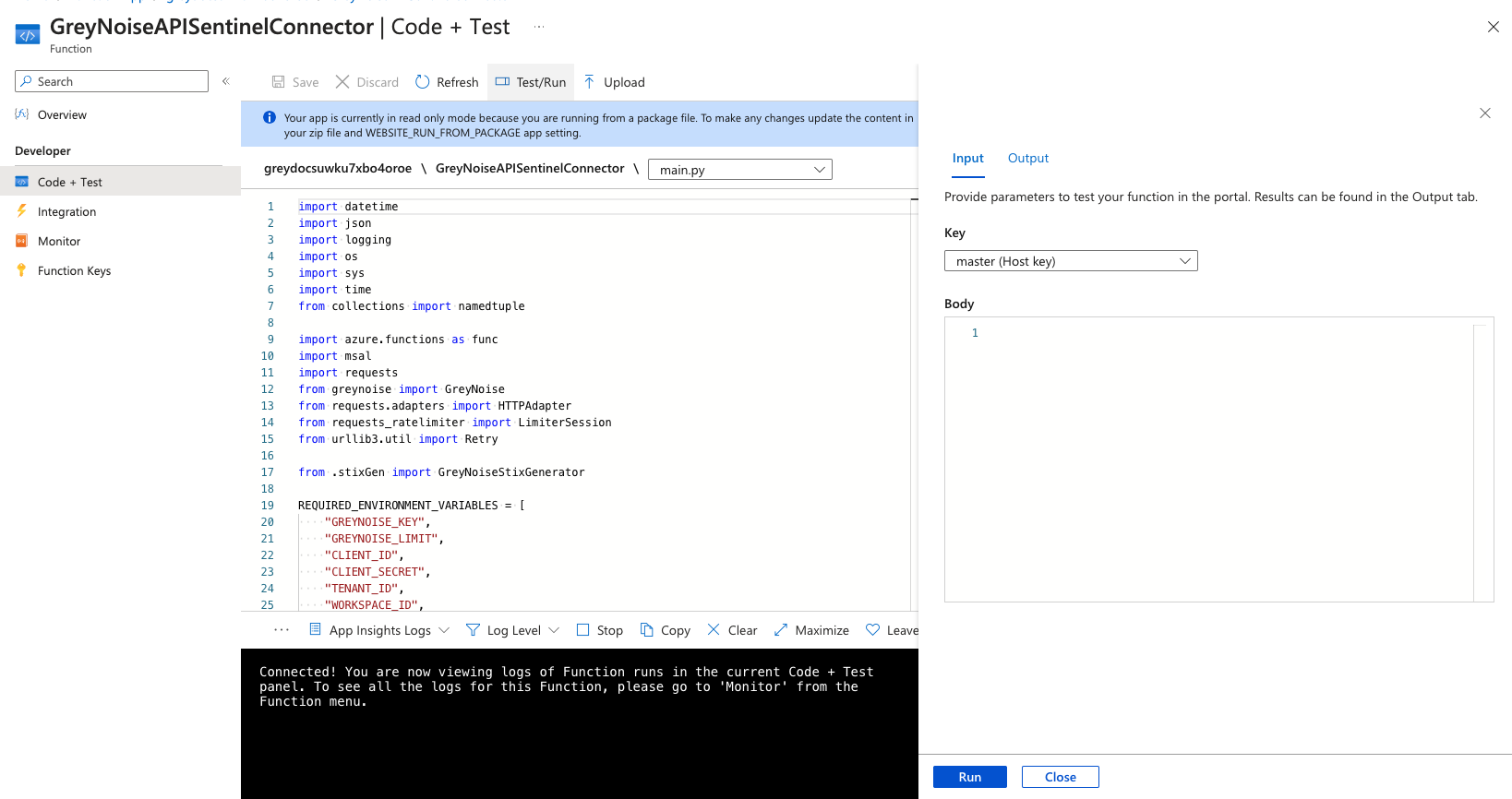
-
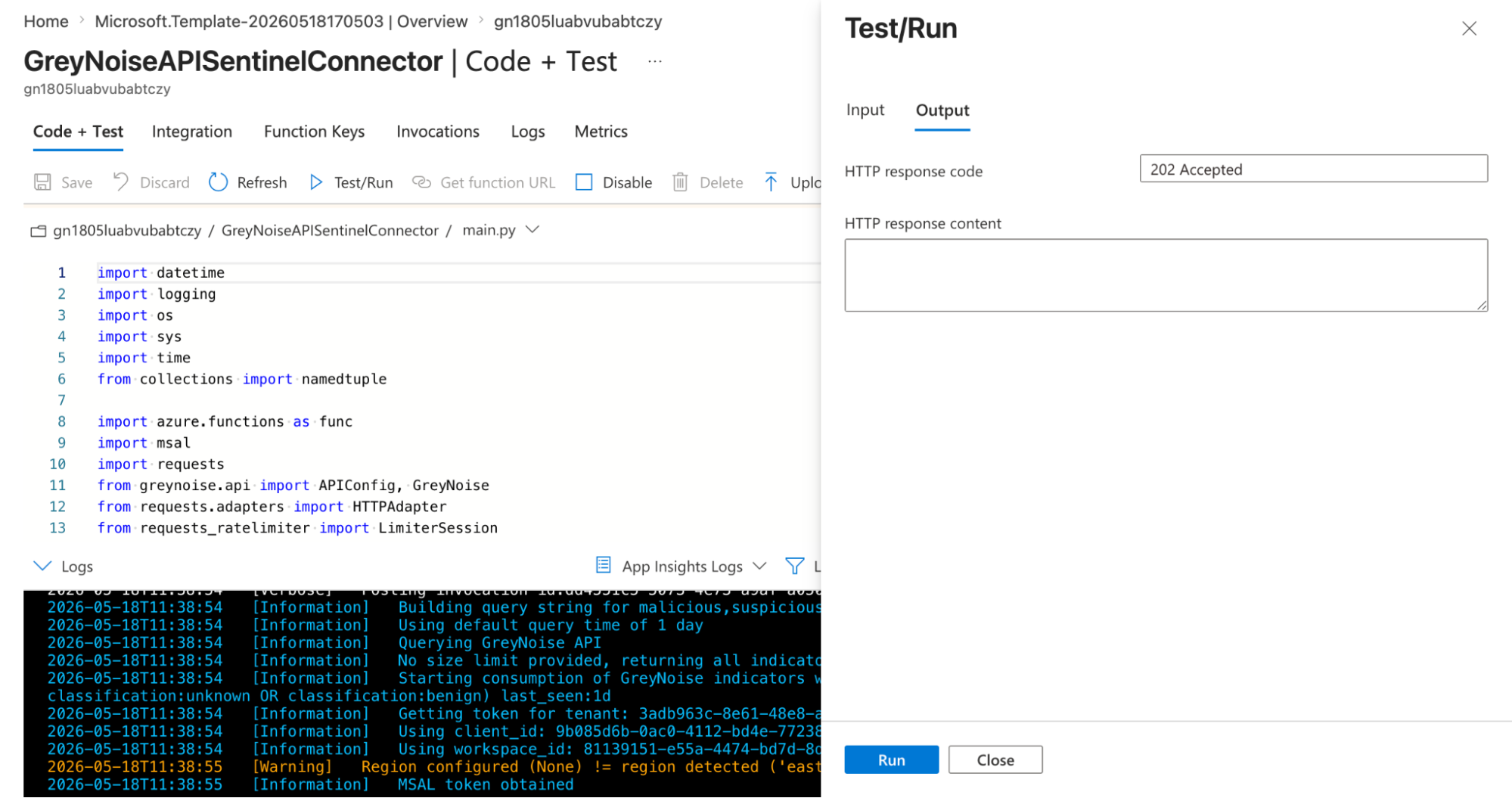
Once the function runs successfully, you should see a 202 Accepted status code in the output, as shown in the image below.
Review the Indicators in Sentinel Threat Intelligence
When reviewing the indicators imported by the Function App, go to the Sentinel Threat Intelligence section and look for indicators sourced from GreyNoise.
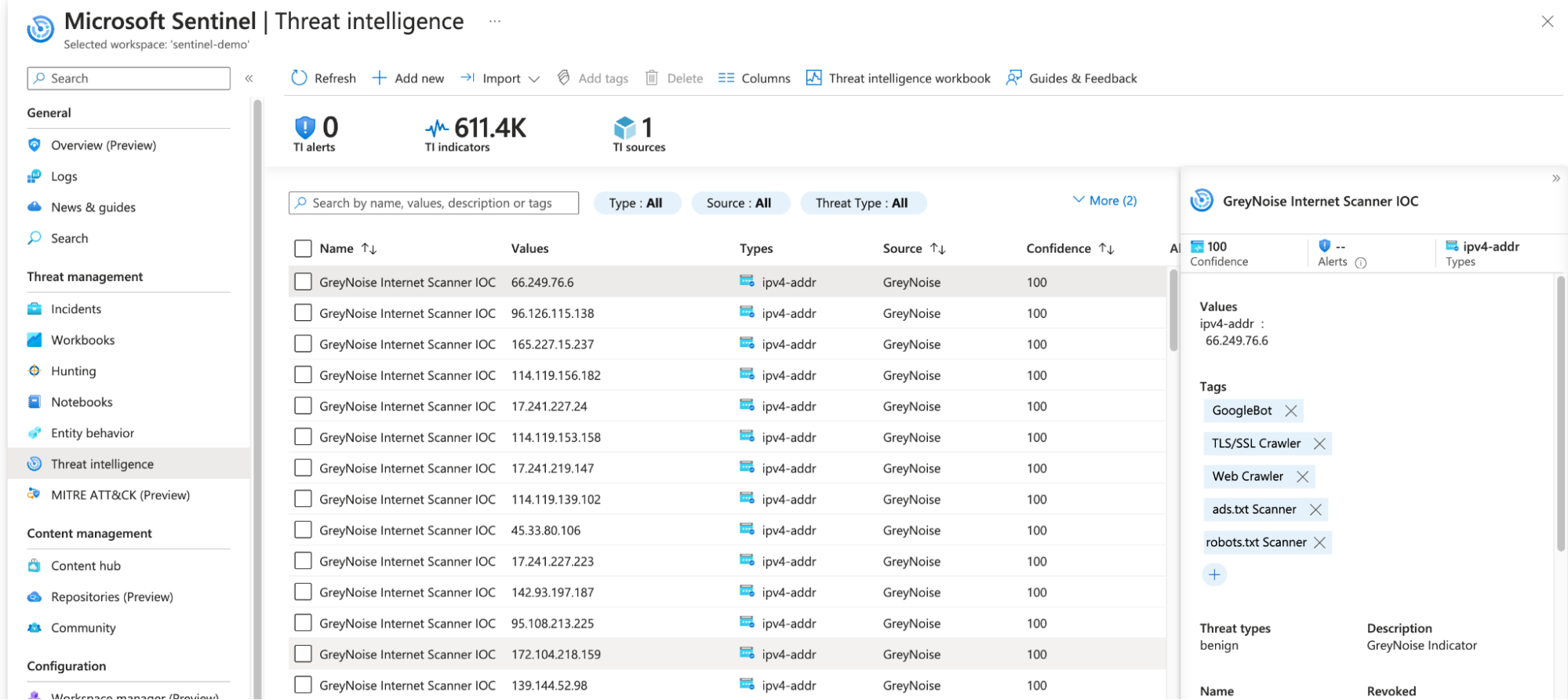
Some notes about these indicators:
- The Threat types value will contain the indicator classification
- The Tags will include all GreyNoise tags associated with the indicator
- The indicator will be "valid" for 24h after ingest
Log Analytics Workspace
A Log Analytics Workspace is required to execute use-case queries, validate ingested GreyNoise data, and correlate it with other data sources in Microsoft Sentinel.
It serves as the central repository for all logs, with queries using KQL (Kusto Query Language).
Steps to Run Queries in Log Analytics Workspace
- Navigate to the Microsoft Sentinel instance in the Azure portal

- Select the appropriate Log Analytics Workspace
- From the left-hand menu, click on Logs under the General section
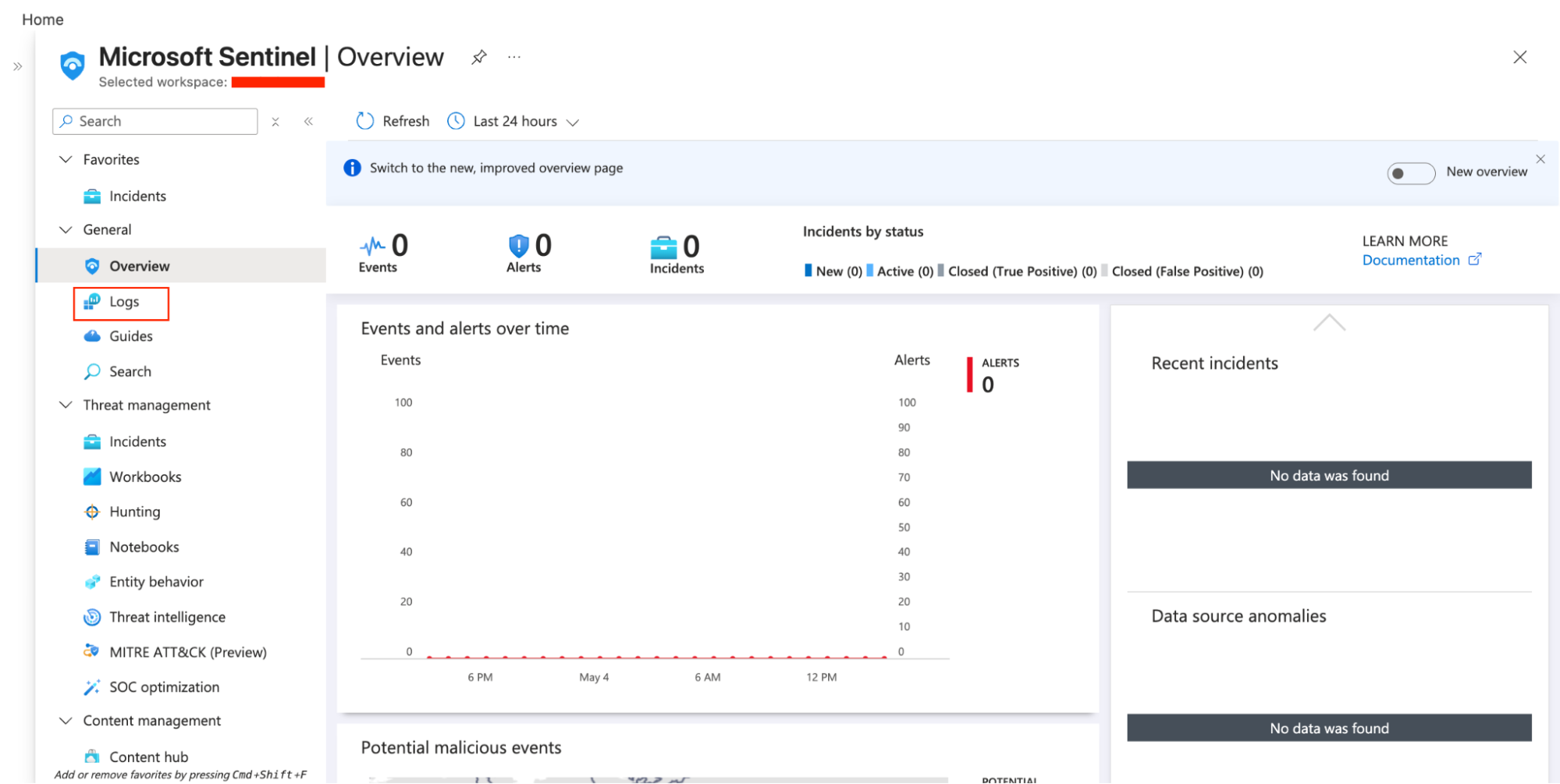
- Open the Query Editor
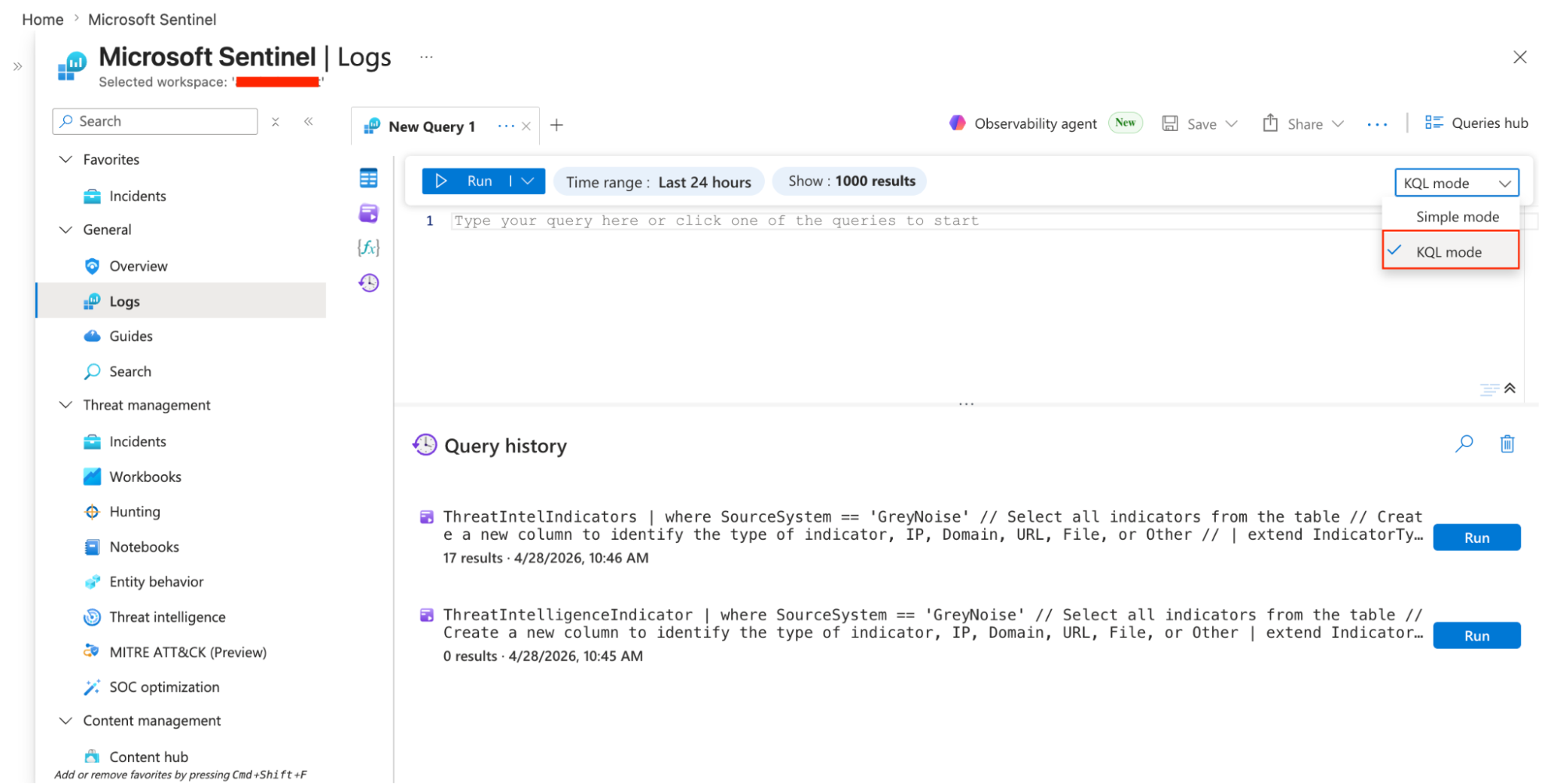
- Enter your KQL query to analyze GreyNoise or related data
- Click Run to execute the query
- Review and analyze the results in the results panel.
Steps to get Workspace ID
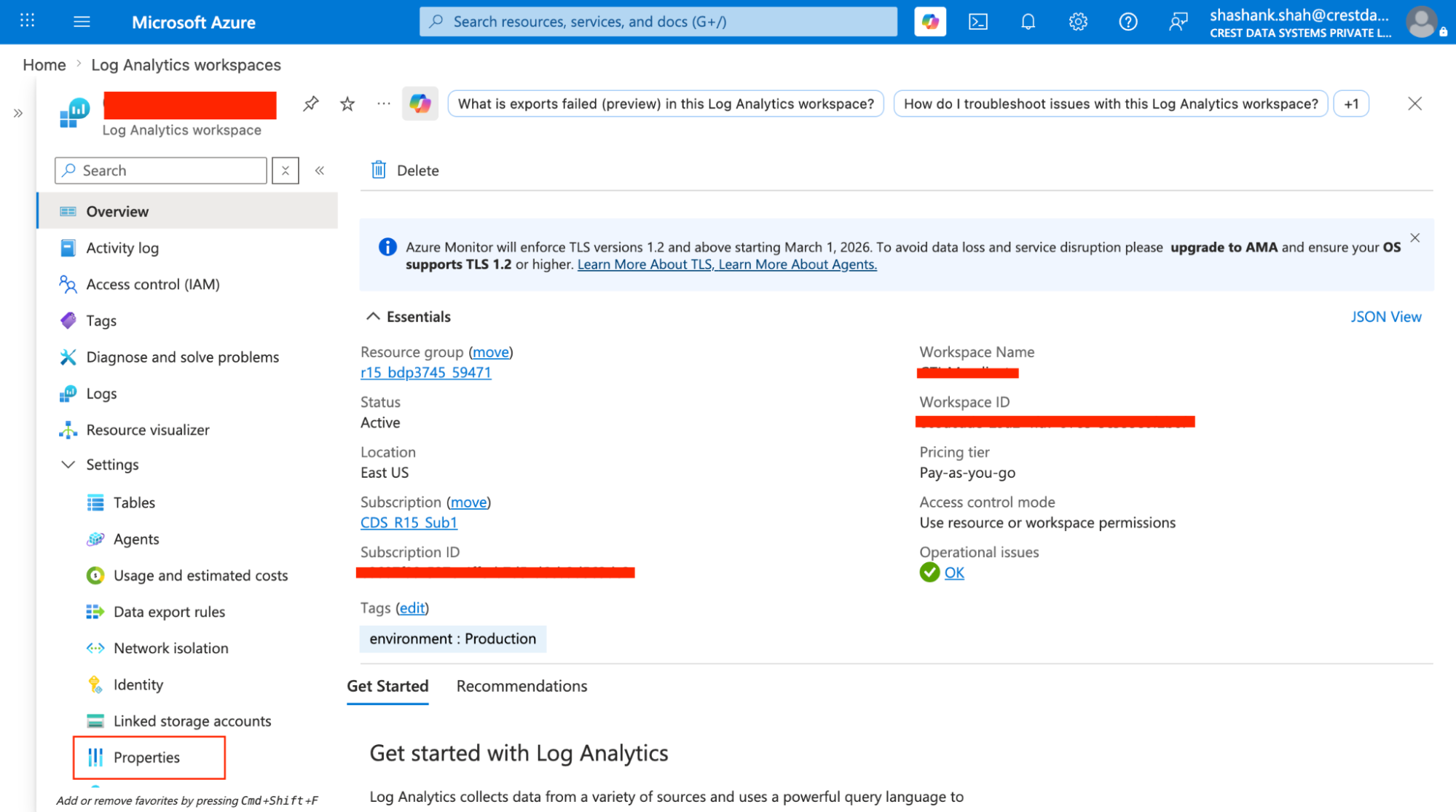
- Navigate to the Log Analytics Workspace instance in the Azure portal

- Select the appropriate Log Analytics Workspace
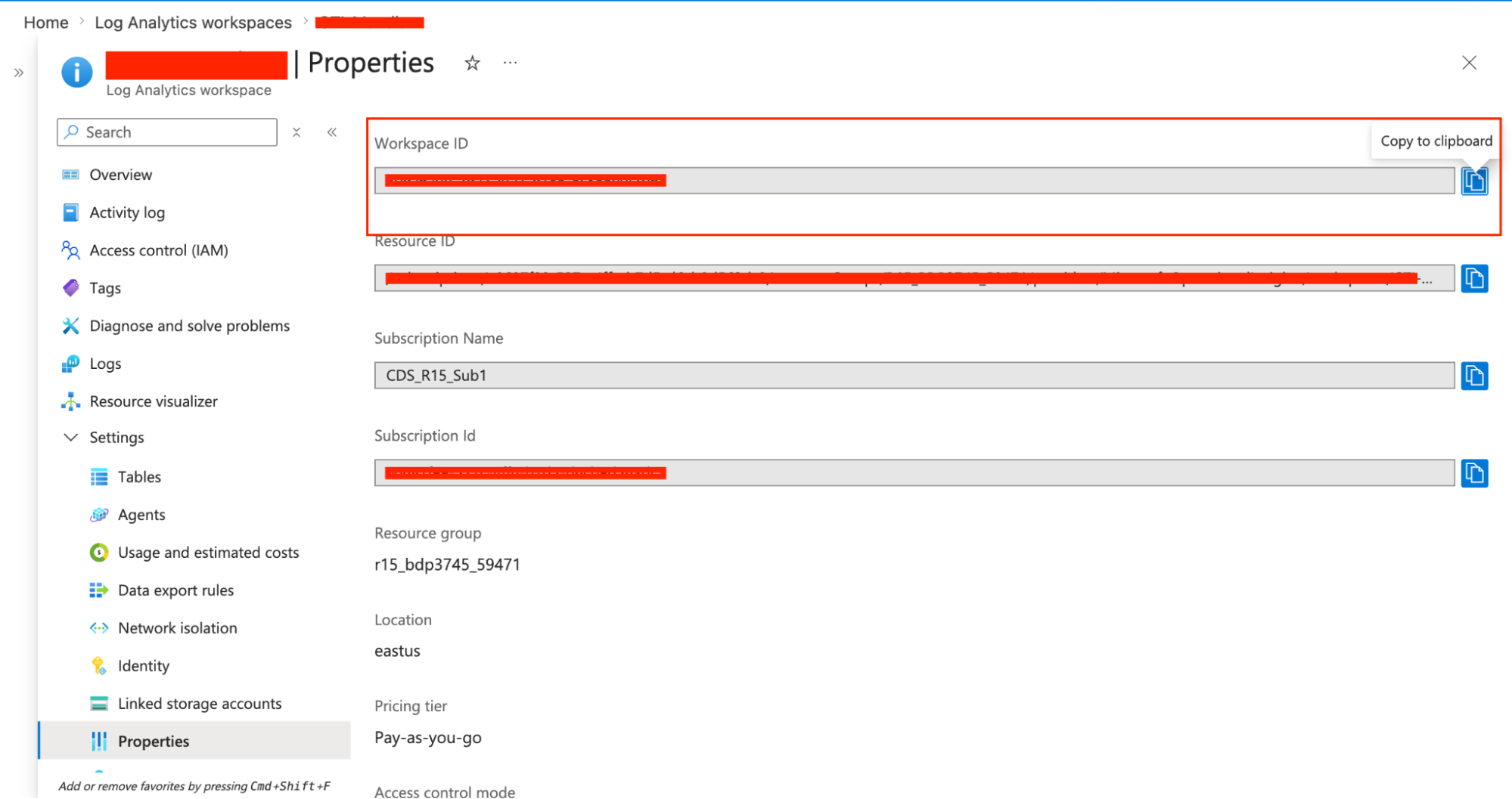
- From the left-hand menu, click on Properties under the Settings section
- Copy the Workspace ID
Analytic Rules
The Pack includes several analytics rules to match input sources to GreyNoise indicators.
- GreyNoise TI map IP entity to OfficeActivity
- This query maps any GreyNoise IP indicators of compromise (IOCs) from threat intelligence (TI), by searching for matches in OfficeActivity.
- GreyNoise TI map IP entity to Network Session Events (ASIM Network Session schema)
- This rule identifies a match Network Sessions for which the source or destination IP address is a known GreyNoise IoC. This analytic rule uses ASIM and supports any built-in or custom source that supports the ASIM NetworkSession schema
- GreyNoise TI Map IP Entity to CommonSecurityLog
- This query maps GreyNoise IP indicators of compromise (IOCs) from threat intelligence (TI), by searching for matches in CommonSecurityLog.
- GreyNoise TI Map IP Entity to DnsEvents
- This query maps any IP indicators of compromise (IOCs) from GreyNoise Threat Intelligence (TI), by searching for matches in DnsEvents.
- GreyNoise TI Map IP Entity to SigninLogs
- This query maps any GreyNoise IP indicators of compromise (IOCs) from threat intelligence (TI), by searching for matches in SigninLogs.
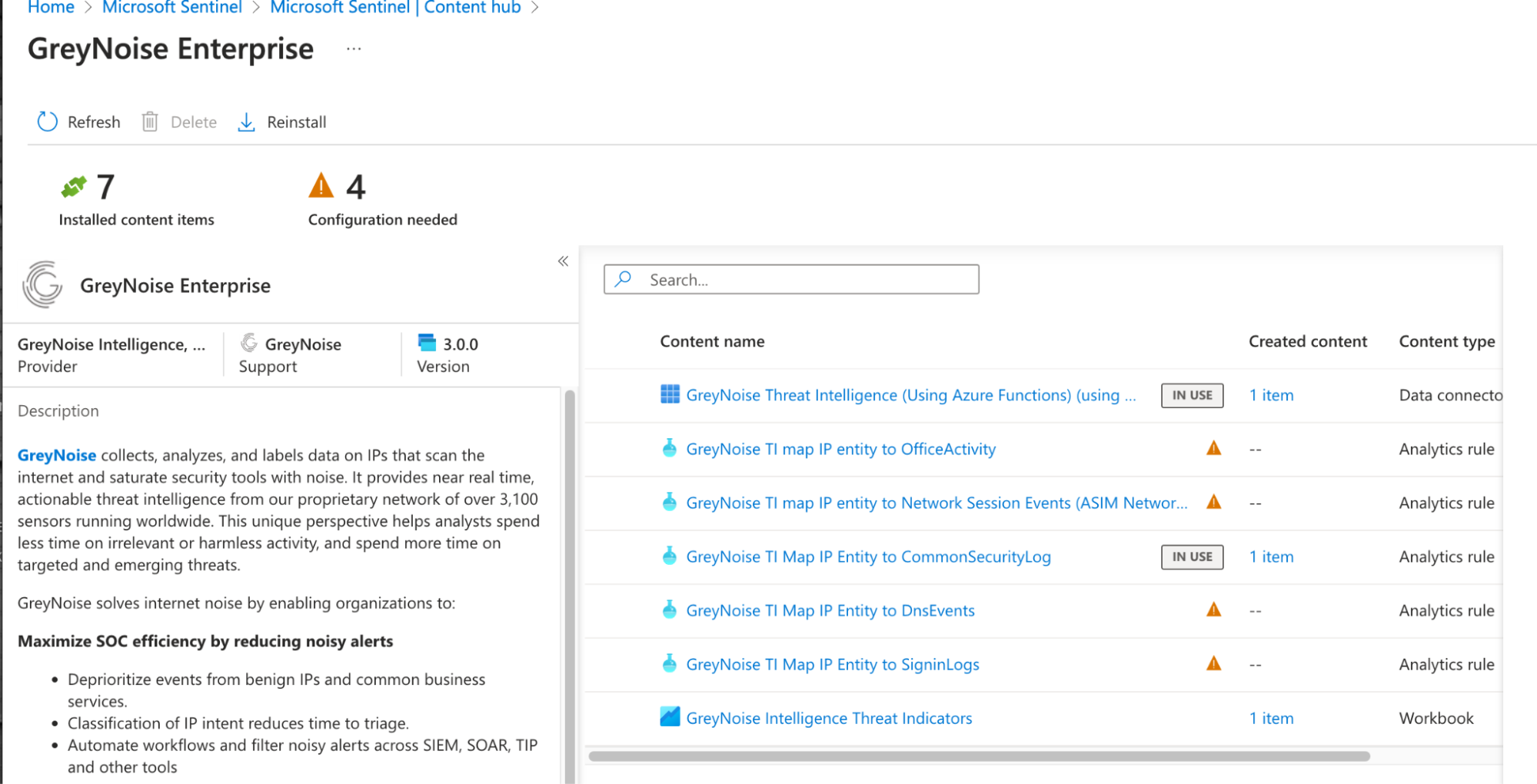
These can be installed as is or used as a template to create custom analytics rules.
Install Analytic Rule
- Navigate to the Microsoft Sentinel instance in the Azure portal
- Select your workspace, then go to Analytics under the Configuration section and open the Rule templates tab.
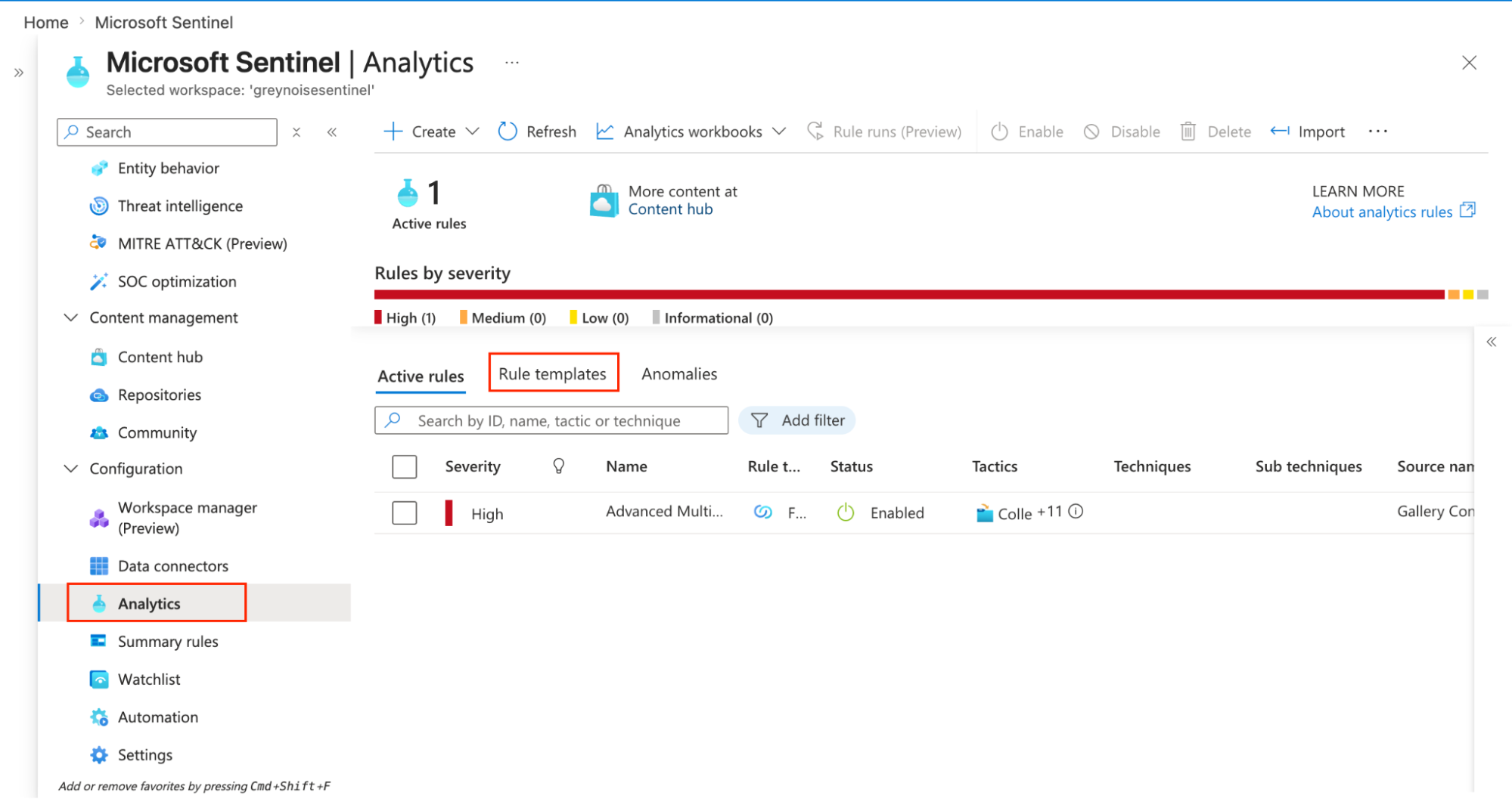
- Select any rule template you want to install.
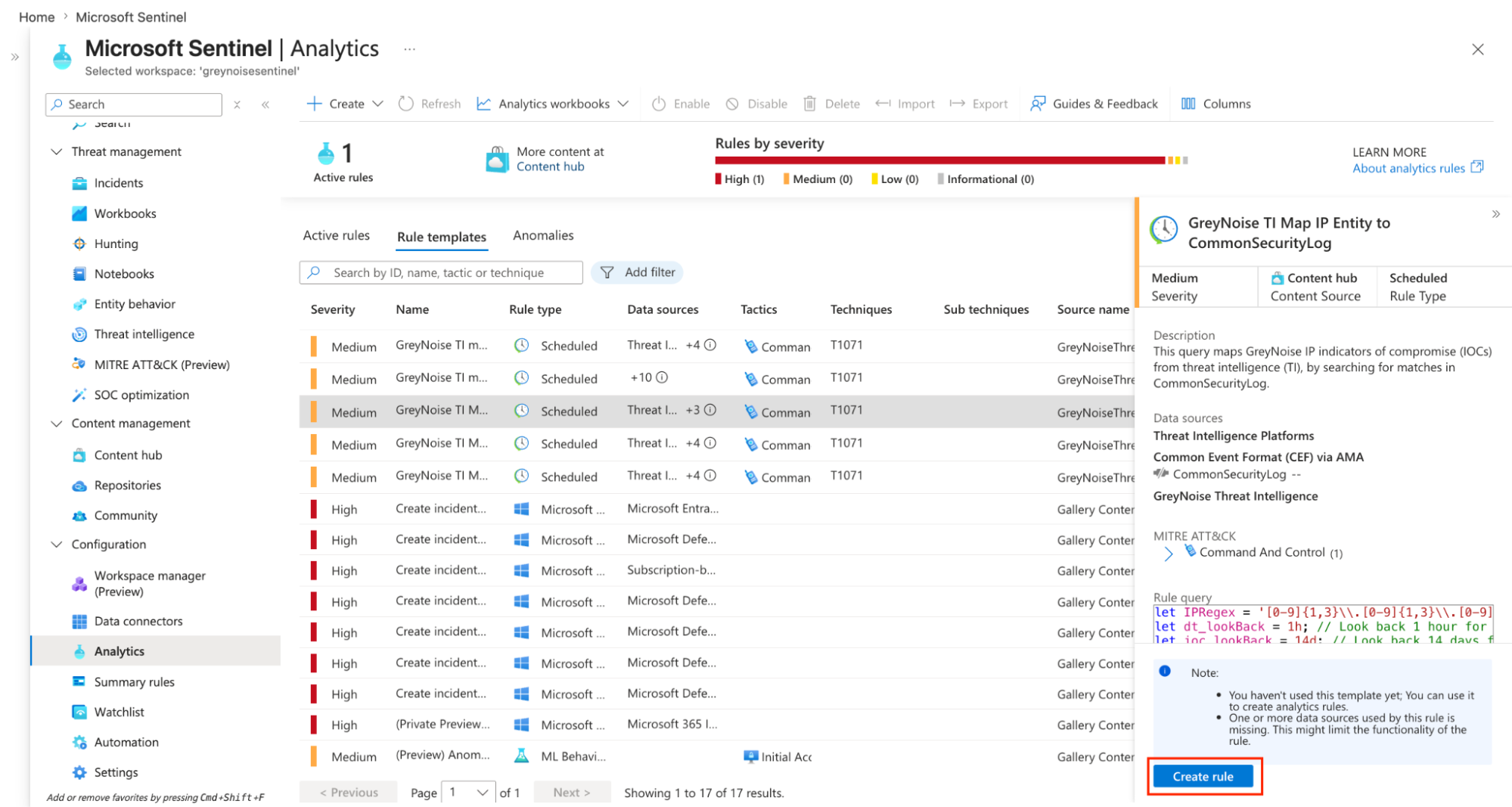
-
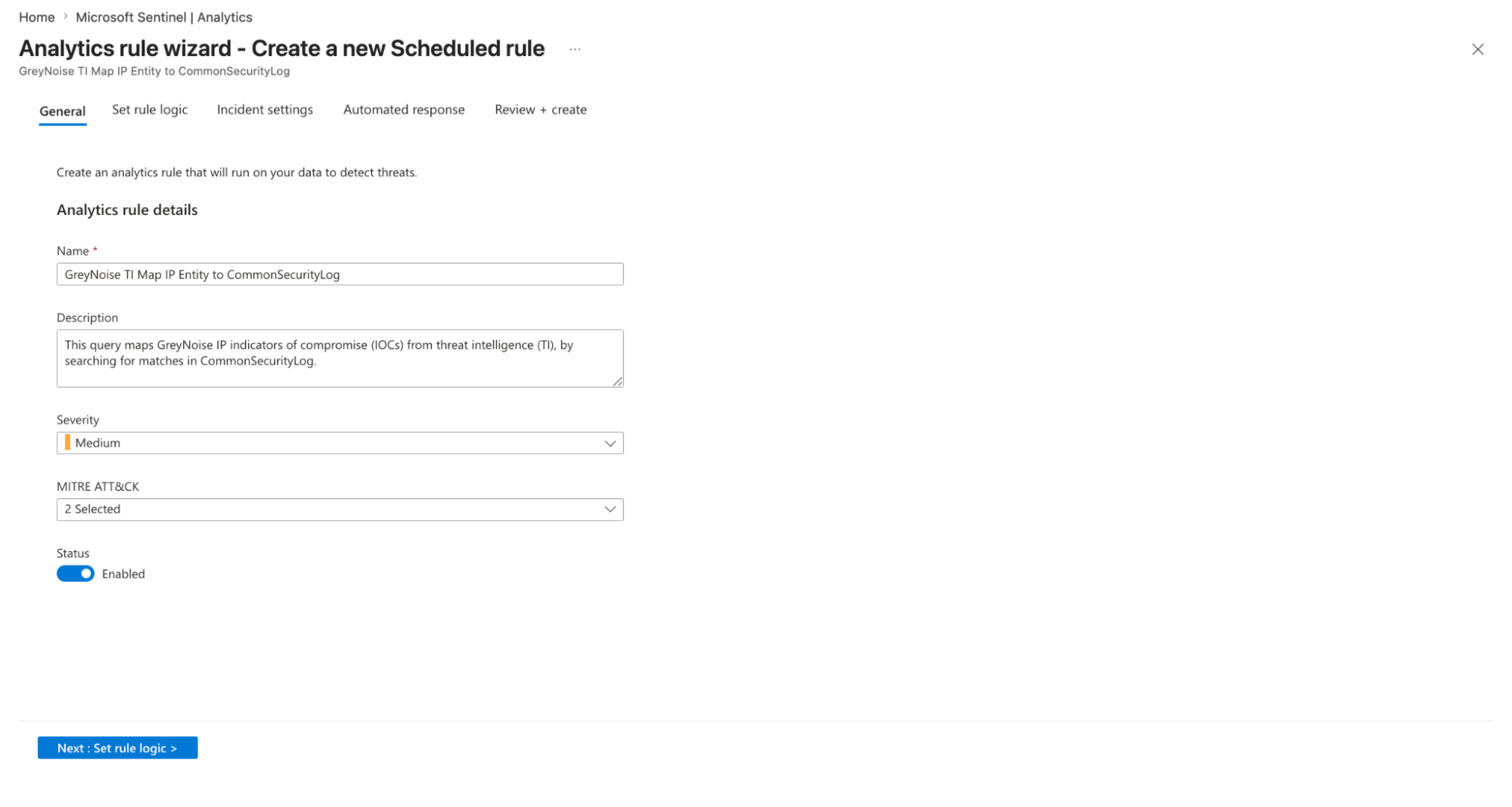
Verify or update any details if you want.
-
Name: GreyNoise TI map IP entity to OfficeActivity
-
Description: Surfaces inbound IPs that are unidentified in GreyNoise's internet scanner dataset and are repeatedly hitting the perimeter - high-probability targeted threats.
-
Severity: Select desired severity
-
MITRE ATT&CK: Select tactics, techniques, and sub-techniques.
-
- Tactics: Reconnaissance
- Technique: T1595 - Active Scanning
- Sub-Technique: T1595.001 - Scanning IP Blocks
-
Click on Next: Set rule logic option
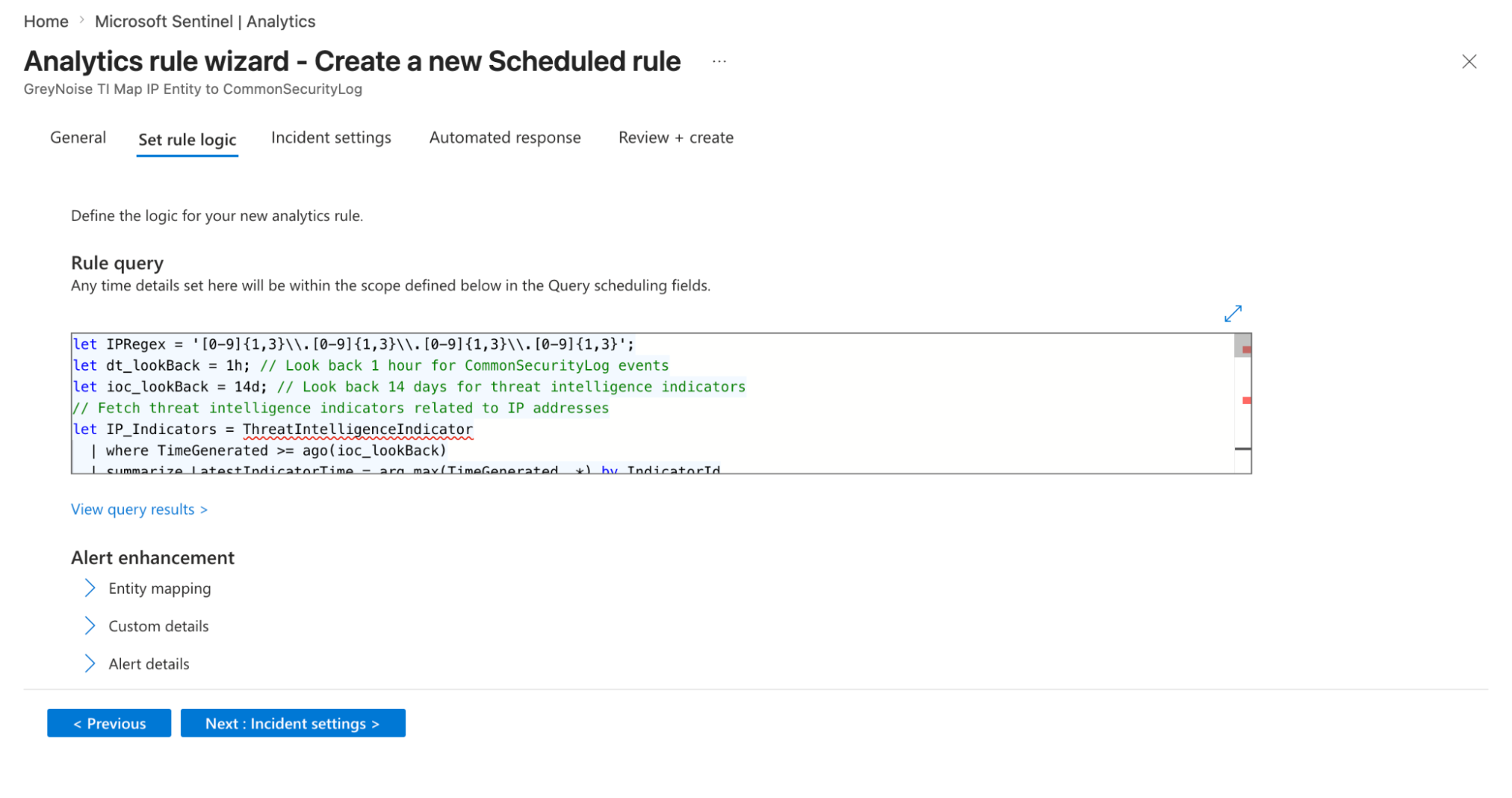
- Rule query: query to correlate GreyNoise data
-
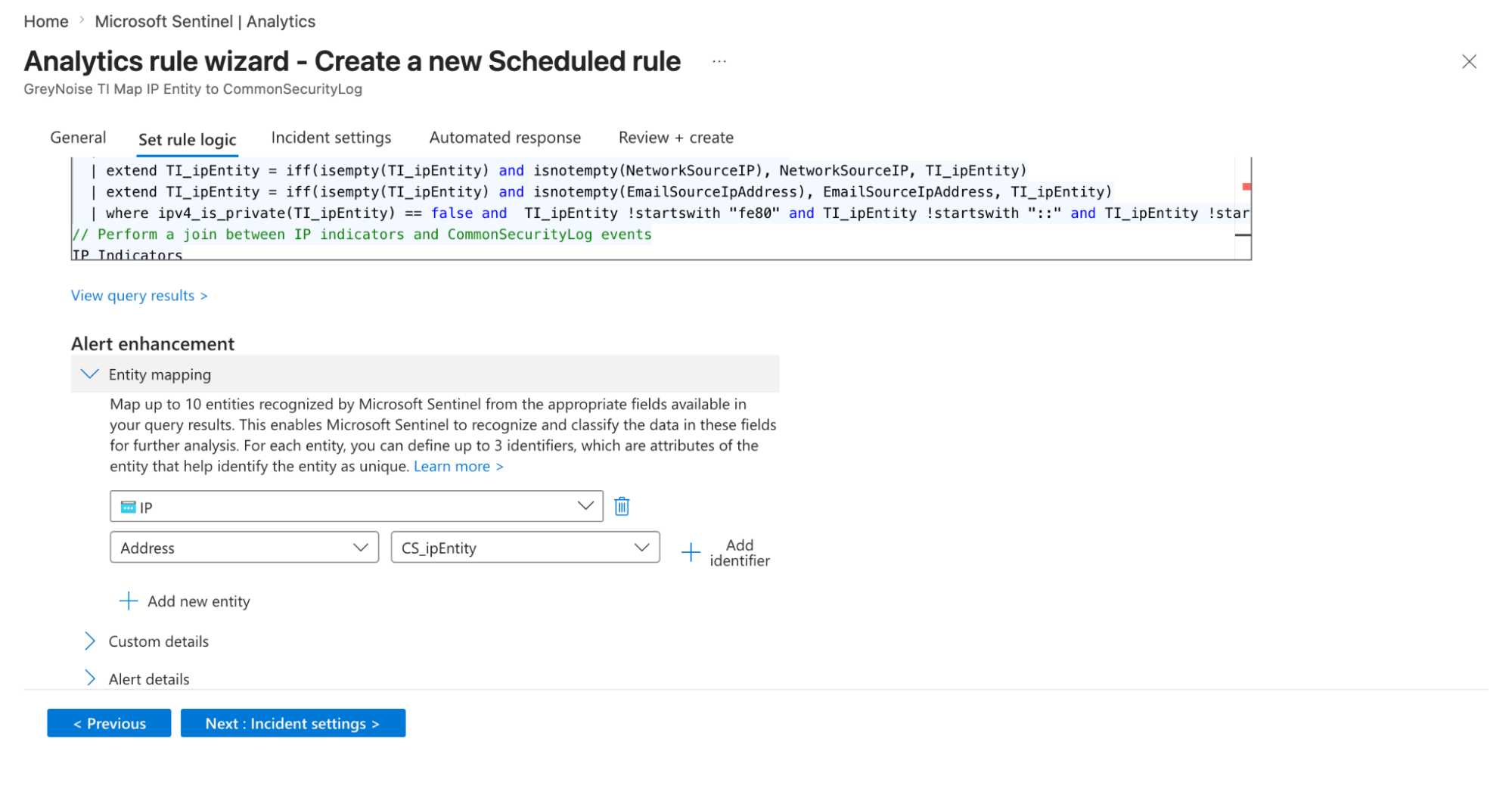
Entity Mapping:
- Map relevant fields from your query results to Sentinel entities (for example, map SourceIP to the IP entity type). This allows Sentinel to enrich alerts with context and helps in investigation and correlation within incidents.
-
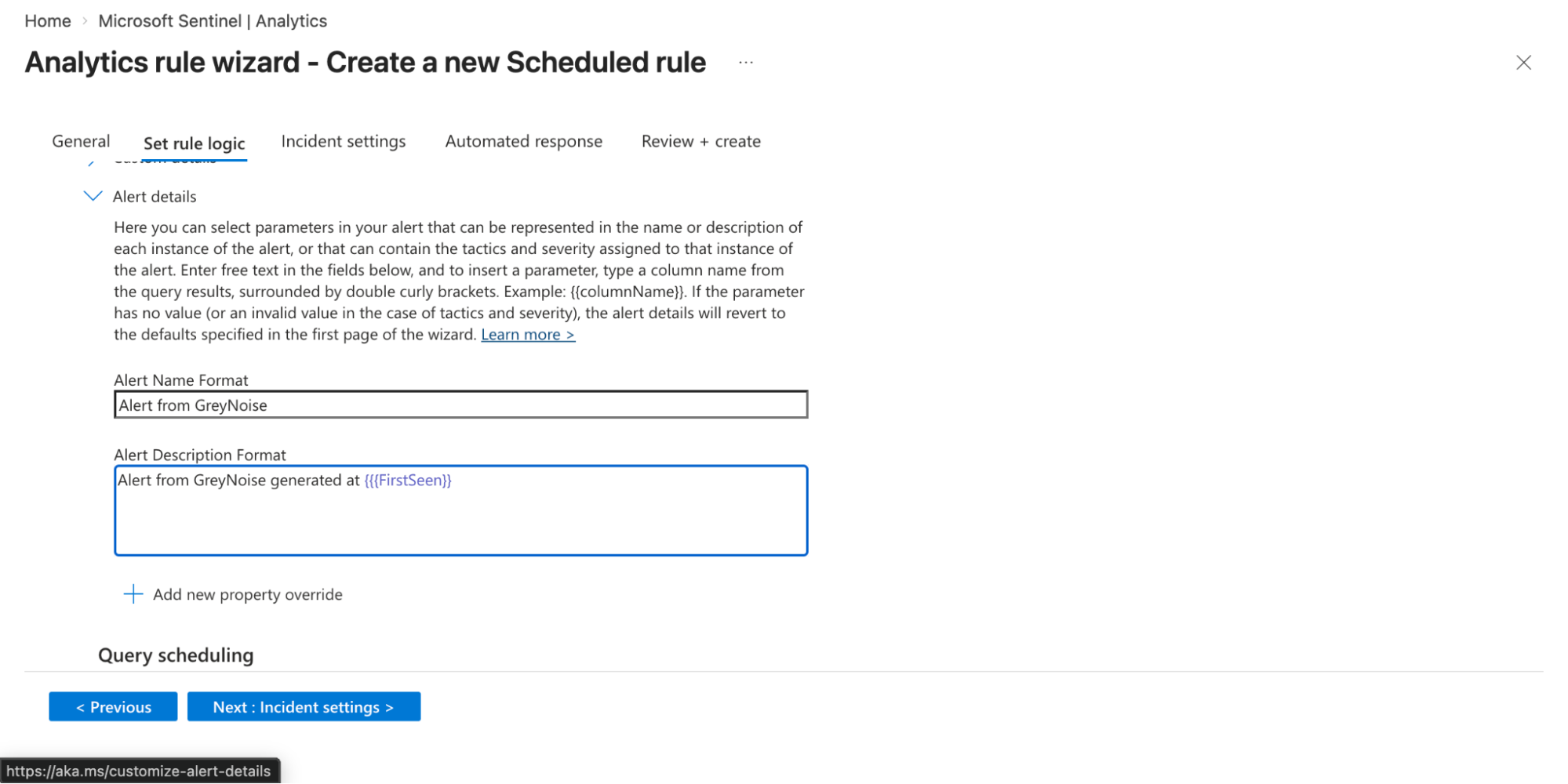
Alert details:
- Provide a meaningful alert name and description. You can also dynamically customize these using query fields (e.g., include IP addresses or usernames) so each alert provides better context during investigation.
-
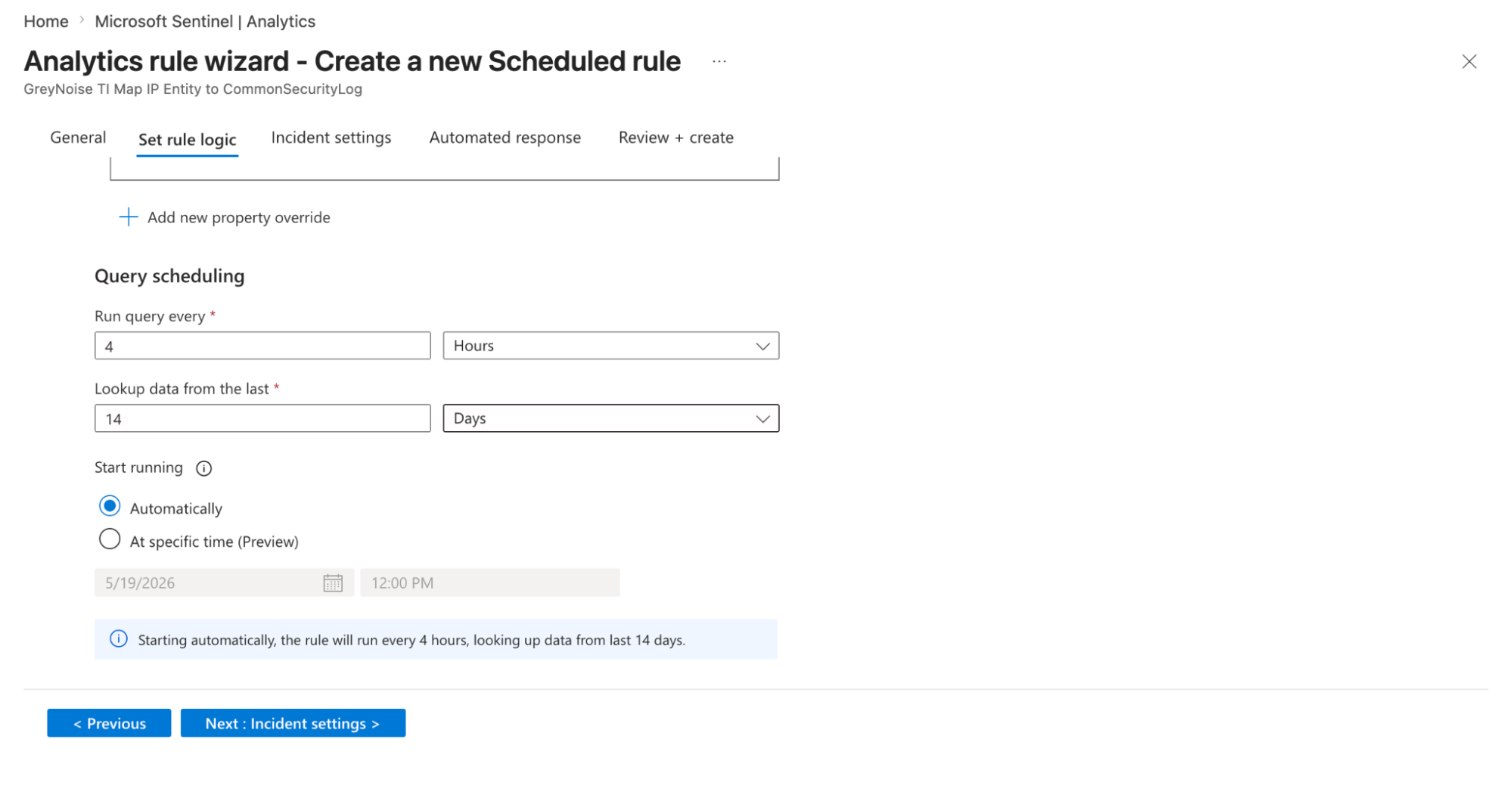
Query scheduling
-
Set how frequently the rule runs in the Run query every text box.
- Enter the amount of historical data it analyzes in the Lookup data text box. The lookback period should be at least as long as the run interval to avoid missing events.
-
-
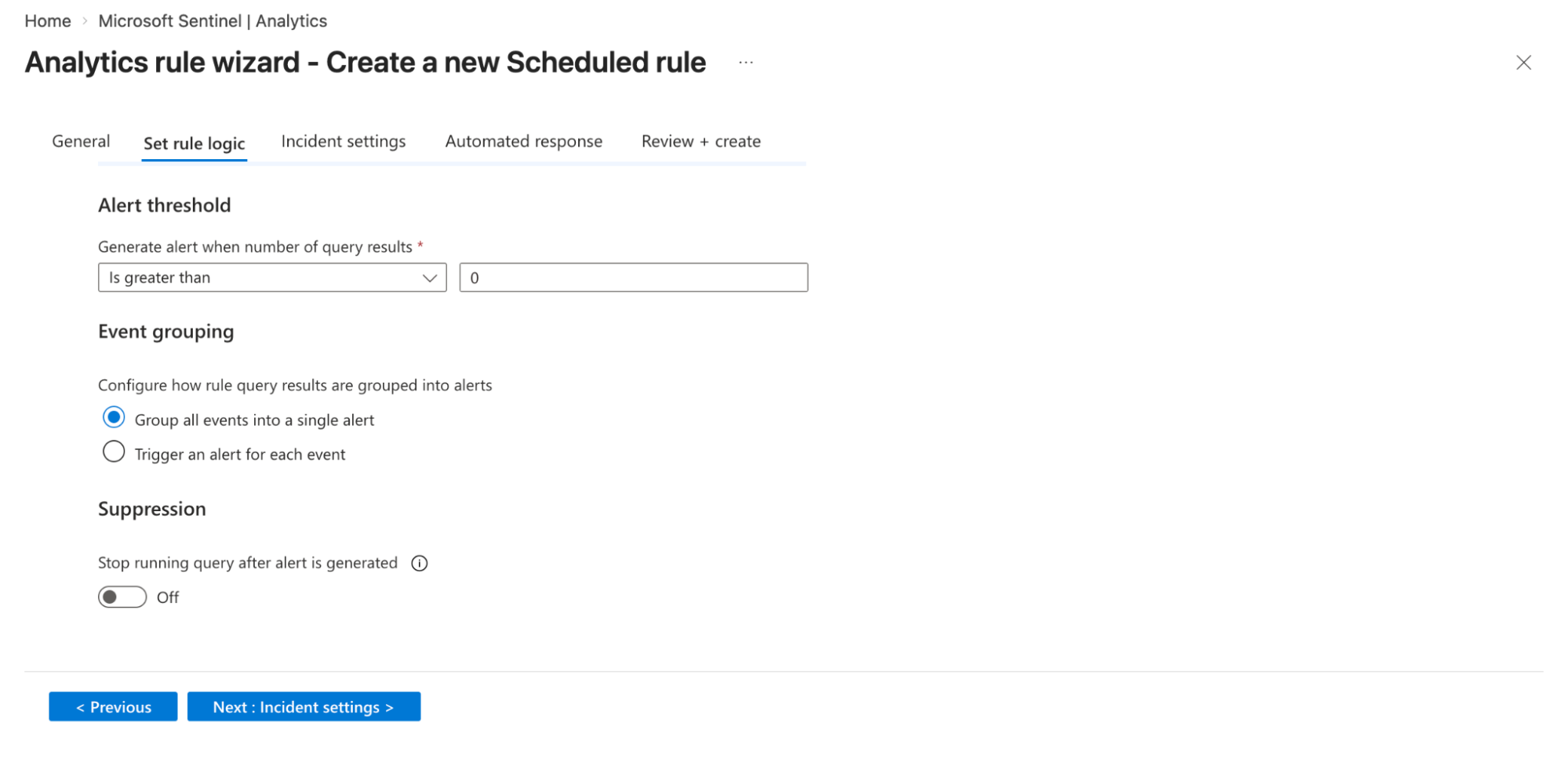
Alert threshold
-
Define when an alert should be generated based on query results in the Generate alerts when number of query results option. (e.g., trigger an alert when results are greater than a defined number). This helps control noise and adjust detection sensitivity.
-
Decide how alerts are generated from query results:
-
Group all events into a single alert: Creates one alert summarizing all matching events.
-
Trigger an alert for each event: Generates a separate alert for each event for granular visibility.
-
-
You can enable suppression to stop the rule from running after an alert is triggered.
-
-
-
Click on Next: Incident settings option.
-
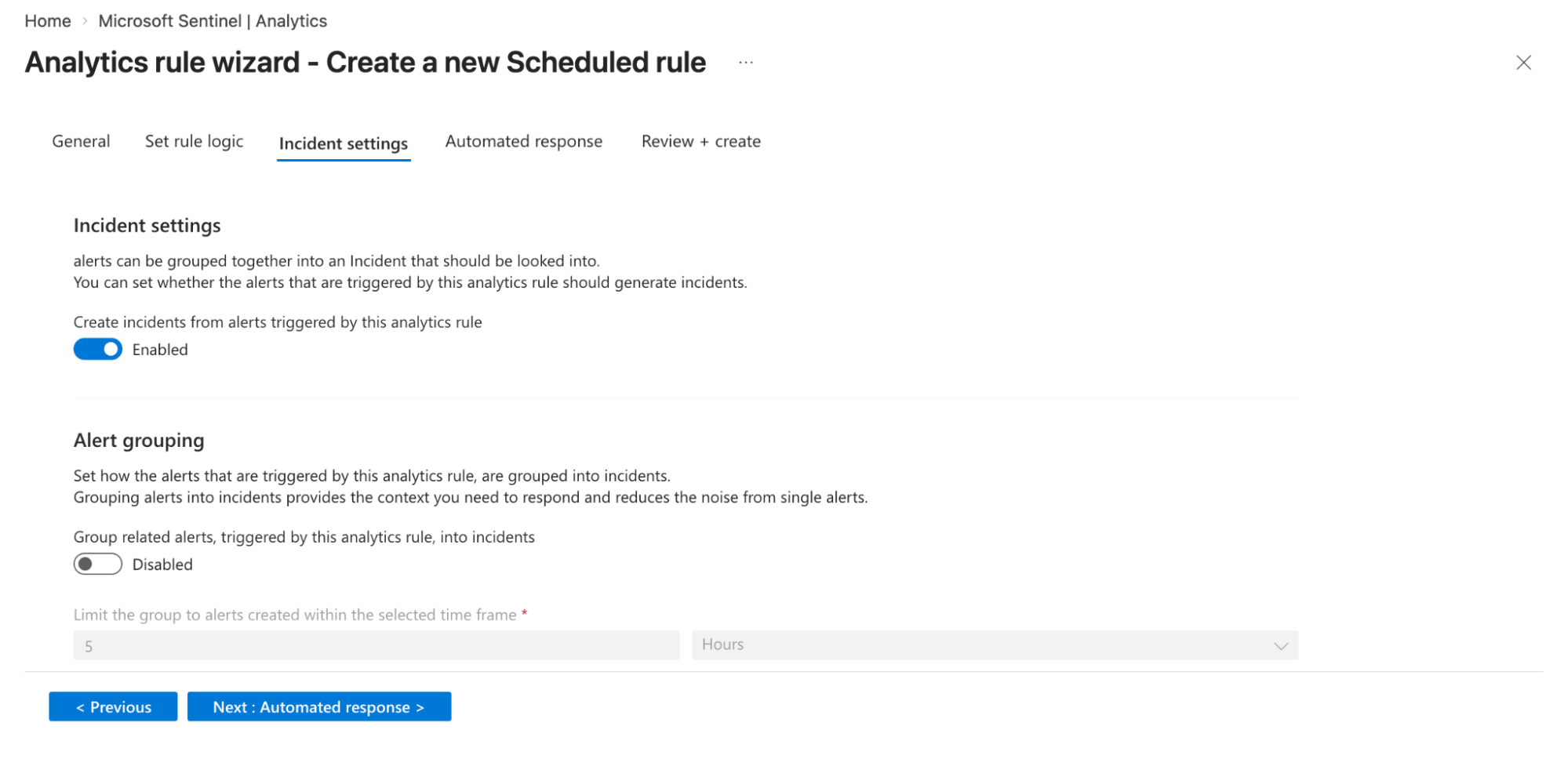
Incident Settings Tab
- Configure the rule to automatically create incidents from generated alerts. This ensures alerts are grouped into incidents for SOC investigation workflows.
-
-
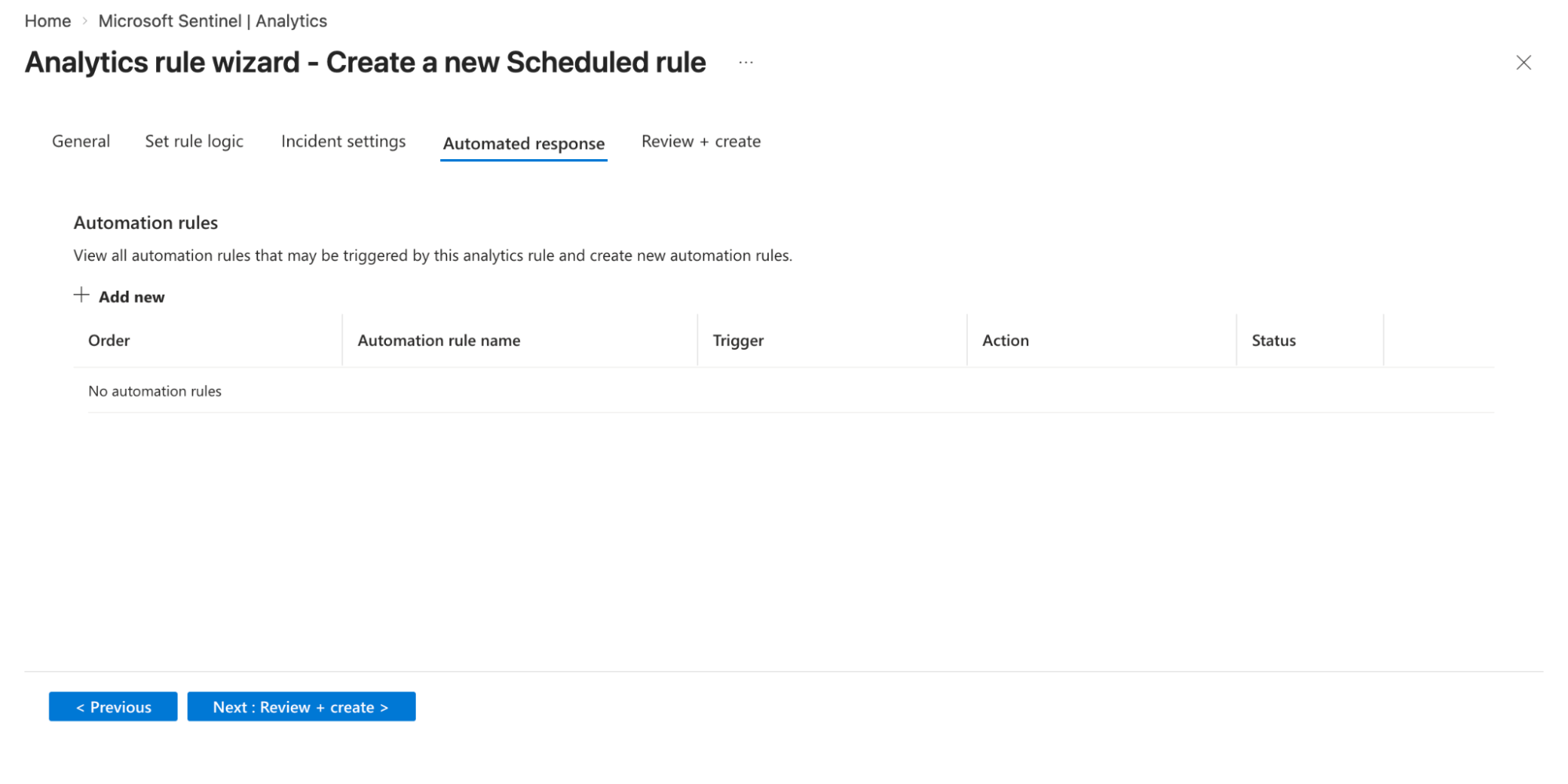
Automation rules
- Attach automation rules or playbooks (Logic Apps) to trigger actions such as blocking IPs, sending notifications, or enriching alerts. You can define conditions, triggers, and execution order for these automated responses.
- Click on the Save option.
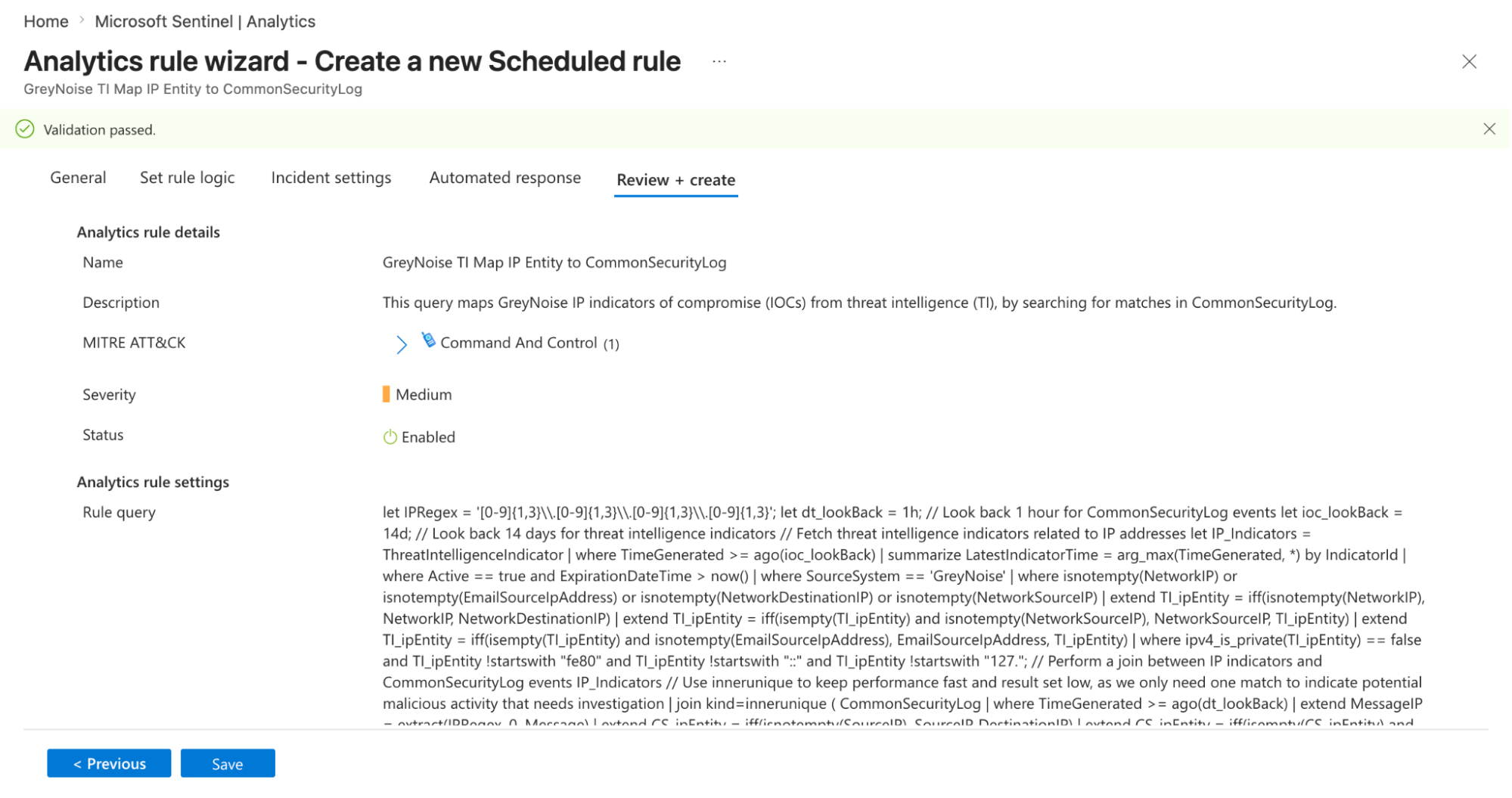
Note: You can adjust the Schedule and Lookup durations as needed.
Workbooks
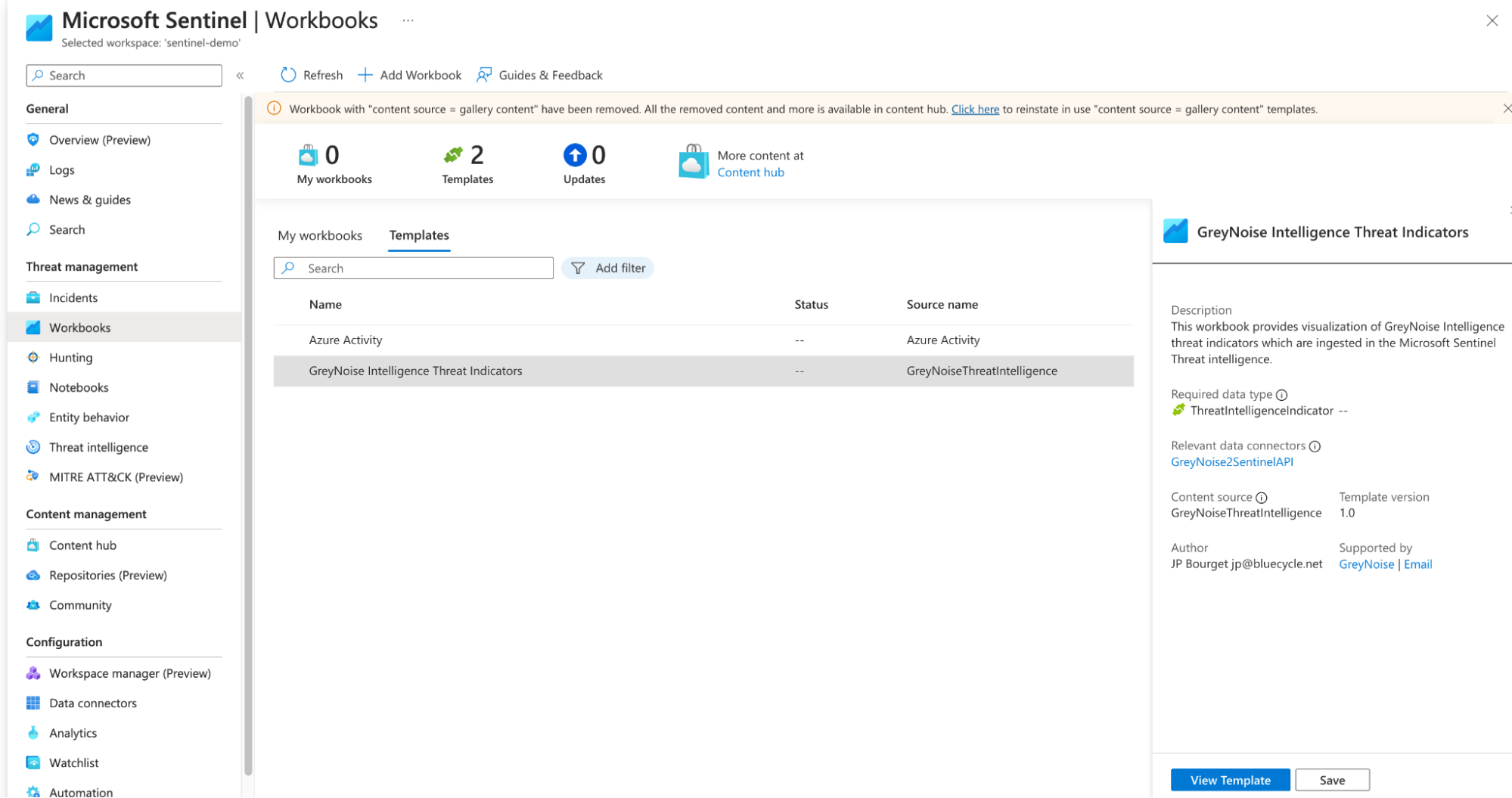
The Pack includes a Workbook that can be added to Sentinel. Under Workbook templates, find and install the GreyNoise Intelligence Threat Indicators Workbook.
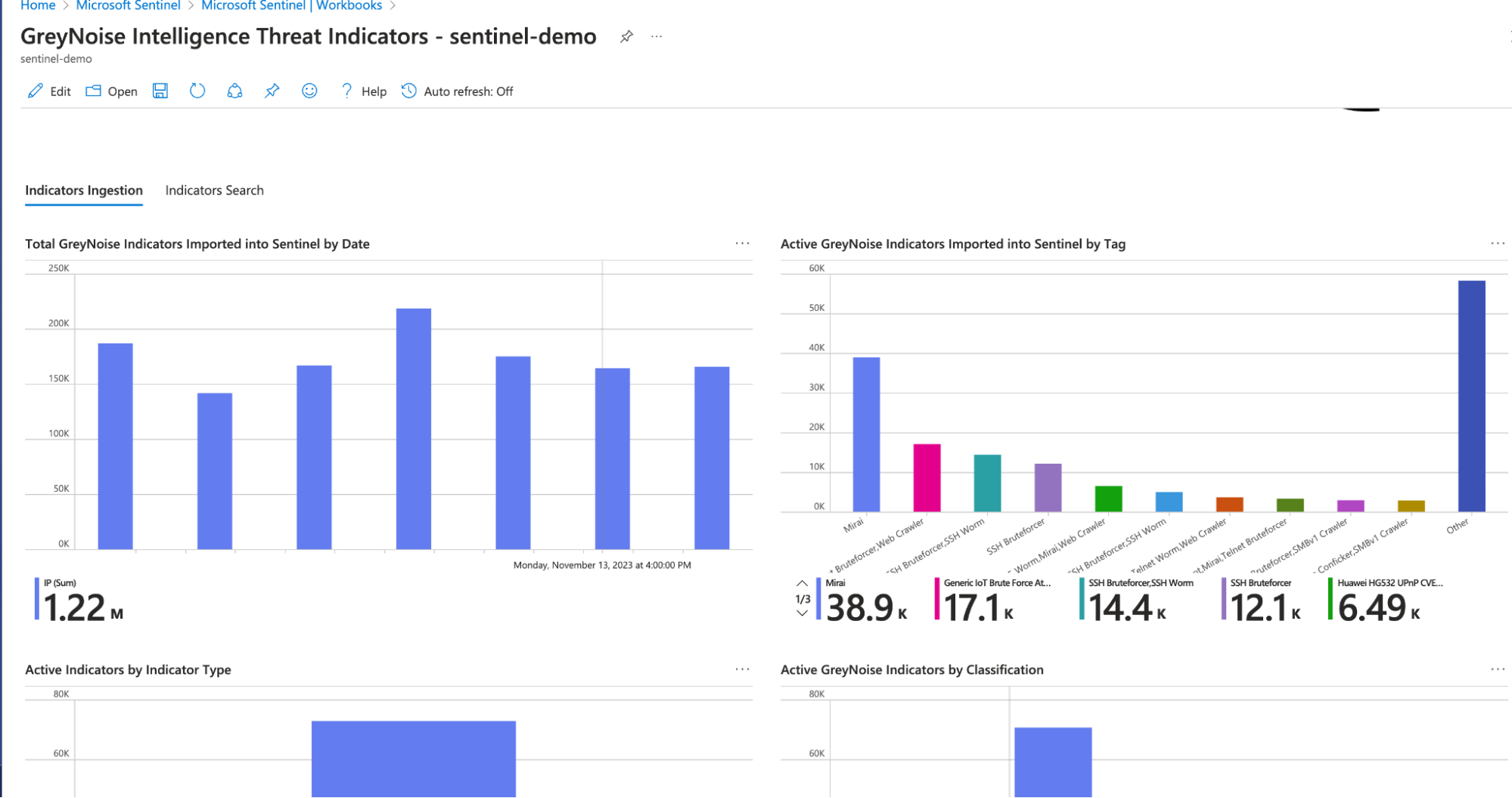
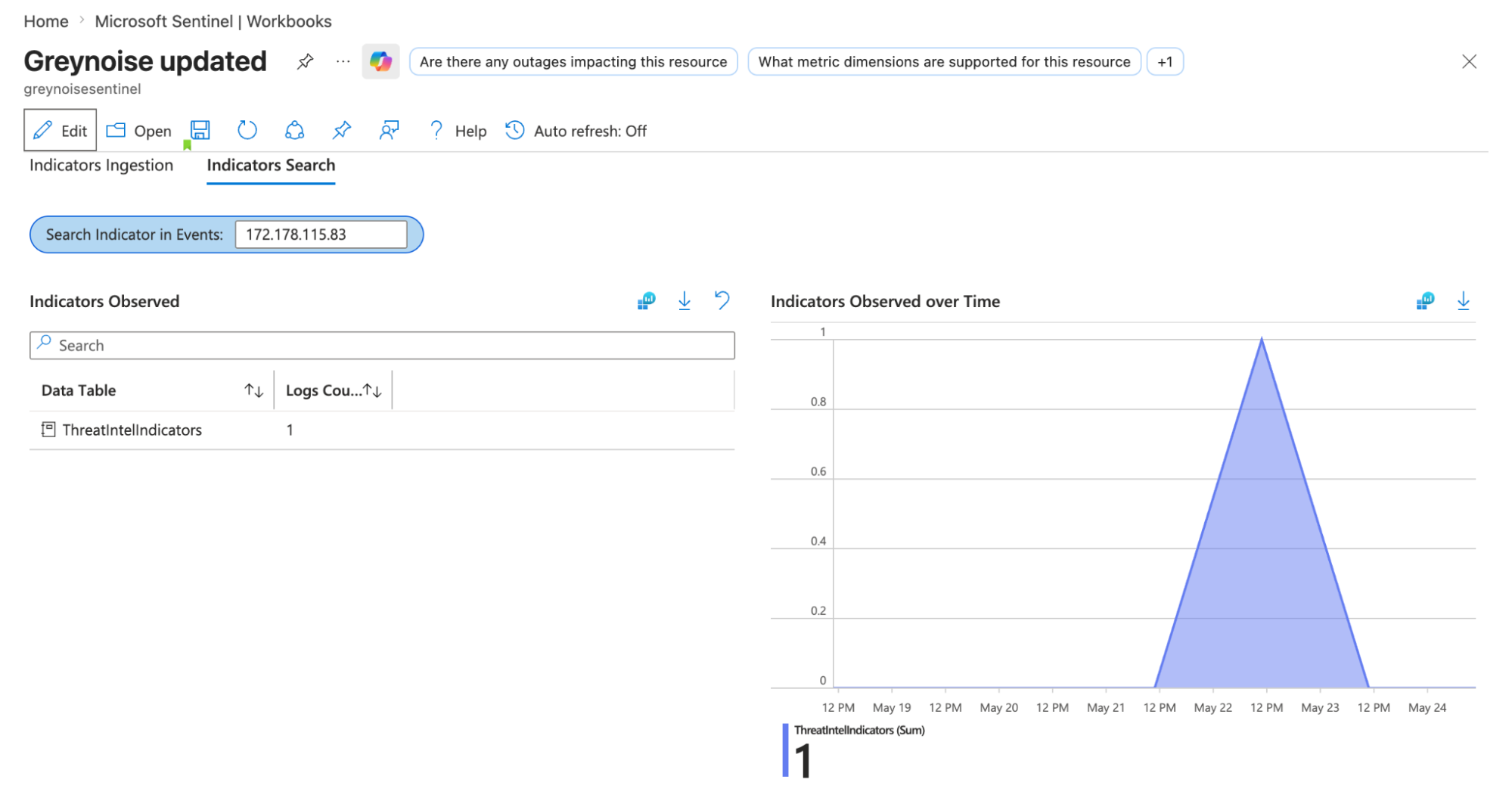
Once installed, viewing the Workbook will provide some insight into the indicators ingested by the Feed:
Changelog
Changes in v3.1.1
- Updated Data Connector instructions
- Fixed Python module mismatches
- Bumped Az Functions Runtime
Changes in v3.0.3
- Updated to use GreyNoise Python SDK v3.0.1
- Use the new Threat Intel API for Creating Indicators
- Updated requirements.txt for using python new dependencies
- Updated Data Connector instructions
Updated 4 months ago