
Profile Library & Setup
Browsing the Profile Library
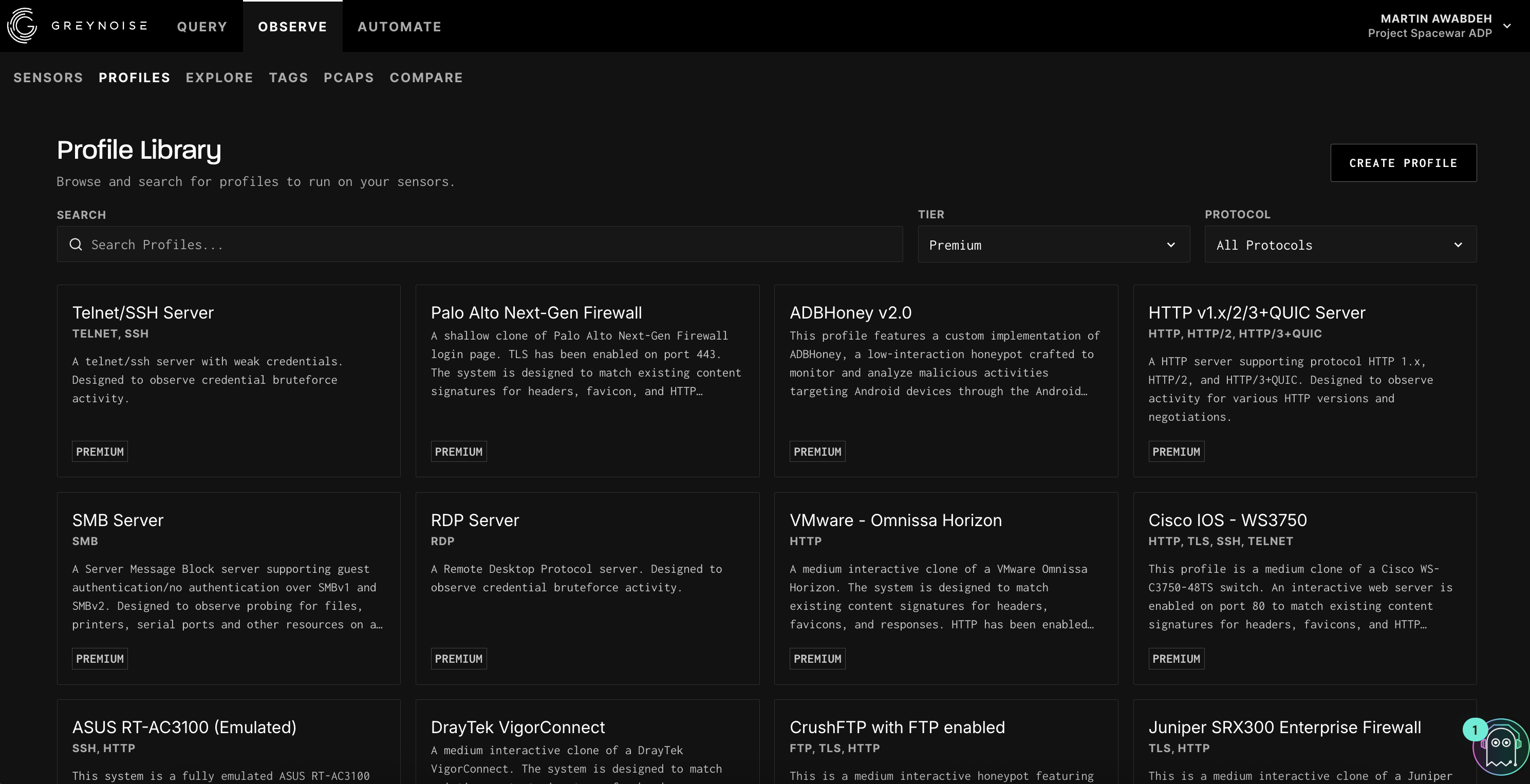
The Profile Library is where you find and select profiles to assign to your sensors. It contains 200+ pre-built device profiles covering a wide range of commonly targeted technologies.
How to Access the Profile Library:
- Log in to the GreyNoise Visualizer.
- Click on Observe → Profiles.
- The Profile Library page loads, showing all available profiles as cards.
Tip: Click on any profile card to view full details including listening ports, protocol configuration, and the option to assign it to a sensor.
Searching and Filtering
Use the three filter controls at the top of the Profile Library page to find the right profile:
- Search bar: Type a keyword such as a vendor name (e.g., "Cisco"), device type (e.g., "firewall"), or protocol (e.g., "SSH") to filter profiles by name and description.
- Tier dropdown: Filter by profile tier to narrow results to a specific access level.
- Protocol dropdown: Filter by network protocol (e.g., HTTP, SSH, Telnet, SMB, RDP) to find profiles that listen on specific services.
Profile Card Details
Each profile card in the library displays:
- Profile name: the device or service being emulated (e.g., "Palo Alto Next-Gen Firewall")
- Protocols: the protocols the profile listens on (e.g., HTTP, TLS, SSH, TELNET)
- Ports: the specific ports the profile listens on, organized by protocol (e.g., http: 80, 443, 8443)
- Description: a brief summary of what the profile emulates and its interaction level
- Explore Sessions: link to view all session data captured by this profile across your sensors
- Interaction: the depth of emulation (low, medium, or high)
- Depth: how much of the protocol stack is emulated (low, medium, or high)
- Risk: the risk level of the profile (low for fingerprinting only, higher for profiles that allow exploitation)
- Engine: the emulation engine powering the profile (e.g., nginx, apache)
- Instance: the specific deployment type (e.g., gateway, server)
Updated 6 months ago
Did this page help you?