
Configure Palo Alto Networks EDL with GreyNoise Blocklists
GreyNoise Blocklists can be leveraged in many edge platforms for fast, reliable and continuously up-to-date blocking efforts. This document outlines how to create a GreyNoise Blocklist and implement it in Palo Alto Networks PAN-OS.
Estimated Time:
⏱️ ~10-20 minutes
Prerequisites
Before starting, confirm:
- ✅ Access to GreyNoise with Blocklists
- ✅ Access to PAN-OS with
CommmitPrivileges - Confirm Max EDL Support
Instructions
Step 1: Query for a Blocklist
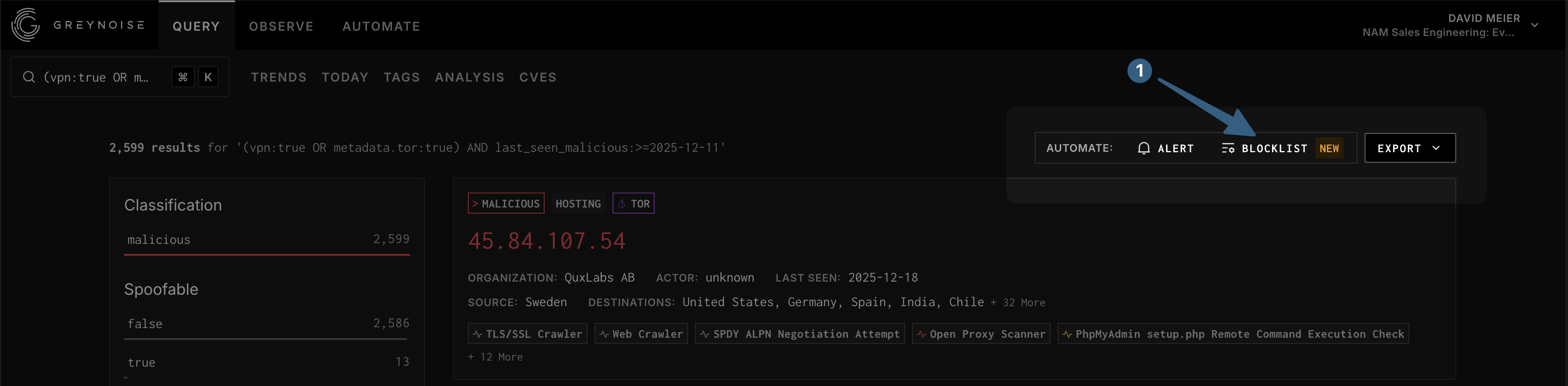
Log in to GreyNoise and build a GNQL query that yields the IPs you would like to block. An example query is as follows:
(vpn:true OR metadata.tor:true) last_seen_malicious:7d
Once the query produces the expected results:
Click the Blocklist icon.
Step 2: Create Blocklist
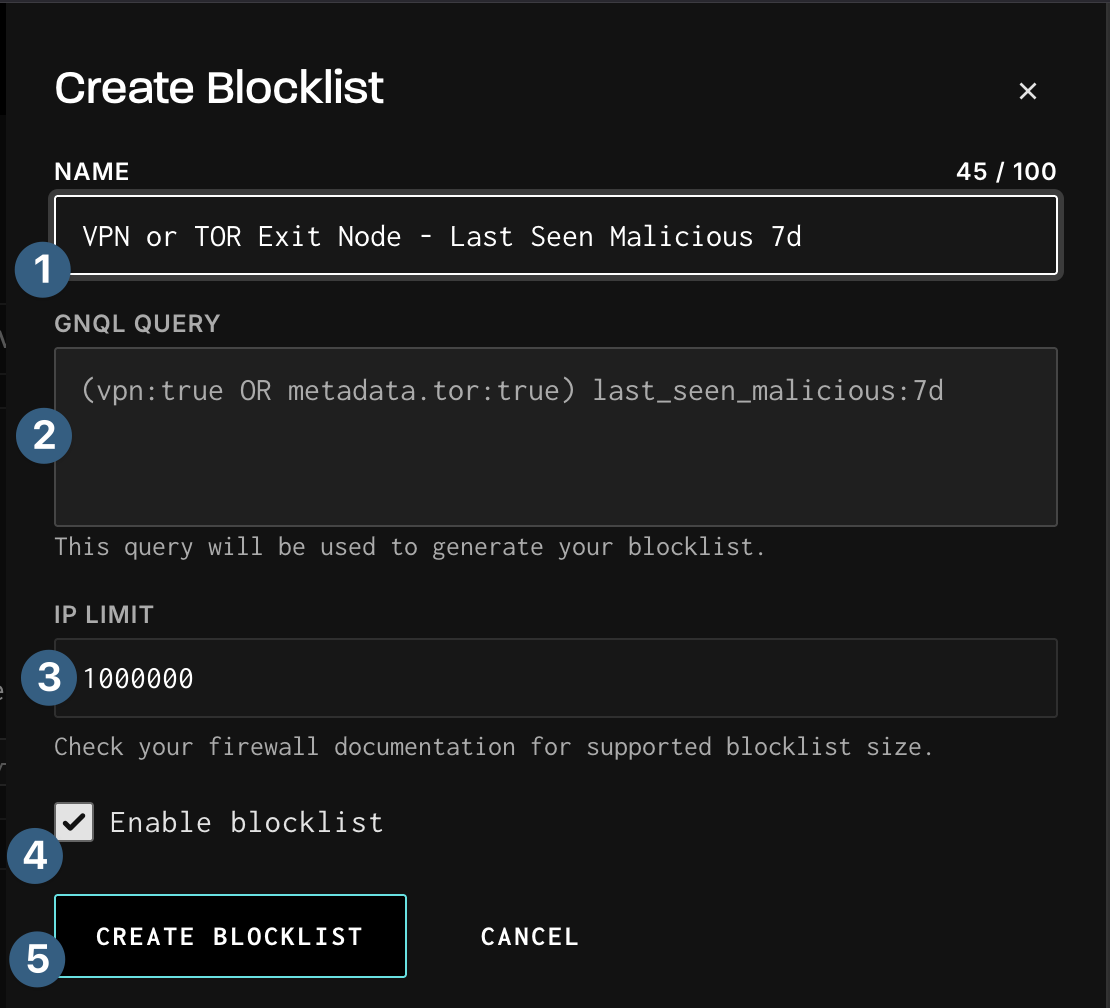
Within Create Blocklist:
- Give the Blocklist a name (e.g.
VPN or TOR Exit Node - Last Seen Malicious 7d). - Validate the GNQL is as expected, if not
Canceland adjust the query before proceeding. - If you need to provide Blocklist limits for returned results adjust the
IP Limitvalue. - Select whether the Blocklist is enabled after creation.
- Click
Create blocklistto proceed.
The Blocklist will then show as Provisioning which can take 5-10 minutes.

Once Provisioning is complete and shows Enabled proceed to the next step.
Step 3: Copy Tokenized URL
Navigate in GreyNoise to the Blocklists section (Automate --> Blocklists).
- Click
Actionson the right side of the appropriateBlocklist. - Click
Copy Tokenized URLfrom the drop down.
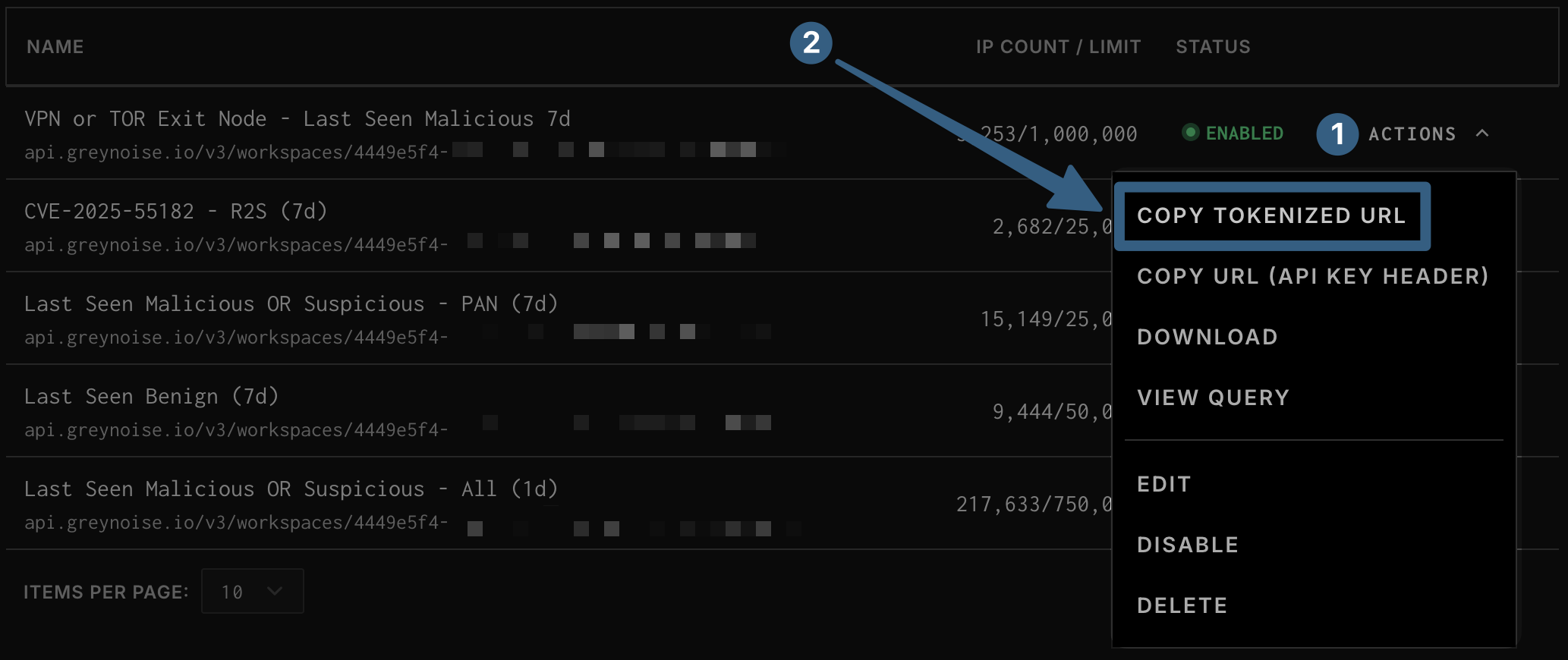
The tokenized URL contains an authentication key, protect it as a secret.
Step 4: Configure PAN-OS EDL
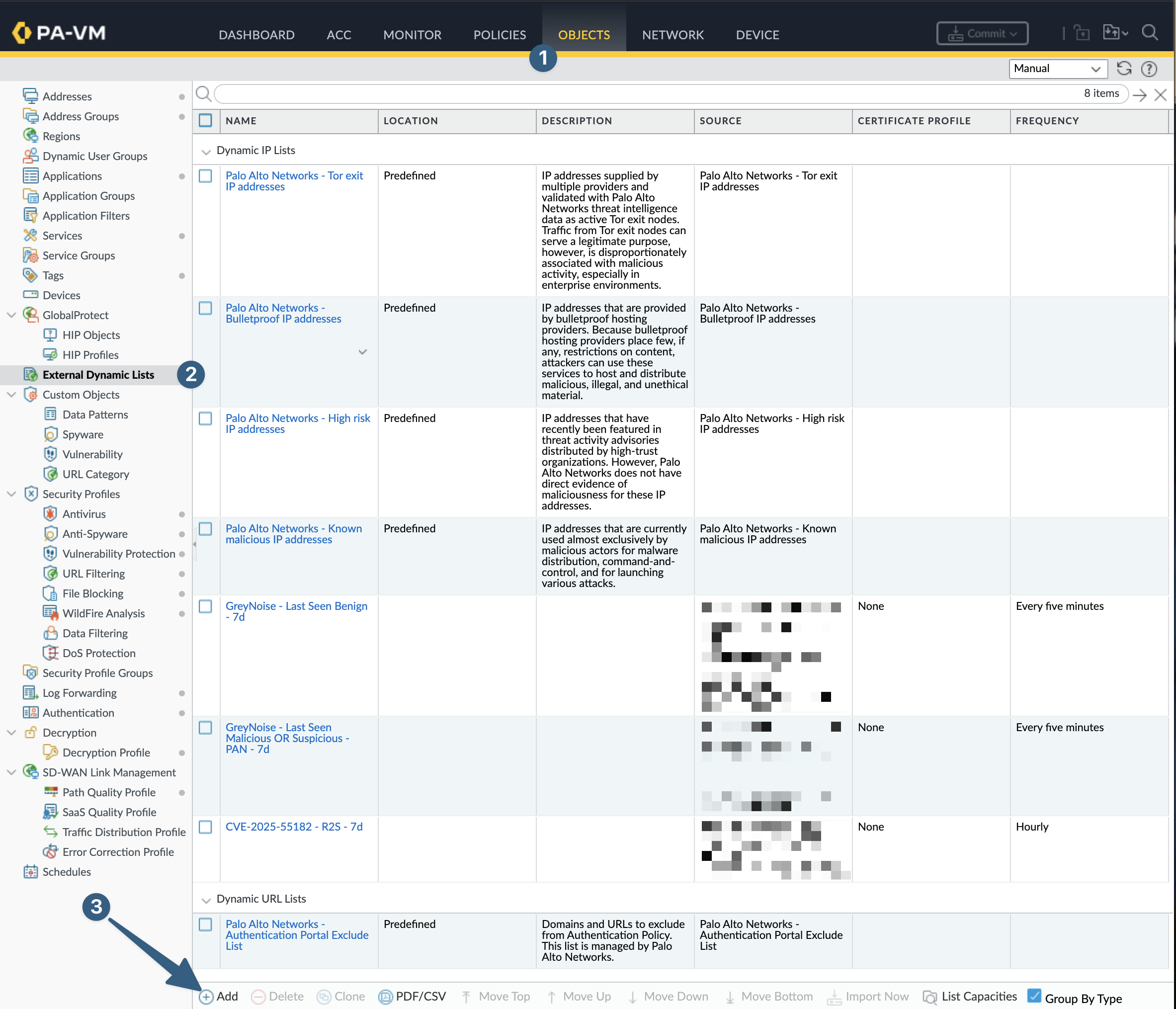
In the PAN-OS Web GUI navigate to External Dynamic Lists and add a new object.
- Click
Objects - Click
External Dynamic Lists - Click
Add
Next we will configure the new EDL with the GreyNoise Blocklist previousoly created.
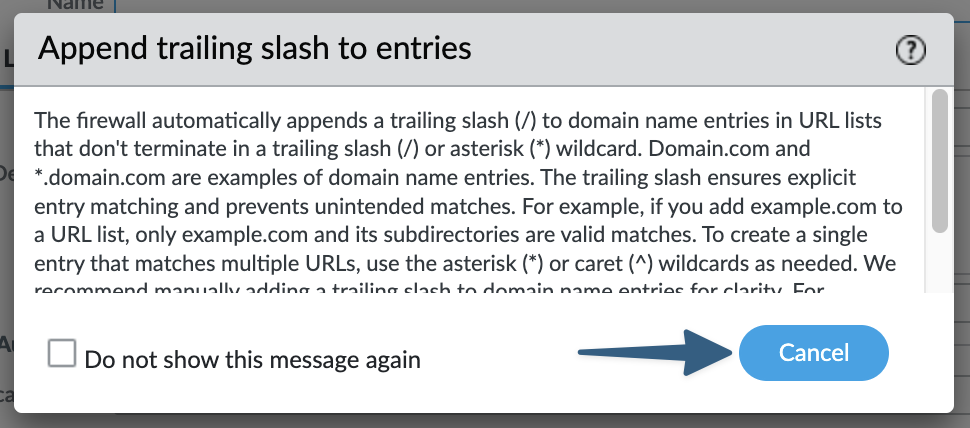
When adding an EDL for the first time you may get a warning around the appending of trailing slashes. Please review and dismiss.
Screenshot of Trailing Slash Notification
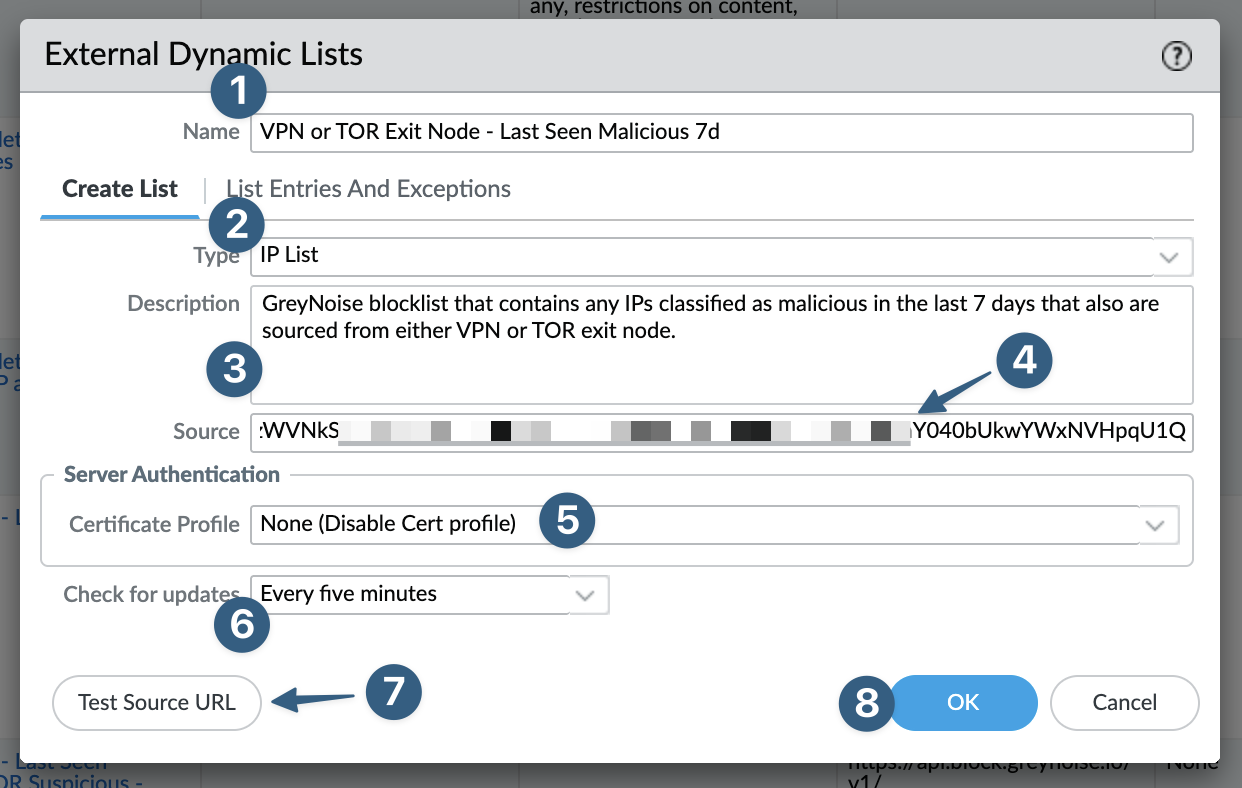
Continue to configure a new EDL.
- Give the EDL a descriptive name (e.g.
VPN or TOR Exit Node - Last Seen Malicious 7d). - Validate the type
IP listis selected. - (Optional) Give the EDL a description.
- Paste the GreyNoise tokenized URL copied from a prior step into the
Sourcefield. - Select
None (Disable Cert Profile). GreyNoise uses a valid TLS certificate and ifNoneis not selected PAN-OS will display warnings upon commit. - Set how often you would like the EDL to update in the firewall. Remember that GreyNoise
Blocklistsupdate once per hour. - Click
Test Source URLto validate the tokenized URL was copied and pasted correctly. - Once all items are configured click
OKto save the EDL.
Step 5: Implement the GreyNoise EDL in Security Policy
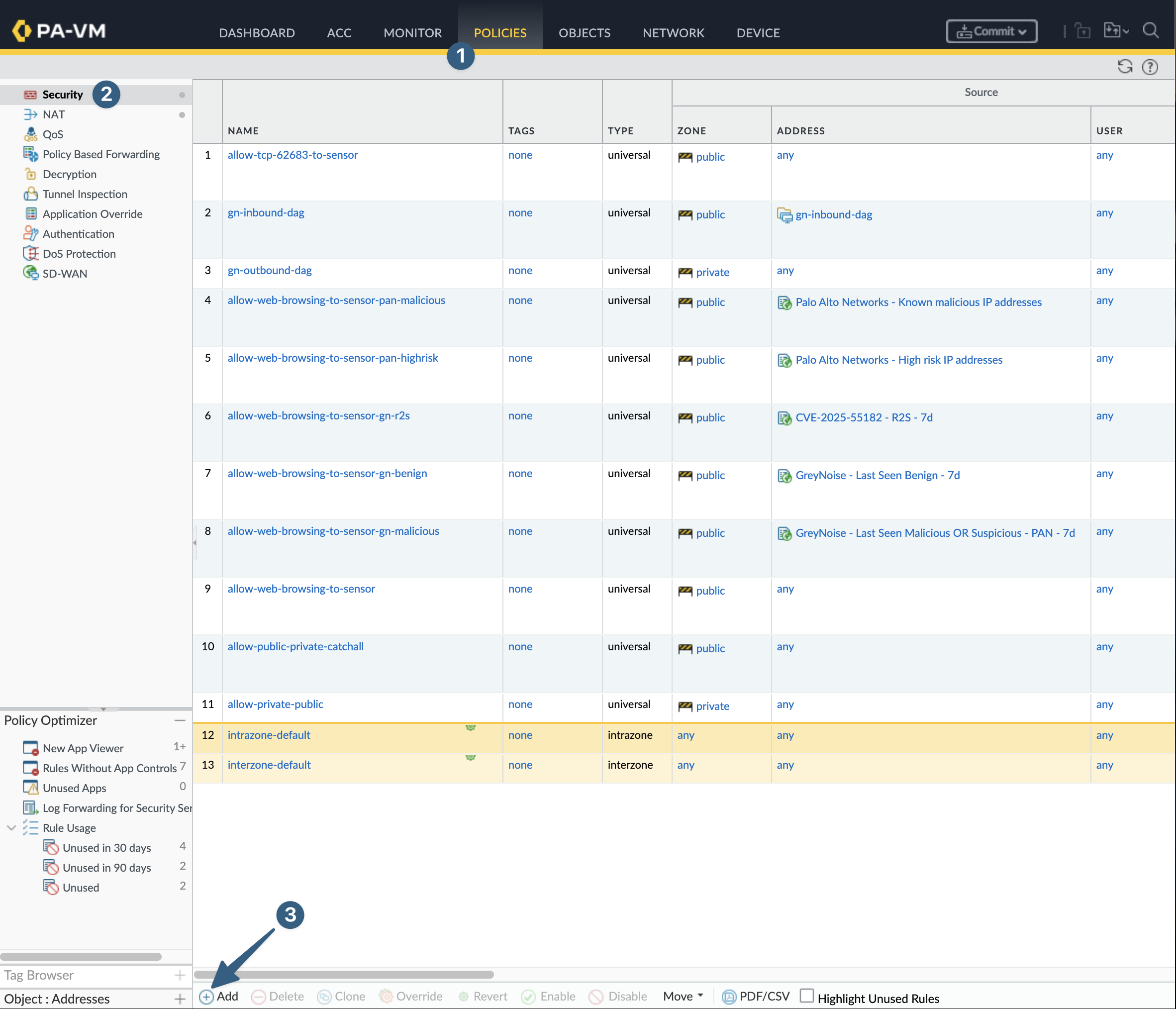
In the PAN-OS Web GUI navigate to Security policy and add a new object.
- Click
Policies. - Click
Security. - Click
Add.
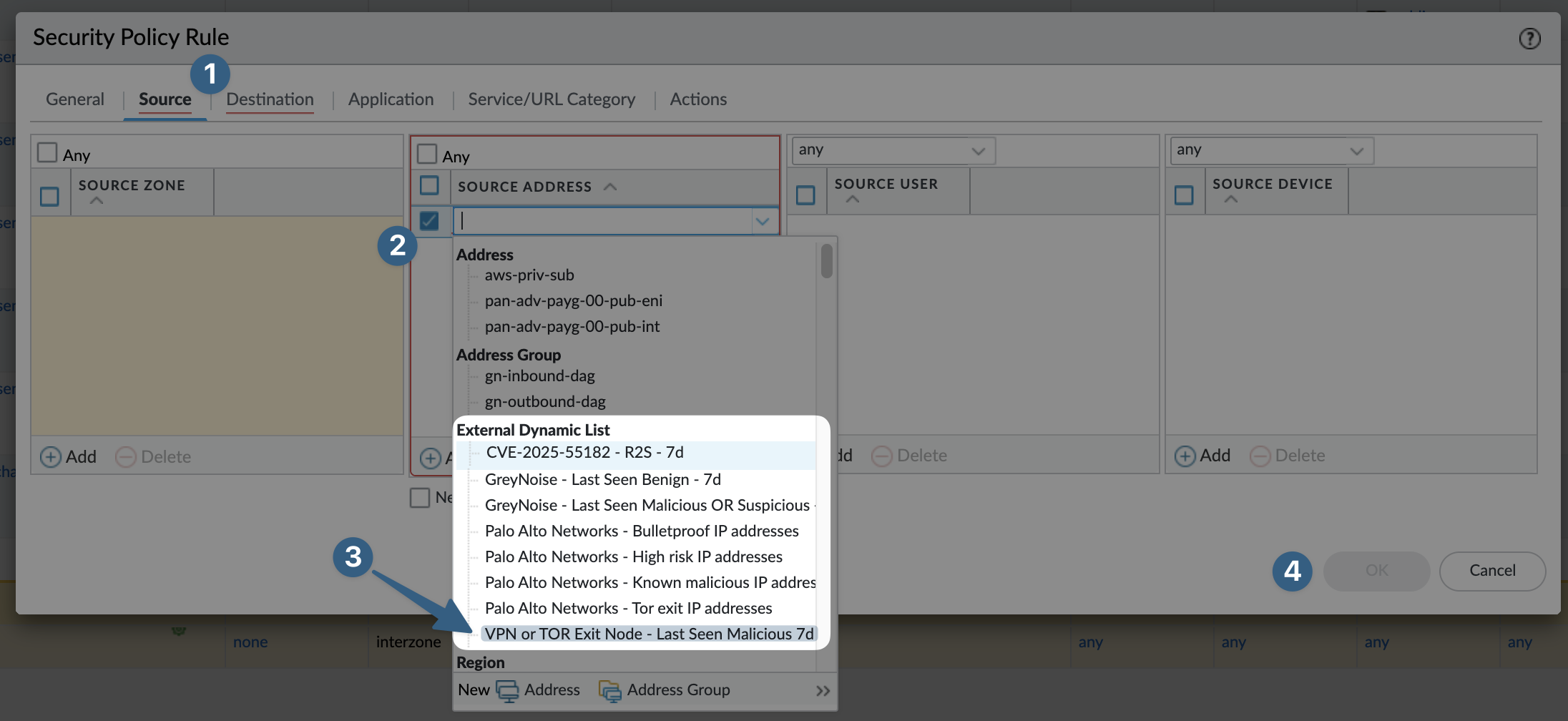
Once the Security Policy Rule is visible configure the policy with the EDL in either Source or Destination.
- Click
SourceorDestination, depending on traffic flow. - Click
Addin the theSource AddressorDestination Addresssection. - Using
Sourcein our example: select one or more EDLs to apply to this policy. - Once complete with a valid
Security PolicyclickOK.
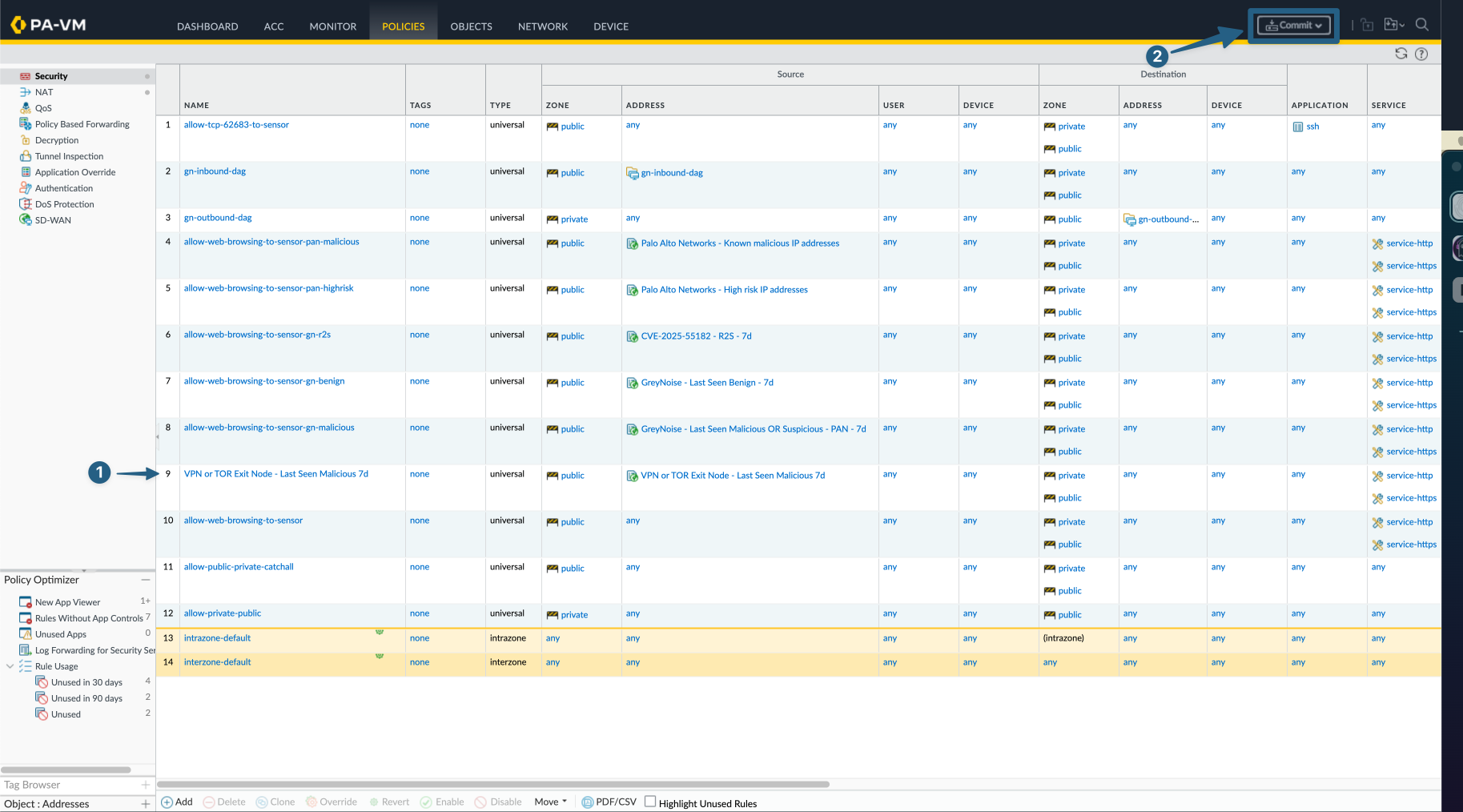
Finally, once the configurations are complete Commit all changes made.
- Prior to committing validate the new policy is in the correct order of operations.
- Once everything has been validated click
Commit, validate changes to be implemented and click `OK
References
- GreyNoise Query-Based Blocklists: https://docs.greynoise.io/docs/query-based-blocklists
- Palo Alto Networks EDLs: https://docs.paloaltonetworks.com/network-security/security-policy/administration/objects/external-dynamic-lists
Video Walkthrough 🎥
Updated 2 months ago