
Querying and Filtering
Writing Queries
Session Explorer uses a Lucene-based query language. Click the query bar and start typing, an autocomplete menu will appear with available fields and syntax hints.
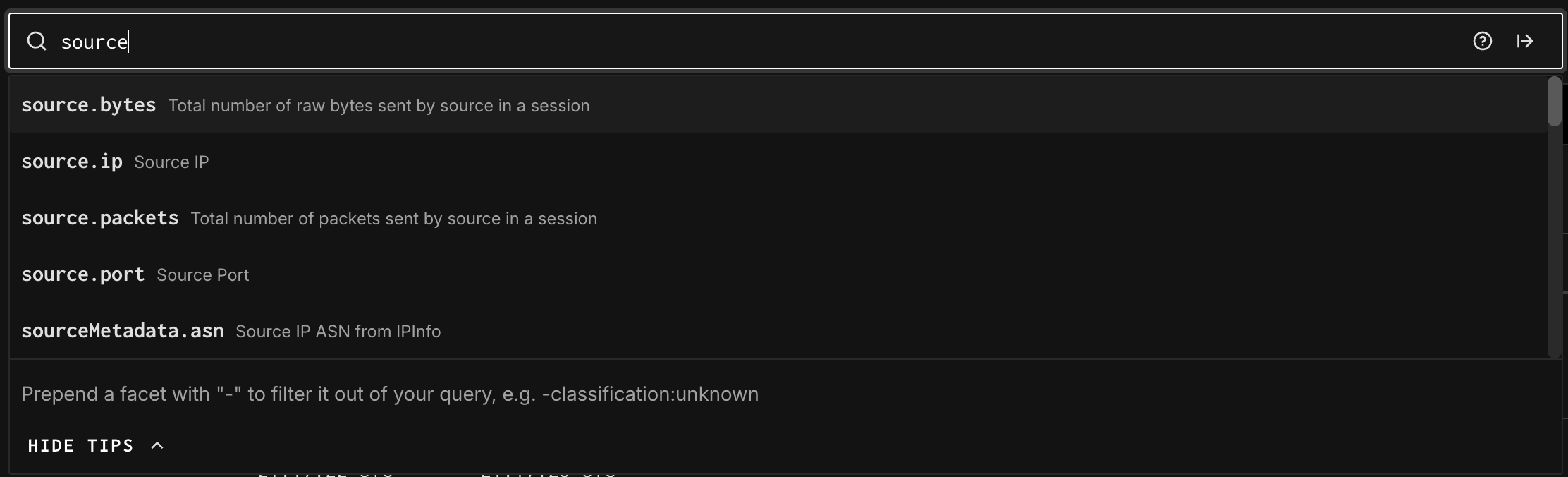
Basic query syntax:
| Query Example | What It Does |
|---|---|
classification:malicious | Show only sessions tagged as malicious |
classification:benign | Show only benign/known-scanner sessions |
source.ip:1.2.3.4 | Filter to a specific source IP |
destination.port:443 | Sessions targeting port 443 (HTTPS) |
http.uri:/global-protect/login.esp | Sessions probing a specific URI path |
-classification:unknown | Exclude sessions with unknown classification (use – to negate) |
source.country:China destination.port:22 | Chinese IPs scanning SSH |
For a full list of queryable fields, please visit the Data Field Glossary page.
Query Reference

Click the ? icon to the right of the query bar to open the Query Reference panel. This gives you:
- Query Patterns tab: pre-built example queries to get started quickly
- Fields tab: all 250+ queryable fields, grouped by category
Field categories include:
- General: session ID, classification, protocol, timestamps, bytes
- Source Metadata: source IP, country, ASN, organization, city, latitude/longitude
- Destination Metadata: destination IP, port, organization, country
- GN Metadata: GreyNoise profile, sensor name, workspace
- GN Tag Metadata: GreyNoise tag, tag category, tag confidence
- HTTP: URI paths, user agents, methods, response codes
- SSH: SSH-specific fields
- TLS: TLS certificate and handshake fields
- TCP: JA4 fingerprints (JA4, JA4s, JA4t, JA4h), TCP flags
- Suricata: IDS alert data including signatures, severity, flow IDs
- Krb5: Kerberos protocol fields
Tip: You can prepend any field with “–” to exclude it. For example: -classification:unknown filters out sessions that are classified as "Unknown".
Filtering from the Table
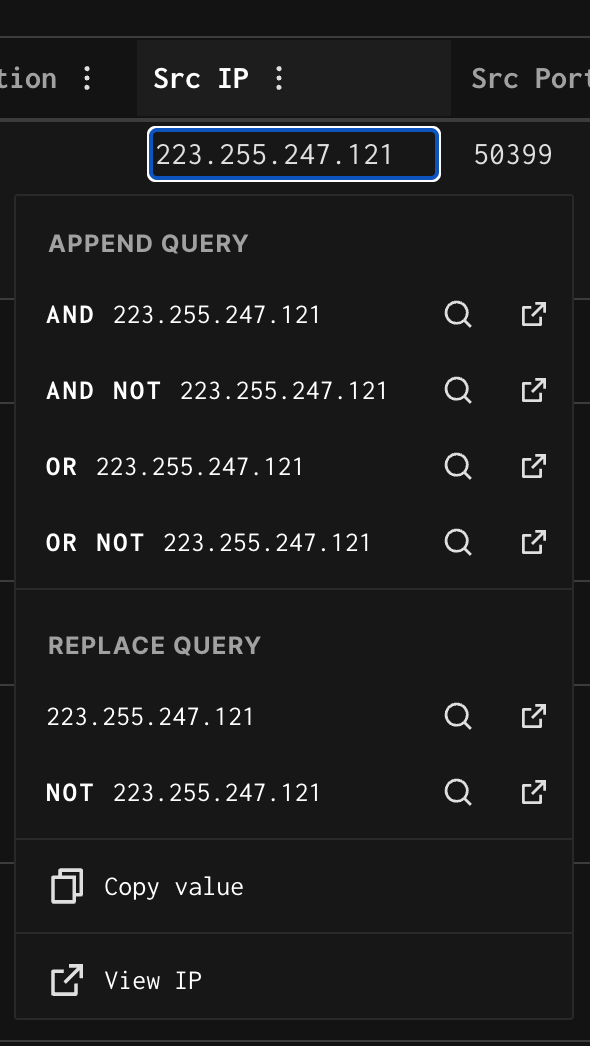
As covered in the "Understanding the Interface" section, clicking any column header or value opens a quick-filter menu. This lets you build and refine queries directly from the table without typing — useful for drilling into a value you’ve spotted in the results.
Updated 6 months ago