
CrowdStrike Next-Gen SIEM Use Case Guide 2
Detecting Allowed Inbound Traffic from Known Malicious Hosts
Detecting Allowed Inbound Traffic from Known Malicious Hosts
Overview
Even mature perimeter architectures occasionally contain misconfigurations, legacy any-any rules, or temporary exceptions. When those gaps appear, malicious traffic is permitted through the firewall and reaches internal services unnoticed. Without inline intelligence, Falcon Next-Gen SIEM cannot distinguish benign third-party services from known exploit infrastructure.
When these gaps happen, unauthorized traffic is allowed into the network. If left unmonitored, security teams have no way of knowing if a connection was established by a harmless scanner or a known malware command-and-control (C2) node.
The GreyNoise Solution
By matching permitted inbound logs against the GreyNoise lookup file, Next-Gen SIEM can immediately identify when a GreyNoise-flagged IP successfully crosses your perimeter. SOC teams receive a clear, prioritized list of control gaps to remediate before attackers gain persistence.
Prerequisites
Ensure your environment meets these prerequisites before beginning the setup:
Tools and Access
| Prerequisites | Details |
|---|---|
| CrowdStrike Falcon | Falcon Next-Gen SIEM or Falcon Insight XDR |
| GreyNoise App | GreyNoise Threat Intel app for Foundry Templates |
| API Key | GreyNoise API key configured in the app under Configuration |
| Firewall Logs | Palo Alto or equivalent firewall logs ingested in the Next-Gen-SIEM |
| Log Fields | Logs must contain source.ip, #event.type[], network.direction |
| ECS Mapping | Your firewall data is accurately mapped to the ECS schema before being ingested into Next-Gen SIEM. #event.type should be available and contain allowed as a value. |
Implementation Steps
Step 1: Baseline Network Validation
Identify your organization's firewall logs and filter for traffic that was permitted from the outside.
Note: Replace <VENDOR_NAME> and your specific field names based on your Vendor's parsing logic.
#Vendor = <VENDOR_NAME>
| array:contains(array="event.type[]", value="allowed")
Step 2: Apply GreyNoise Enrichment and Classification Filter
Pipe the source IP addresses through the GreyNoise data and apply classification filters.
Filter criteria:
We filter based on two specific criteria:
- classification="malicious"
OR
- classification="suspicious"
Impact: Flags IPs actively validated by GreyNoise as part of a malicious campaign, botnet, or exploit engine.
Note: Replace <VENDOR_NAME> with the name of your vendor when you execute the query.
// FW/WAF logs
#Vendor = <VENDOR_NAME>
// Filter allowed inbound internet traffic (inbound/incoming as per logs)
| array:contains(array="event.type[]", value="allowed")
| network.direction = inbound
// Filter local network IPs
| !cidr(source.ip, subnet=["0.0.0.0/32", "10.0.0.0/8", "172.16.0.0/12", "192.168.0.0/16"])
// Match source IP against GreyNoise
| match(file="ti_greynoise_indicators.csv", field=[source.ip], column=[source.ip])
// surface malicious/suspicious matches, greynoise API response gives classification as key with its value as malicious/suspicious/benign in CrowdStrike this is reflected as source.ip.greynoise.is.classification
| in(field="source.ip.greynoise.is.classification", values=["malicious", "suspicious"])
| groupBy([source.ip], function=count(as=Count), limit=max)
// Prioritize events by source IP volume (threshold >= 10, then sorted)
| Count >= 10
| sort("Count", limit=max)
Step 3: Save as a Correlation Rule
Once the search is verified end-to-end, save it as a Correlation rule to run automatically and generate a detection or a case:
Steps:
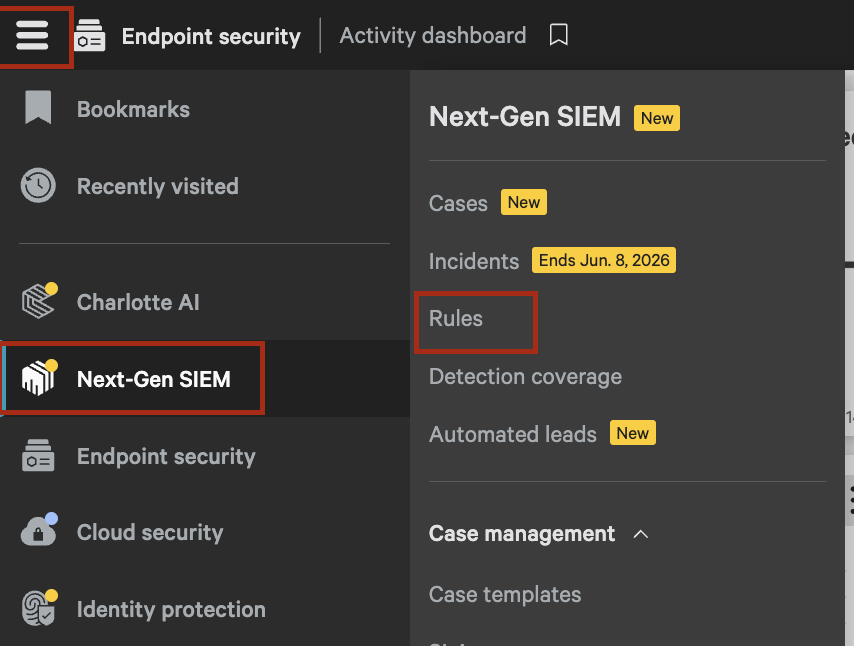
- Go to Next-Gen SIEM → Rules.
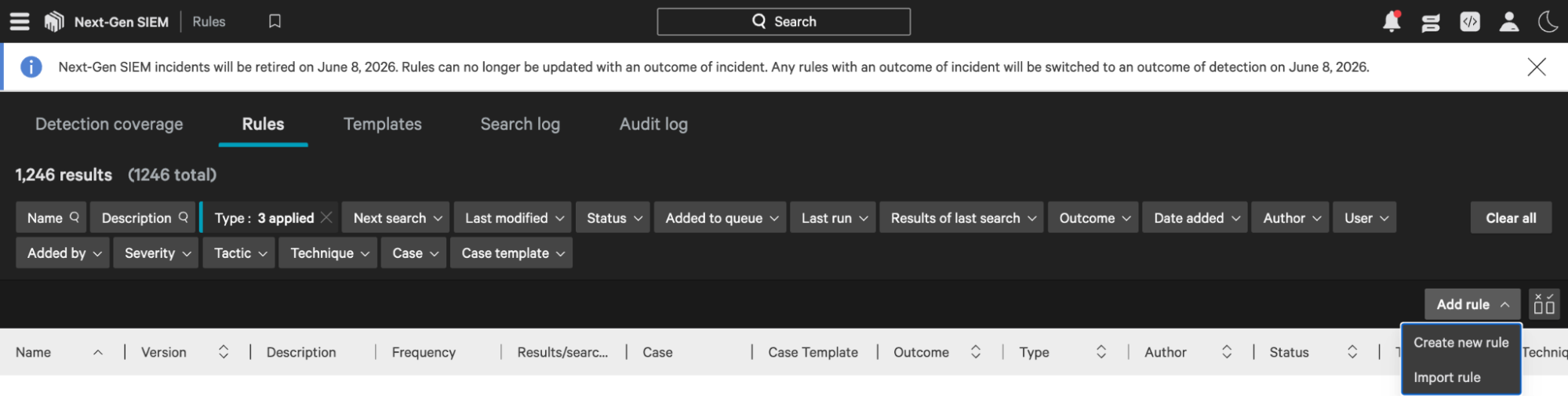
- Click on Add rule → Create new rule.
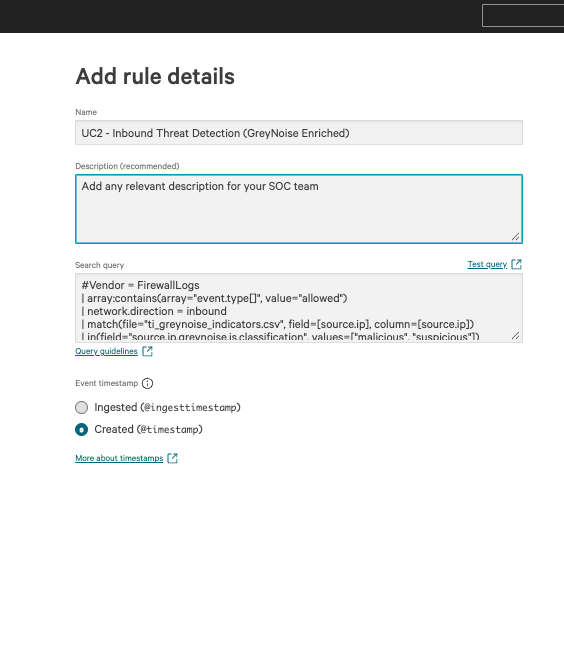
- Set the following details:
- Name: UC2 - Inbound Threat Detection (GreyNoise Enriched)
- Description: Add any relevant description for your SOC team.
- Search query: Insert the query mentioned in Step 2 above after updating your vendor name in it.
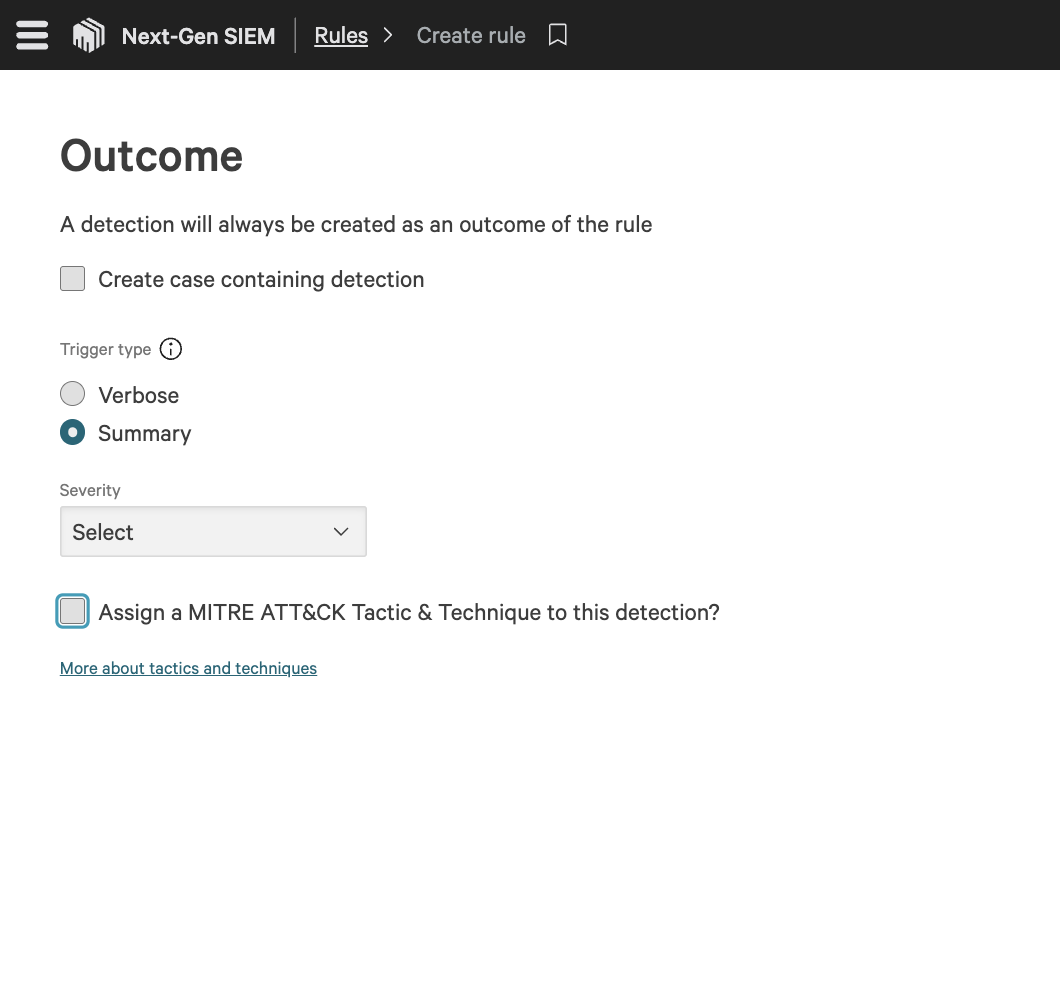
- Set the following details:
- Create case containing detection: If you want to generate a case containing detection, select the checkbox and case template. (A detection will always be created as an outcome of the rule.)
Recommendation: Enable this for high-confidence detections that require immediate investigation. For noisy or informational detections, keep it disabled to avoid unnecessary case creation. - Trigger type:
- Verbose: One outcome is generated for each result matching the query. The total number of outcomes is limited per rule trigger.
- Summary: One outcome is generated for all results matching the query. The total results included in the outcome are limited by the rule trigger.
- Recommendation: Use Verbose for low-volume, high-severity detections where each event matters. Use Summary for high-volume scenarios to reduce alert noise.
- Severity: Select the appropriate severity level for this detection. (Informational, Low, Medium, High, Critical).
Recommendation: Align severity with risk and impact—use High/Critical for confirmed or high-confidence threats, and Medium/Low for suspicious or baseline activity. - MITRE ATT&CK Tactic & Technique: Select the checkbox and assign MITRE ATT&CK Tactic & Technique.
Recommendation: Always map to MITRE when possible to improve detection context, reporting, and threat correlation.
- Select Start date and Start time, Search frequency, Search window, and Search offset based on your monitoring requirements.
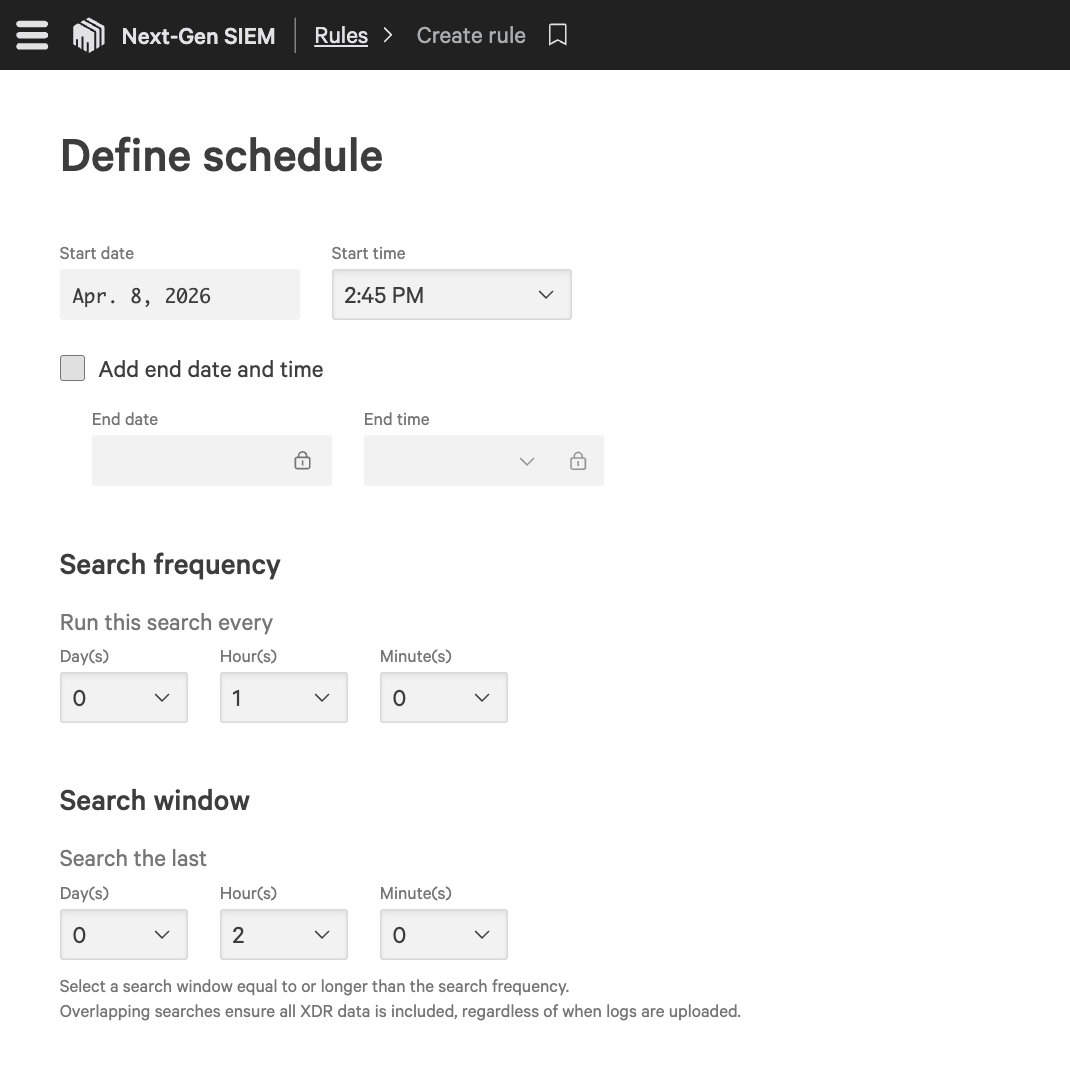
- Select the Notification Medium and, based on it, provide the requested values.
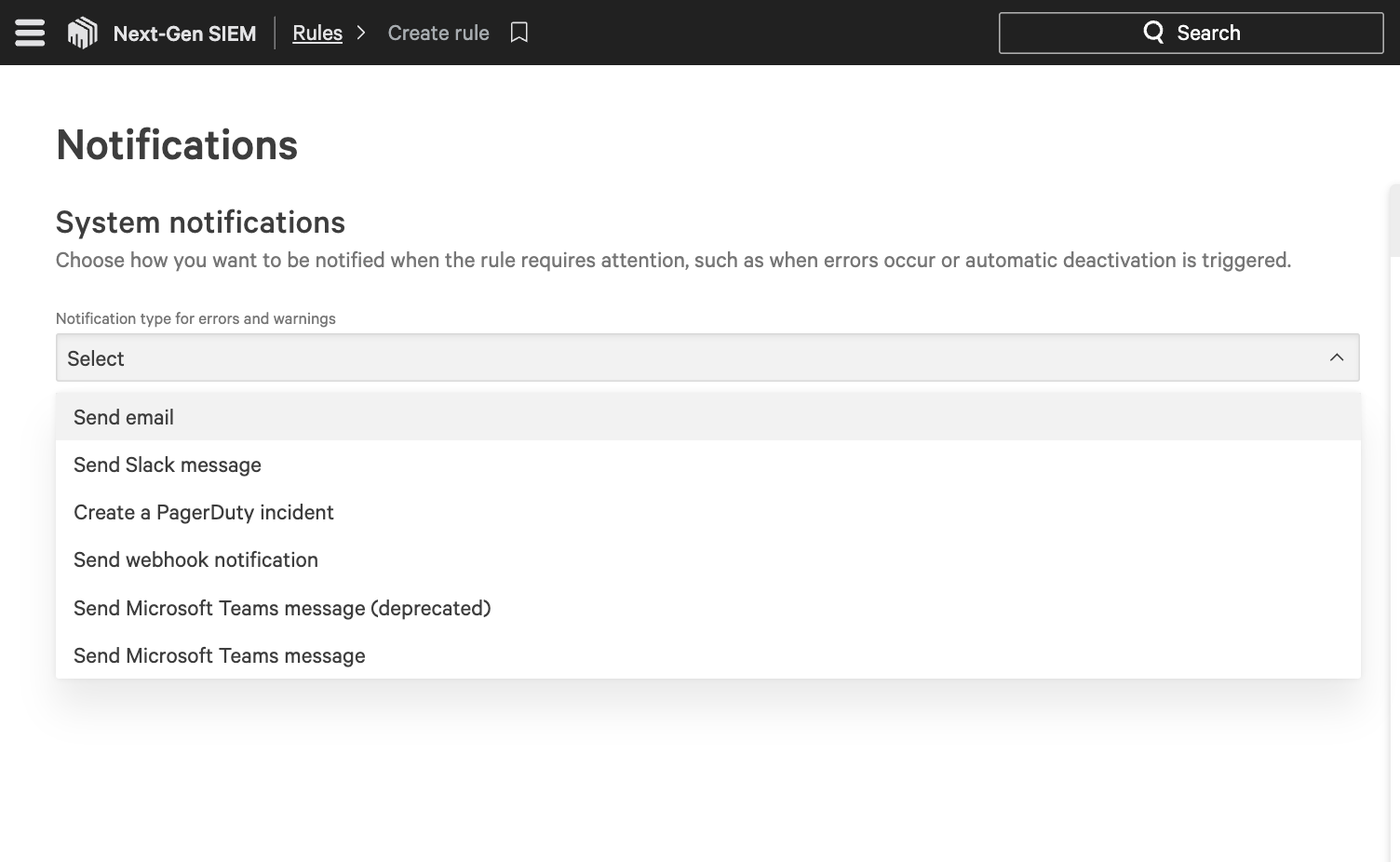
- Click on Finish to create the Correlation rule.
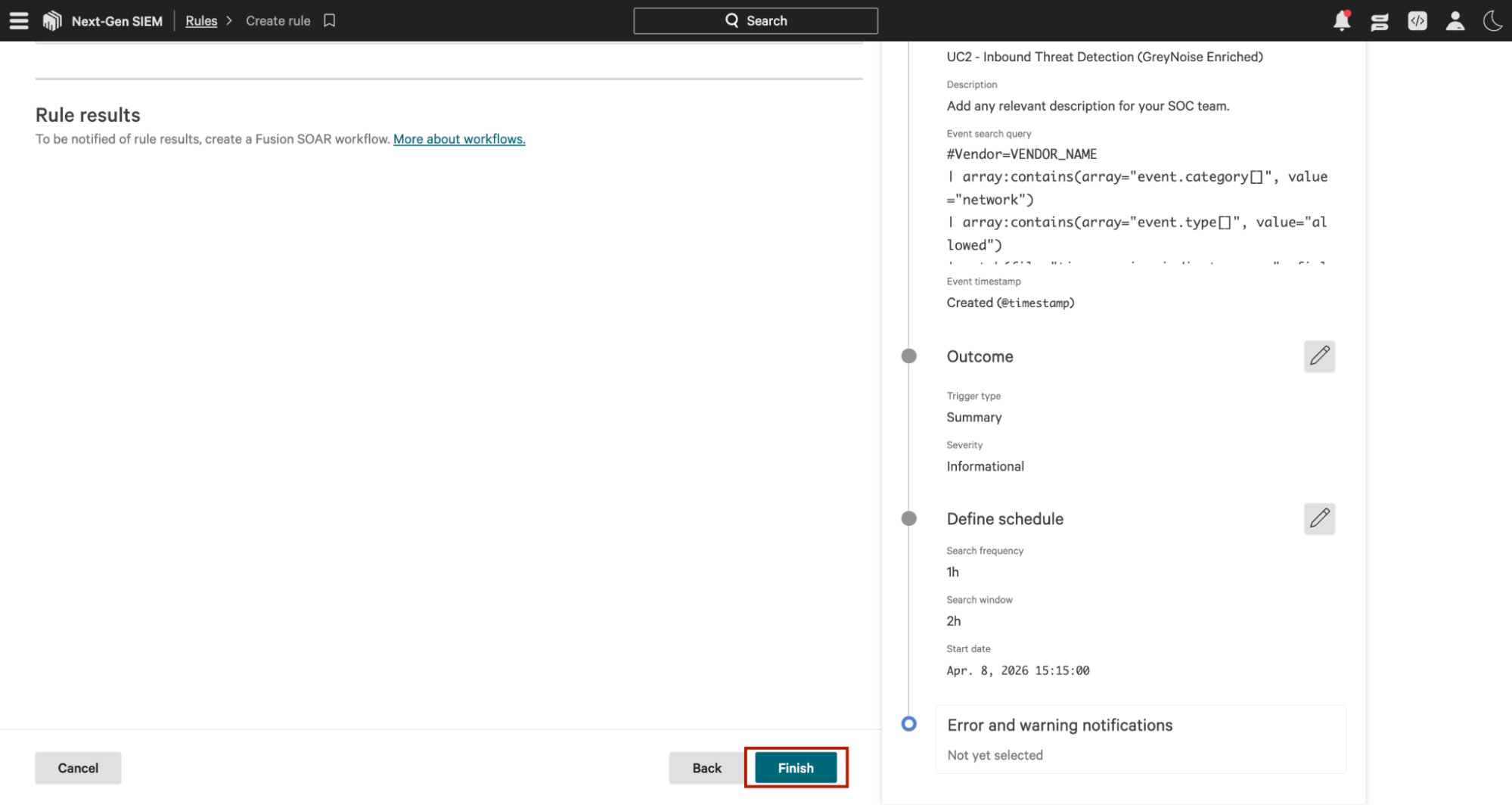
Note: You can change the Schedule Frequency and Time Range duration as per your needs.
Understanding the Output
The CQL query enriches every inbound source IP using GreyNoise data, then applies progressive filters as follows:
- Targets allowed only inbound traffic; blocked connections were excluded because the controls already handled them.
- Passes all source IPs through GreyNoise enrichment via the ip_field of the
lookup file"source.ip". - Keeps only IPs classified as malicious or suspicious.
- Retains only IPs crossing the volume threshold of >= 10, eliminating low-frequency opportunistic noise.
- Sorts by count descending, most active threat IPs surface first.
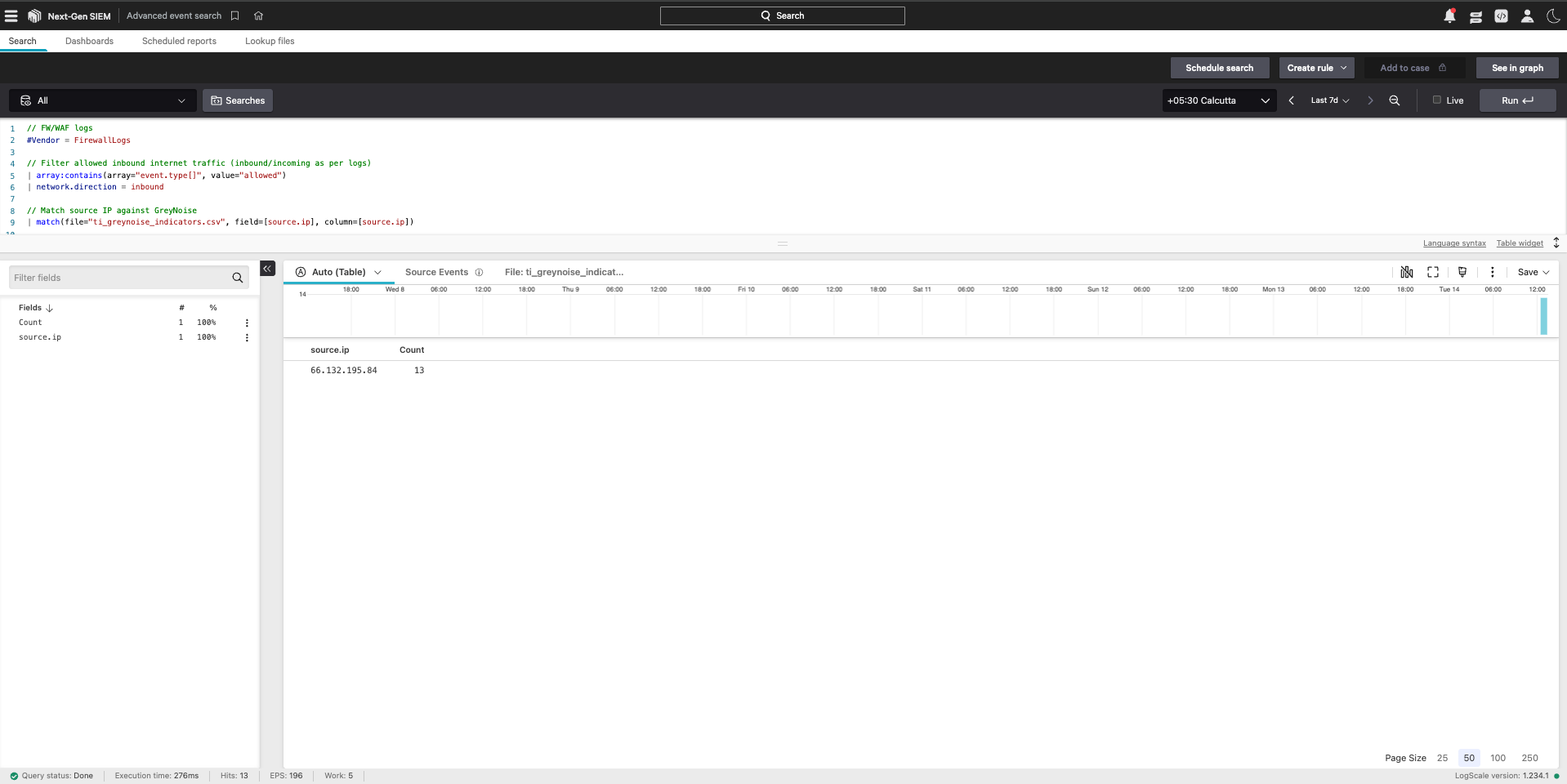
Result: Out of 16 raw inbound allowed events, only 1 IP with 13 hits survived all filters, confirming that the vast majority of inbound traffic was either benign, below threshold, or already blocked. What remains is a single high-confidence threat IP requiring immediate analyst attention.
Results and Impact
Before vs After GreyNoise
| Before GreyNoise | After GreyNoise |
|---|---|
| 16 raw allowed inbound events | 1 confirmed threat IP with 13 hits |
| None - just IPs and counts | IP classified as malicious or suspicious inline |
| Analysts must manually look up every IP in external threat intel tools | Classification is inline - no external lookup needed |
| High - 16 events with no context to separate threat from legitimate | Low - 13 events filtered, only confirmed threat retained |
| Minutes to hours, depending on analyst workload | Immediate - single result, pre-ranked and pre-validated |
| Limited to what the analyst manually checks | All 16 events are enriched automatically in a single pass |
Benefits for the SOC Team
- Eliminates alert fatigue - 16 raw events reduced to a single confirmed threat IP, analysts focus only on what matters.
- Immediate prioritization - volume threshold and sort order ensure the most aggressive threat IP surfaces first, no manual triage needed.
- Confirmed threat context - GreyNoise classification removes ambiguity, giving analysts confidence before escalation.
- Pivot-ready output - clean
source.ipandCountfields give analysts a direct starting point for expanding investigations across EDR, auth, and proxy logs. - Consistent coverage - query runs across all configured vendors, ensuring no blind spots across FW/WAF log sources.
Conclusion
GreyNoise lookup matching converts Falcon Next-Gen SIEM from a passive log repository into an active guardrail that spots malicious or suspicious IPs slipping past your perimeter. With daily workflow-driven lookup refresh in Next-Gen SIEM, analysts no longer manually inspect allowed inbound logs and can remediate control gaps faster.
Updated 3 months ago