
Google Security Operations SIEM Use Case Guide 3
Flag Authentication Attempts from Compromised Hosts
Flag Authentication Attempts from Compromised Hosts
Overview
Every organization's identity provider and VPN gateway receives thousands of authentication attempts daily - the vast majority of which are automated credential stuffing, brute-force, and password spray attacks. Standard detection logic treats all of these uniformly: a failed login generates a low-priority alert, and a successful login is trusted and passed through.
This approach has a critical blind spot.
Some of these attempts originate from IPs that GreyNoise has confirmed are actively conducting mass scanning operations, running botnet infrastructure, or operating known command-and-control (C2) servers. When one of those IPs successfully authenticates to your environment, it is not a routine login event - it is an immediate indicator of compromise, regardless of whether the credentials were technically valid.
The GreyNoise Solution
By integrating GreyNoise threat indicators into your authentication log within Google SecOps, this use case cross-references every authentication event - both successful and failed - against GreyNoise's global threat dataset, surfacing two distinct high-value signals. A successful authentication from a GreyNoise-flagged IP is treated as a P1 - act immediately, confirming that a known threat actor has gained active access using valid credentials. A failed authentication from the same IP address class is treated as a P2 - investigate and monitor, indicating that your organization is being specifically targeted rather than caught in indiscriminate mass scanning.
Prerequisites
Ensure your environment meets these prerequisites before beginning the setup:
Tools and Access
| Prerequisites | Details |
|---|---|
| Google SecOps | A Google SecOps Instance with an Admin role user. |
| Google Cloud Platform | A Google Cloud Platform project, with deployed ingestion scripts for GreyNoise. Note: Access to a GCP project with sufficient permissions to enable APIs, create service accounts, IAM bindings, GCS buckets, Cloud Functions, Cloud Scheduler jobs, and Secret Manager secrets. |
| GreyNoise API Key | GreyNoise API key to configure during deploying ingestion script. |
| Logs | User Login/Authentication events should exist in the instance. |
Implementation Steps
To achieve the use case, follow the steps below:
Step 1: Connectivity Verification of the GreyNoise Data Ingestion Script
Before building any detection logic, confirm that the Google Cloud Function is deployed and actively ingesting indicators into Google SecOps. Navigate to Investigation > SIEM Search and run the following UDM filter to confirm ingested data is present:
graph.metadata.event_metadata.base_labels.log_types = "GREYNOISE"Expected Result: You should see GreyNoise IP entities appearing in the Results panel. If no results are returned, check the Cloud Function logs in GCP Cloud Logging for any errors before proceeding.
Step 2: Verify if the Authentication/User Login Logs exist in the instance
Confirm that authentication logs are present in the Google SecOps SIEM instance. In the SIEM Search (UDM Search), filter for User login events by running the query:
metadata.event_type = "USER_LOGIN"Expected Result: You should see the events of user logins/authentication, populated in the results panel before proceeding. Validate that the result set includes records with a populated principal.ip field. This IP field serves as the join key for GreyNoise correlation.
Step 3: Create Detection Rule
Create a YARA-L detection rule in Google SecOps that correlates authentication events from Compromised Hosts with GreyNoise IPs identified as malicious/suspicious.
Detection Rule:
// Use case 3: Flag Authentication Attempts from Compromised Hosts
// Rule declaration: defines a YARA-L rule
rule greynoise_intelligence_authentication_from_threat_ips {
  // Metadata section: non-functional fields used for documentation and triage
  meta:
    // Identifies who wrote or owns this rule
    author                = "GreyNoise Intelligence"
    // Human-readable name for display
    rule_name             = "GreyNoise Intelligence Authentication from Threat IPs"
    // Explains what the rule is designed to detect
    description           = "Detects authentication attempts to identity providers from IPs known by GreyNoise as malicious."
    // Indicates the risk level if this rule fires
    severity              = "High"
    // Indicates the response urgency level for this alert
    priority              = "High"
    // Tags for this rule
    tags                  = "authentication, threat intelligence, identity security"
  // Events section: defines the UDM field filters that must be satisfied
  events:
    //  Authentication Events
    // Filter to only user login/authentication events
    $auth.metadata.event_type = "USER_LOGIN"
    // Bind the source IP of the authentication attempt to the correlation variable
    $auth.principal.ip = $correlation_ip
    // Exclude events where the correlated IP is empty or null
    $correlation_ip != ""
    // Join logic: Check if the Source IP exists in the GreyNoise dataset
    // Filter the GreyNoise enrichment records by their log type label
    $greynoise.graph.metadata.event_metadata.base_labels.log_types = "GREYNOISE"
    // Ensure the enrichment record comes from the GreyNoise Intelligence product
    $greynoise.graph.metadata.product_name = "GreyNoise Intelligence"
    // Confirm the GreyNoise entity being evaluated is an IP address type
    $greynoise.graph.metadata.entity_type = "IP_ADDRESS"
    // Include only IPs that GreyNoise has classified as actively malicious or suspicious
    (
        $greynoise.graph.metadata.threat.threat_verdict = "MALICIOUS"
        or
        $greynoise.graph.metadata.threat.threat_verdict = "SUSPICIOUS"
    )
    // include non-spoofable matches
    $greynoise.graph.metadata.threat.detection_fields["spoofable"] = "false" nocase
    // Require that GreyNoise has confirmed this IP is an active internet scanner
    $greynoise.graph.additional.fields["internet_scanner_found"] = "true" nocase
    // Exclude IPs associated with known legitimate business services to reduce false positives
    $greynoise.graph.additional.fields["business_service_found"] = "false" nocase
    // Join the GreyNoise entity IP to the same correlation variable used in auth events
    $greynoise.graph.entity.ip = $correlation_ip
  // Match section: groups correlated events
  match:
    // Aggregate per source IP over a 15 minutes window
    $correlation_ip over 15m
  // Outcome section: computes derived fields attached to the generated alert
  outcome:
    // Count total distinct authentication attempts by this source IP in the window
    $total_attempts      = count_distinct($auth.metadata.id)
    // Count only authentication events where the action was explicitly allowed (successful logins)
    $successful_attempts = sum(
        if($auth.security_result.action = "ALLOW", 1, 0)
    )
    // Count only authentication events where the action was explicitly blocked (failed logins)
    $failed_attempts = sum(
        if($auth.security_result.action = "BLOCK", 1, 0)
    )
    // Compute a dynamic risk score based on the combination of login outcome and GreyNoise verdict:
    // ALLOW + MALICIOUS = 100 (highest risk: attacker successfully authenticated)
    // ALLOW + SUSPICIOUS = 75 (elevated risk: suspicious IP got through)
    // BLOCK + MALICIOUS = 50 (medium risk: malicious IP was blocked)
    // BLOCK + SUSPICIOUS = 25 (lower risk: suspicious IP was blocked)
    // Default = 10 (minimal risk baseline)
    $risk_score = max(
        if($auth.security_result.action = "ALLOW" and $greynoise.graph.metadata.threat.threat_verdict = "MALICIOUS", 100,
        if($auth.security_result.action = "ALLOW" and $greynoise.graph.metadata.threat.threat_verdict = "SUSPICIOUS", 75,
        if($auth.security_result.action = "BLOCK" and $greynoise.graph.metadata.threat.threat_verdict = "MALICIOUS", 50,
        if($auth.security_result.action = "BLOCK" and $greynoise.graph.metadata.threat.threat_verdict = "SUSPICIOUS", 25,
        10))))
    )
    // Derive a human-readable priority label
    $severity_label = if($risk_score >= 100, "P1-HIGH",
        if($risk_score >= 75, "P2-HIGH",
        if($risk_score >= 50, "P2-MEDIUM",
        "P2-LOW")))
    // Derive a severity tier
    $severity = if($risk_score >= 100, "CRITICAL",
        if($risk_score >= 75, "HIGH",
        if($risk_score >= 50, "MEDIUM",
        "LOW")))
    // Derive a response priority
    $priority = if($risk_score >= 75, "HIGH",
        if($risk_score >= 50, "MEDIUM",
        "LOW"))
    // Source Context
    // Collect all unique source IPs seen in authentication attempts within the window
    $source_ip             = array_distinct($auth.principal.ip)
    // Collect all unique source hostnames associated with the authenticating principal
    $source_hostname       = array_distinct($auth.principal.hostname)
    //  Target / Destination Context
    // Collect all unique hostnames of the target system being authenticated against
    $target_hostname       = array_distinct($auth.target.hostname)
    // Collect all unique IPs of the target system being authenticated against
    $target_ip             = array_distinct($auth.target.ip)
    // Authentication Details
    // Collect all unique authentication types used
    $auth_type             = array_distinct($auth.extensions.auth.type)
    // Collect all unique authentication mechanism details
    $auth_mechanism        = array_distinct($auth.extensions.auth.auth_details)
  // Condition section: final boolean logic that should match
  condition:
    // at least one matching auth event exists
    // and a GreyNoise record exists for the source IP
    $auth and $greynoise
}
Create & Enable Detection Rule
-
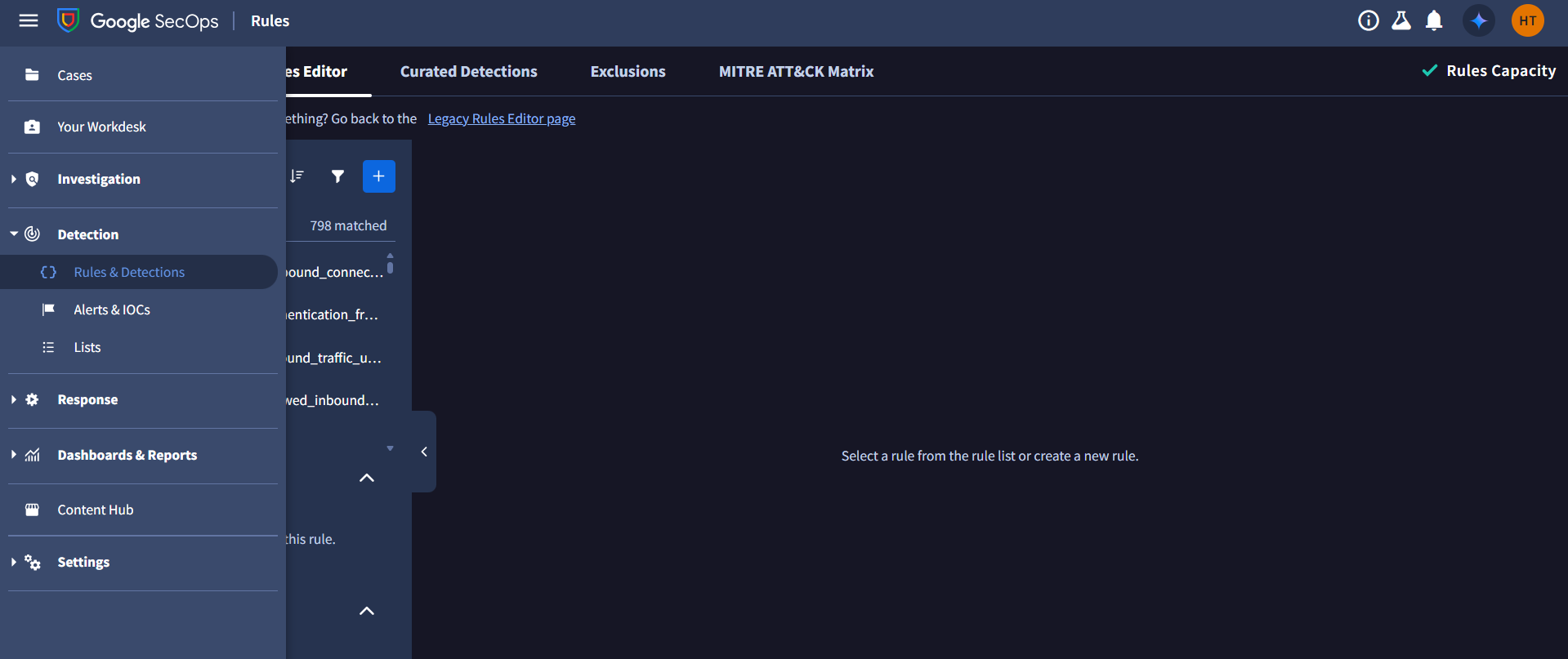
From Google SecOps SIEM, navigate to Detection > Rules & Detections.
-
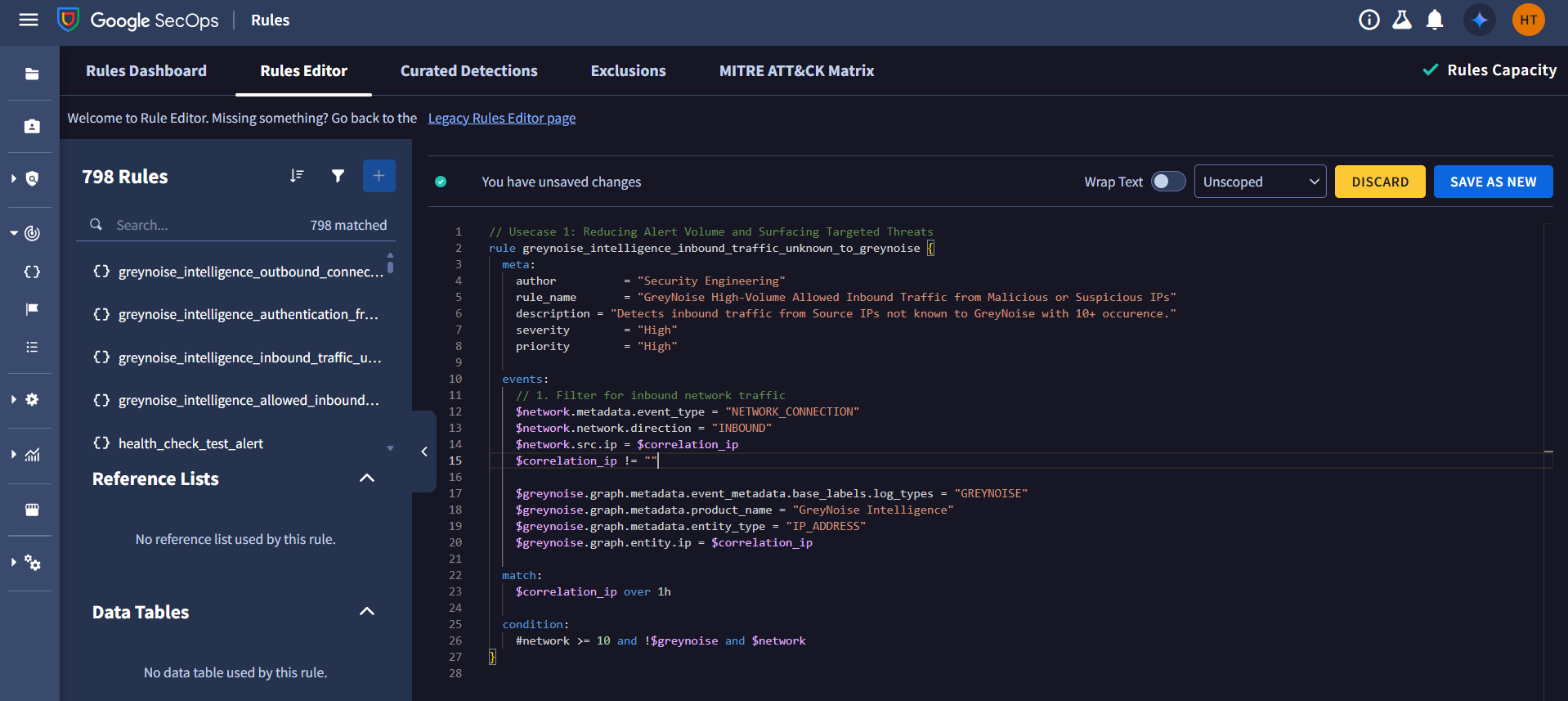
Go to the Rules Editor Tab, click on the + button.
-
Copy and paste the Detection Rule provided above in the editor.
-
Click on SAVE NEW RULE.
-
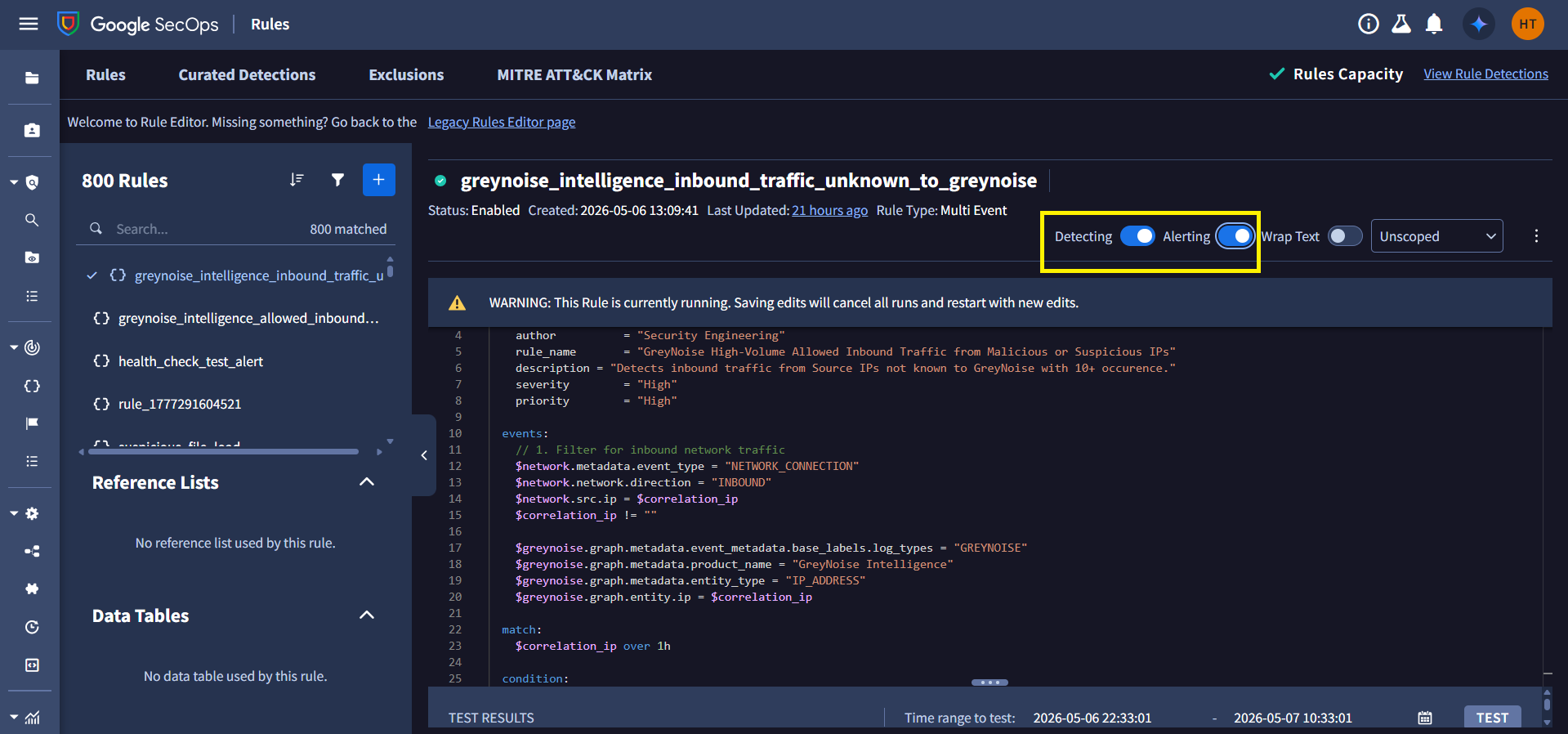
To generate detections, Enable Detecting, and to generate alerts, Enable Alerting.
-
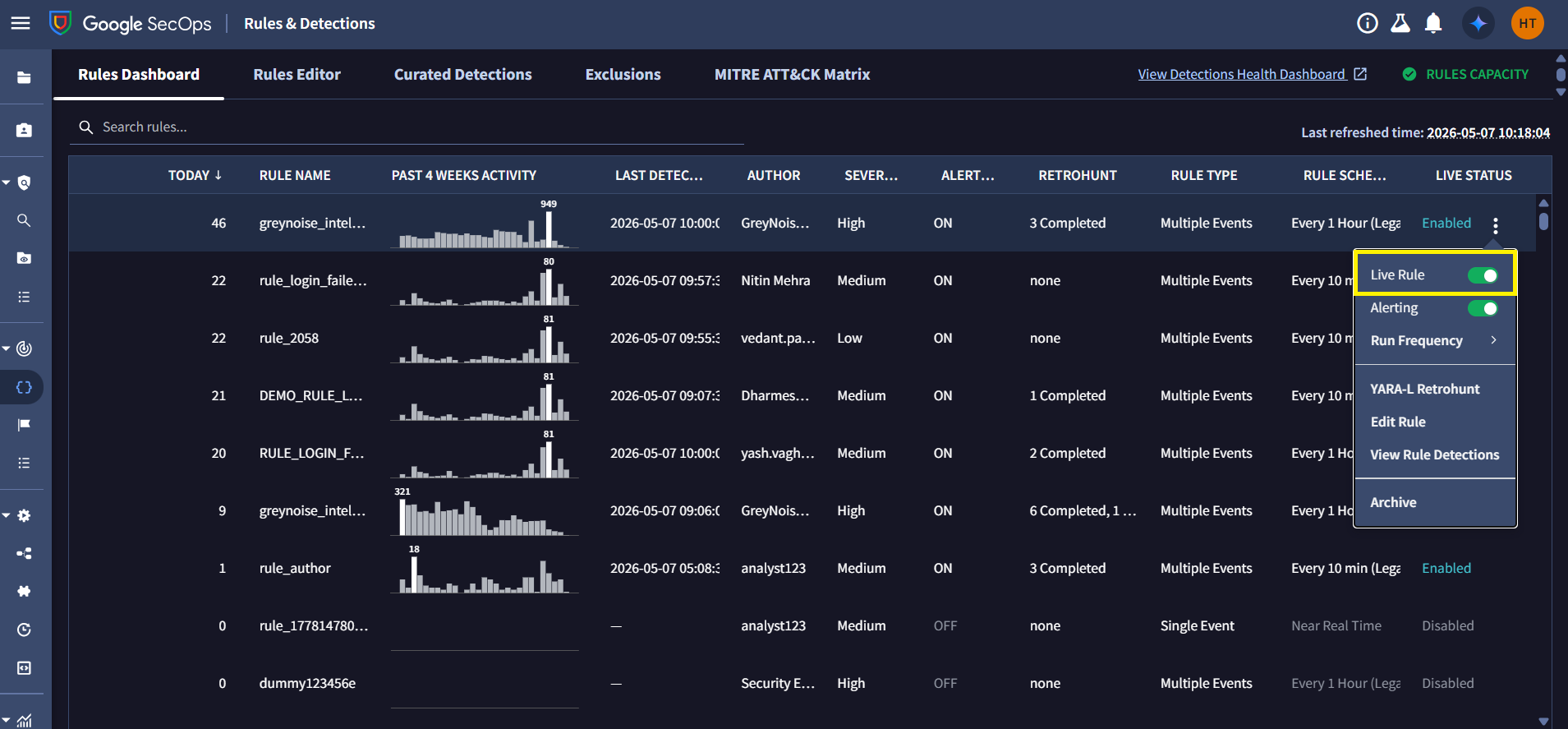
Click the Rules Dashboard tab to see all rules.
-
Search or browse for the rule you want to activate. Click on the 3 dots in the top right corner for the specific rule and toggle Live Rule as enabled to activate the Detection Rule.
See Google SecOps: Detection Rules for more information.
Step 4: Trigger Retrohunt and View Alerts
Once the rule is live and alerting is enabled, it will immediately begin triggering alerts for matching events. To run the rule for a specific time range, we need to run YARA-L retrohunt by following these steps:
Steps to run YARA-L Retrohunt:
-
From Google SecOps SIEM, navigate to Detection > Rules & Detections.
-
Click the Rules Dashboard tab to see all rules.
-
Search or browse for the rule. Click the 3 dots in the top-right corner for the specific rule's row.
-
Click on the YARA-L Retrohunt.
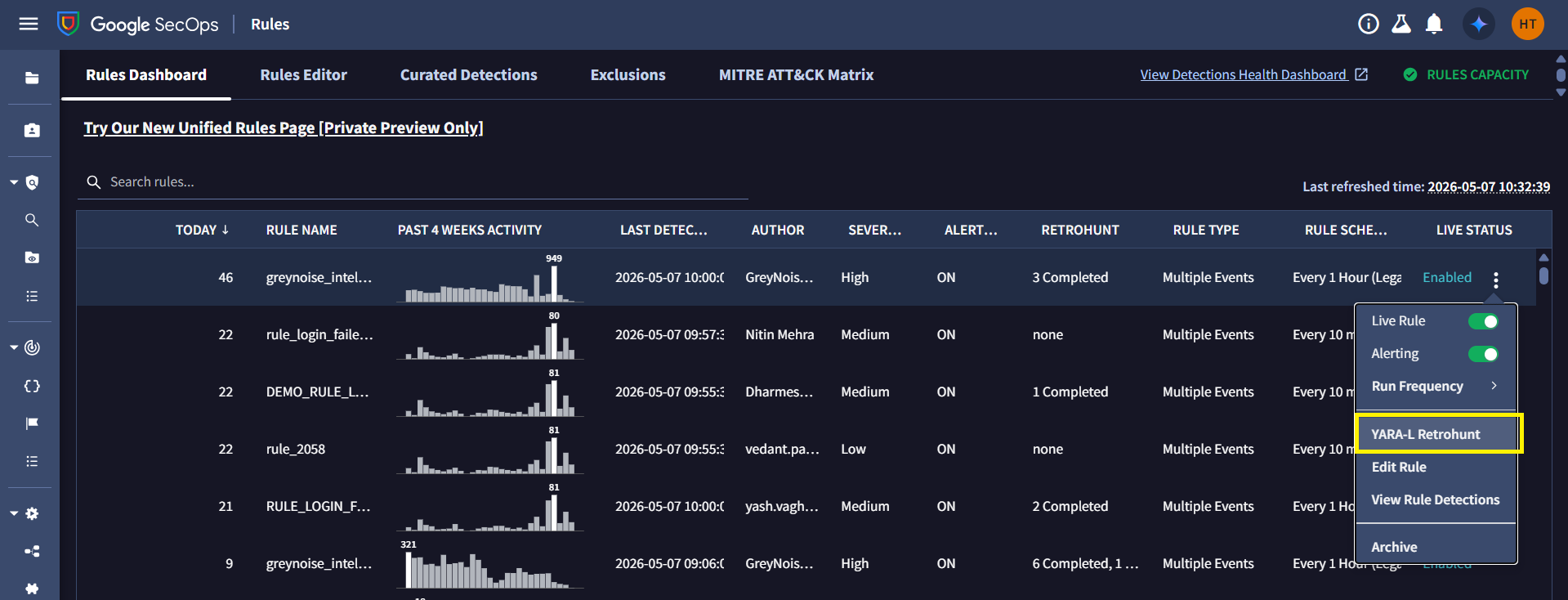
Note: You can change the Run Frequency as needed.
-
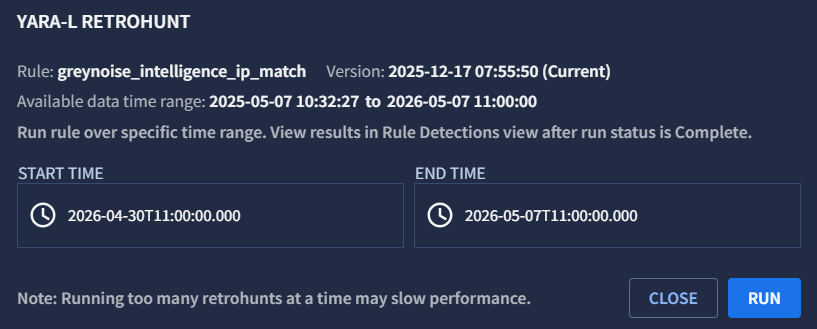
Select Time range.
-
Click on Run.
Wait approximately five minutes to verify if alerts have been generated. Even without running a YARA-L retrohunt, the rule will automatically trigger alerts for new incoming events as long as it is live and alerting is enabled.
Follow these steps to view alerts in Google SecOps:
Steps to view alerts
-
From Google SecOps SIEM, navigate to Detection > Rules & Detections.
-
Click the Rules Dashboard tab to see all rules.
-
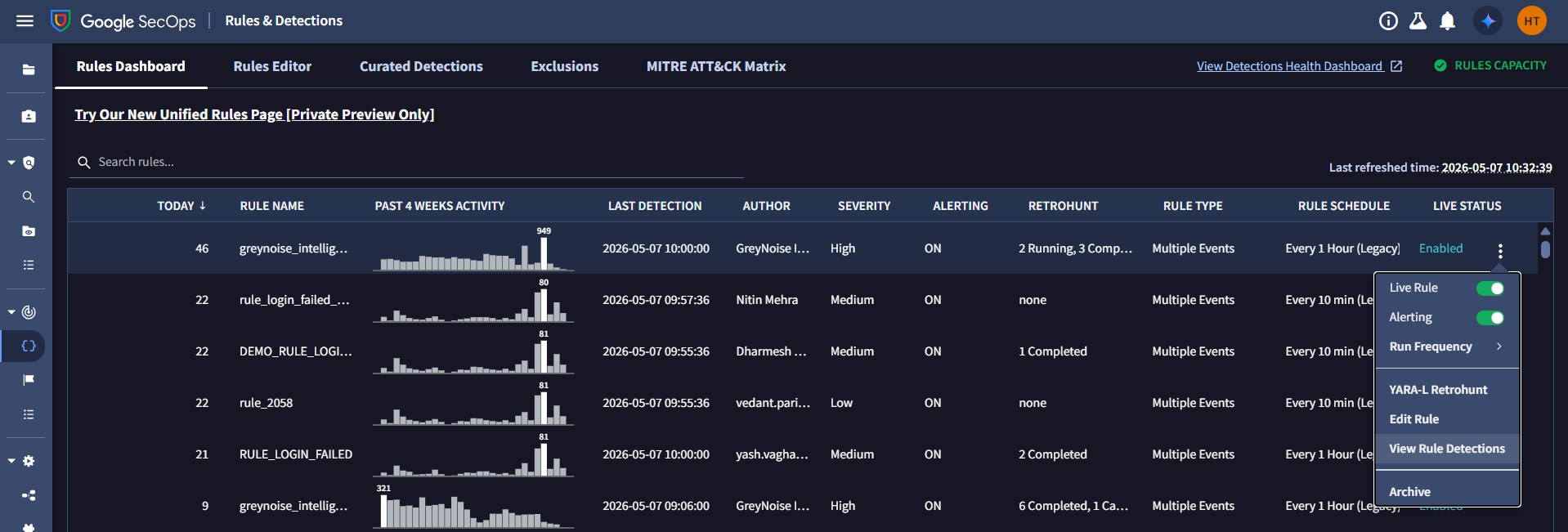
Search or browse for the rule. Click the 3 dots in the top-right corner for the specific rule's row.
-
Click on the View Rule Detections.
-
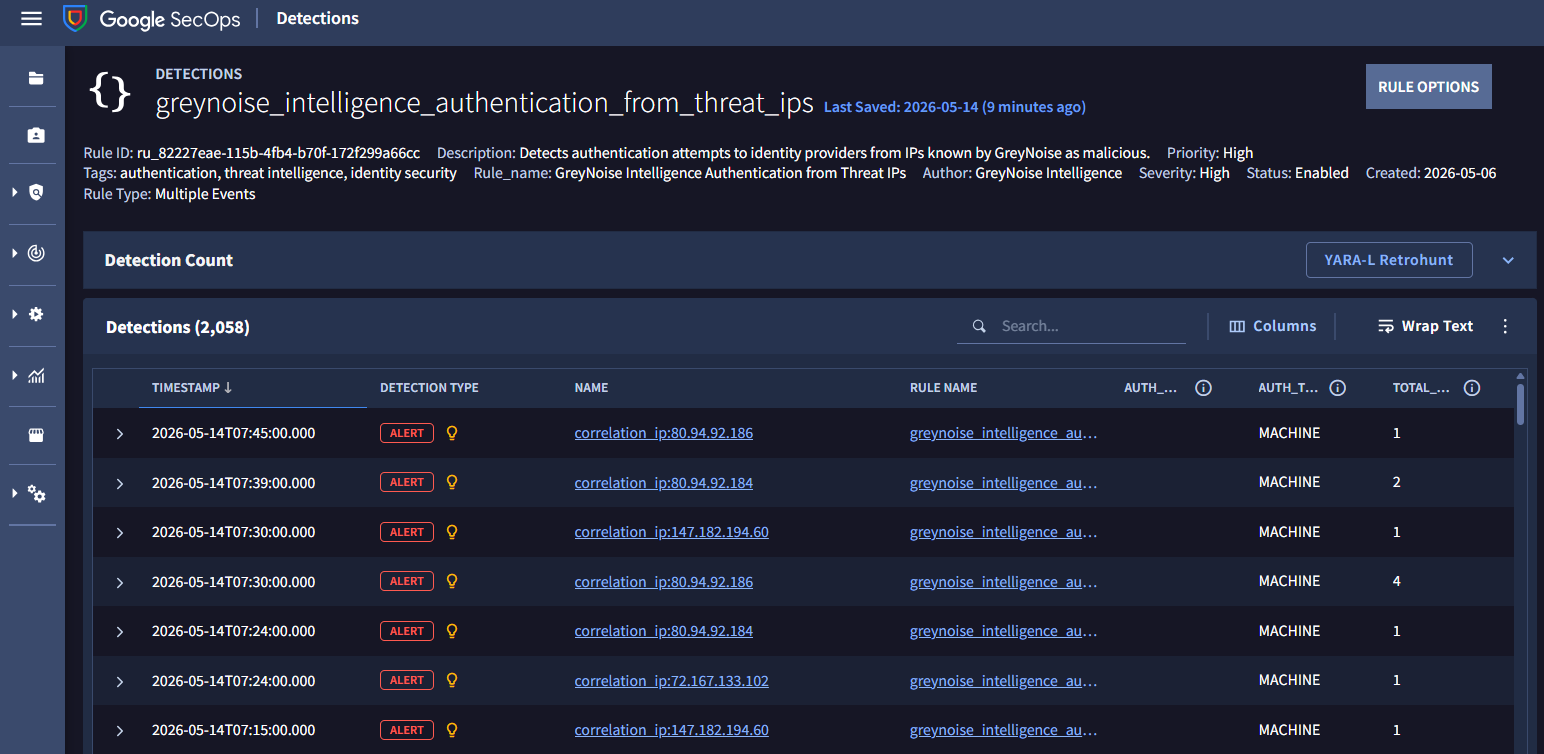
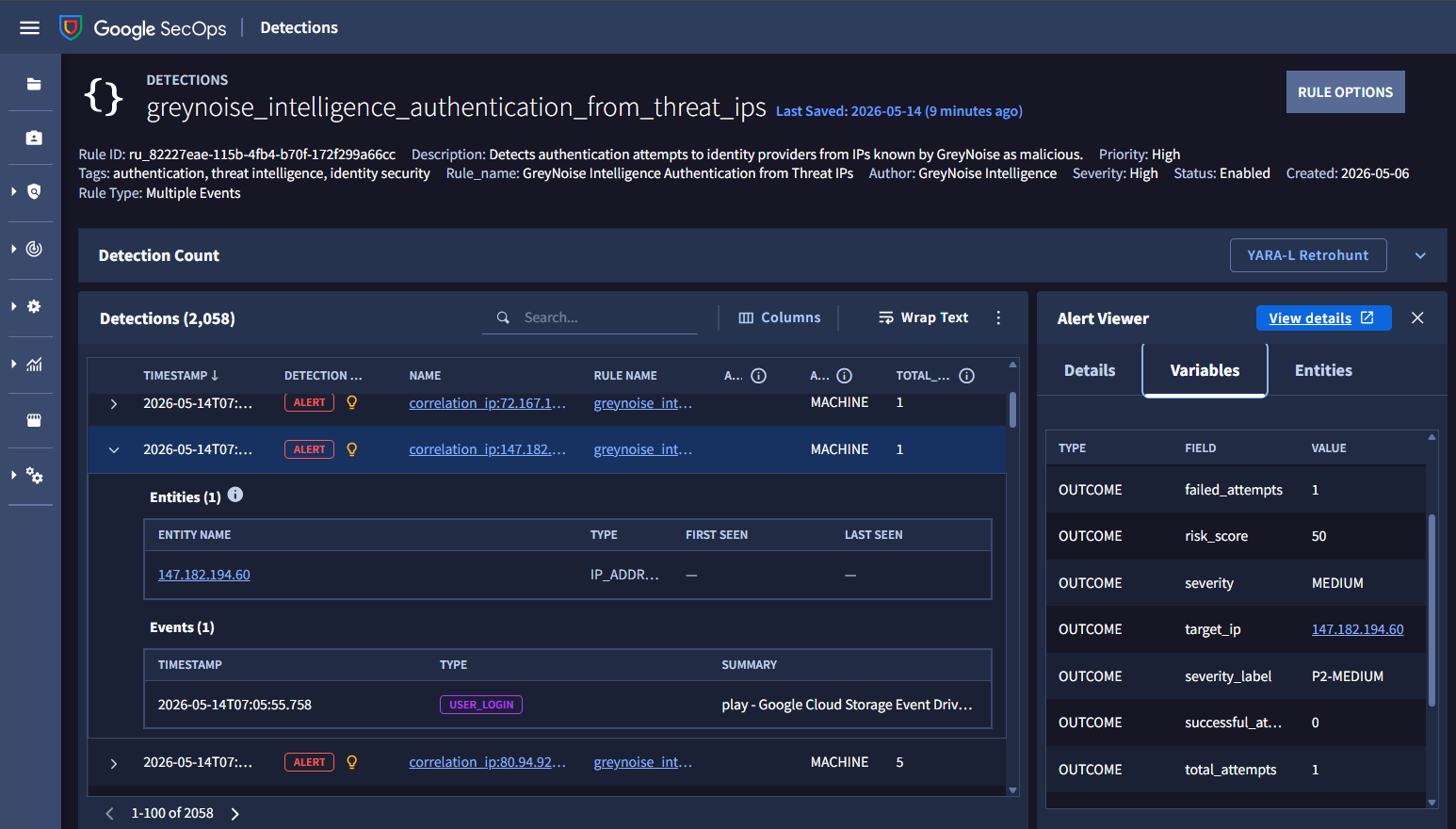
The list of Alerts will be visible in the Detections section, with the Detection Type column set to Alert.
-
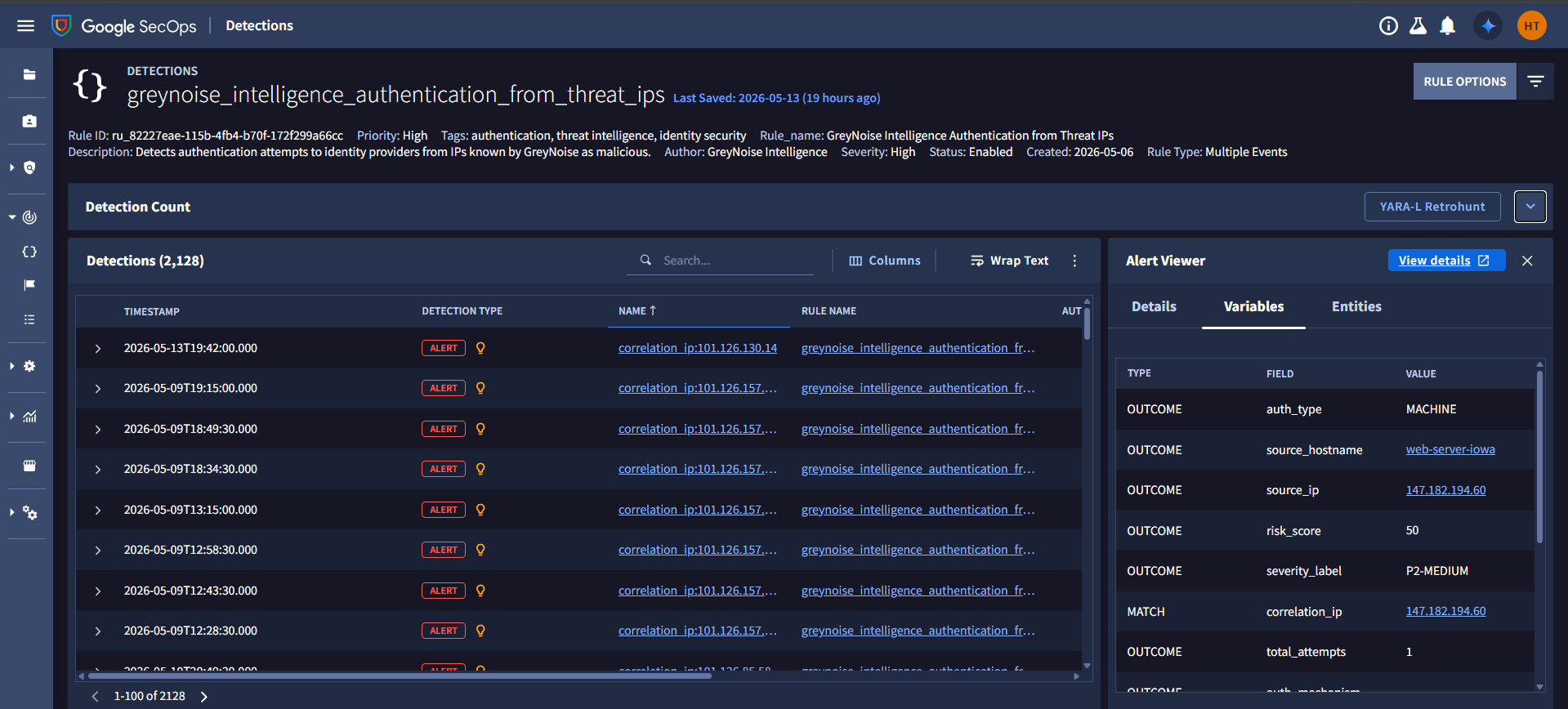
To view the outcome variables of Alert, click on the Alert row, then on the Alert viewer tab, and click on Variables.
Understanding the Output
The YARA-L rule correlates every authentication event against GreyNoise's threat dataset and applies the following logic:
- Evaluates all authentication attempts - both successful and failed - against GreyNoise MALICIOUS or SUSPICIOUS verdicts, filtering out routine login noise instantly.
Every result surfaced by this rule carries a severity label. The table below defines what each severity label means to the analyst:
| Severity Label | What It Means |
|---|---|
| P1-HIGH | A known malicious IP has successfully authenticated. Treat it as an active compromise. Immediately revoke the session, reset credentials, and isolate the endpoint. |
| P2-HIGH | A suspicious IP has successfully been authenticated. Investigate the account and session immediately. |
| P2-MEDIUM | A malicious IP is actively attempting to authenticate. Your organization is being specifically targeted. Review and consider blocking. |
| P2-LOW | A suspicious IP is actively attempting to authenticate. Your organization is being specifically targeted, but not yet successful. |
Result: Out of 1334 raw authentication events, only 67 events were left for investigation. Thousands of raw authentication events are reduced to a small set of high-priority alerts.
Benefits for the SOC Team
| Benefit | Detail |
|---|---|
| Distinguishes Targeted vs Opportunistic | Separates mass spray attacks from IPs specifically probing your organization's identity infrastructure. |
| Catches Compromises Standard Logs Miss | A successful login from a C2 IP looks normal in raw auth logs. GreyNoise context makes it immediately visible. |
| Clear Severity Triage | P1-HIGH, P2-HIGH, P2-MEDIUM, and P2-LOW verdicts tell analysts exactly what to work on first — no interpretation required. |
| Earlier Intervention | Failed auth attempts from flagged IPs are surfaced before a successful compromise occurs. |
Conclusion
Without GreyNoise, a successful login from a botnet-operated IP is indistinguishable from a legitimate session - it passes through silently. With GreyNoise correlation embedded in YARA-L detection logic, that same event immediately becomes a P1-HIGH alert with full context for analyst action.
SOC teams stop chasing undifferentiated login noise and focus on a prioritized, intelligence-backed set of alerts, enabling earlier intervention and a significantly reduced window of exposure for credential-based attacks.
Updated 5 months ago