
CrowdStrike Next-Gen SIEM Installation Guide
Overview
The GreyNoise App for CrowdStrike Next-Gen SIEM integrates GreyNoise threat intelligence directly into your CrowdStrike environment.
Compatibility Matrix
- Supported Browsers: Google Chrome, Mozilla Firefox.
- OS: Platform independent.
Installation
The GreyNoise App is delivered through Falcon Foundry and can be installed directly from the App Catalog.
New Installation - From App Catalog (Foundry)
-
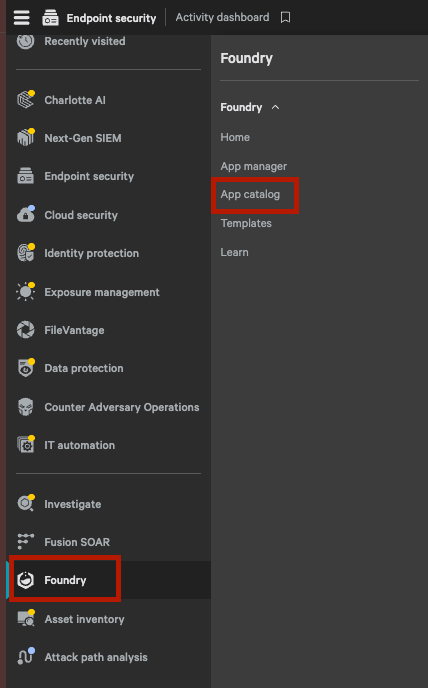
Go to Foundry → App catalog.
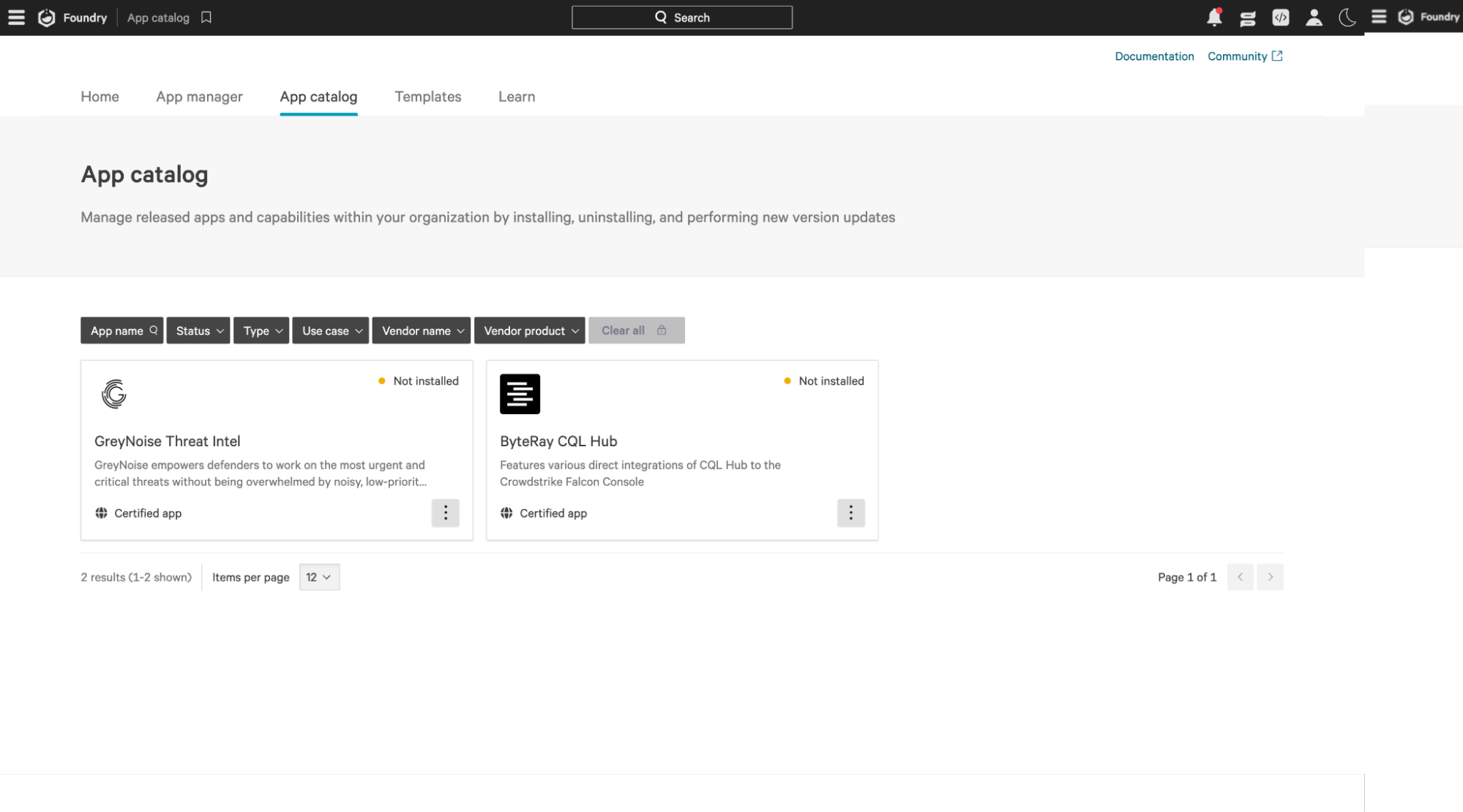
You'll see the GreyNoise Threat Intel App as an installation option.
-
Click on the GreyNoise Threat Intel App to install.
-
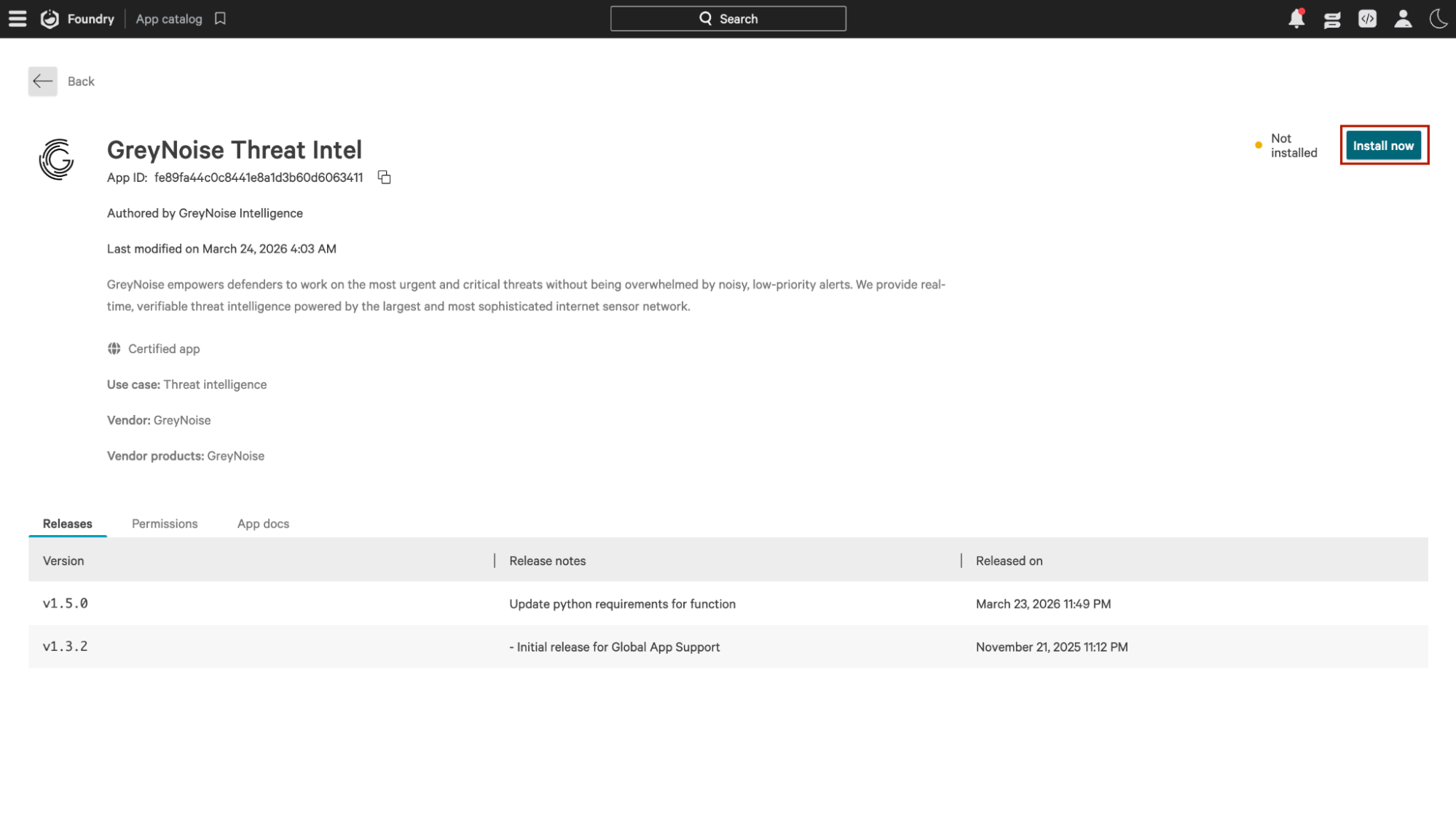
Click the Install now button.
-
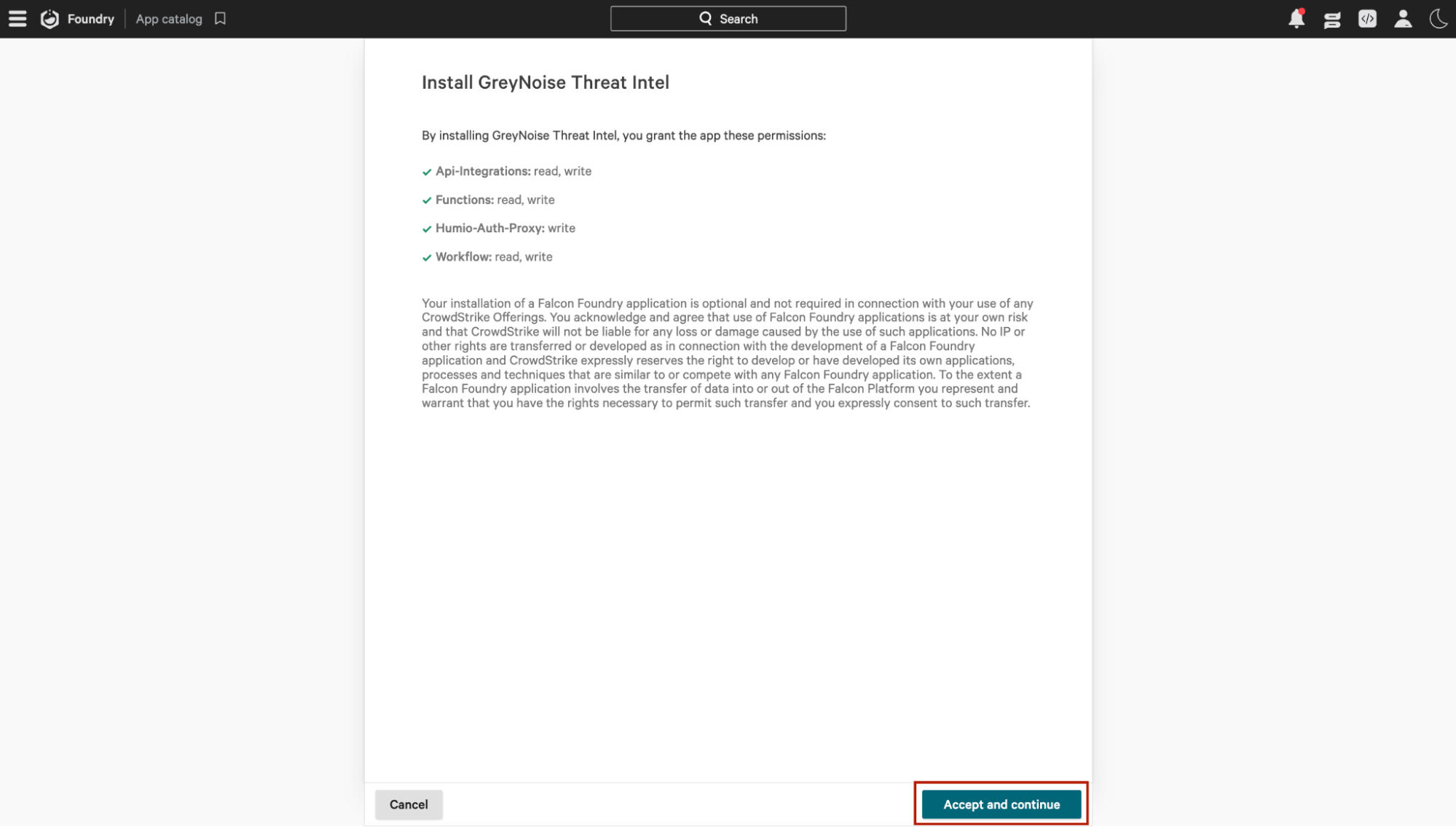
Click on Accept and continue.
-
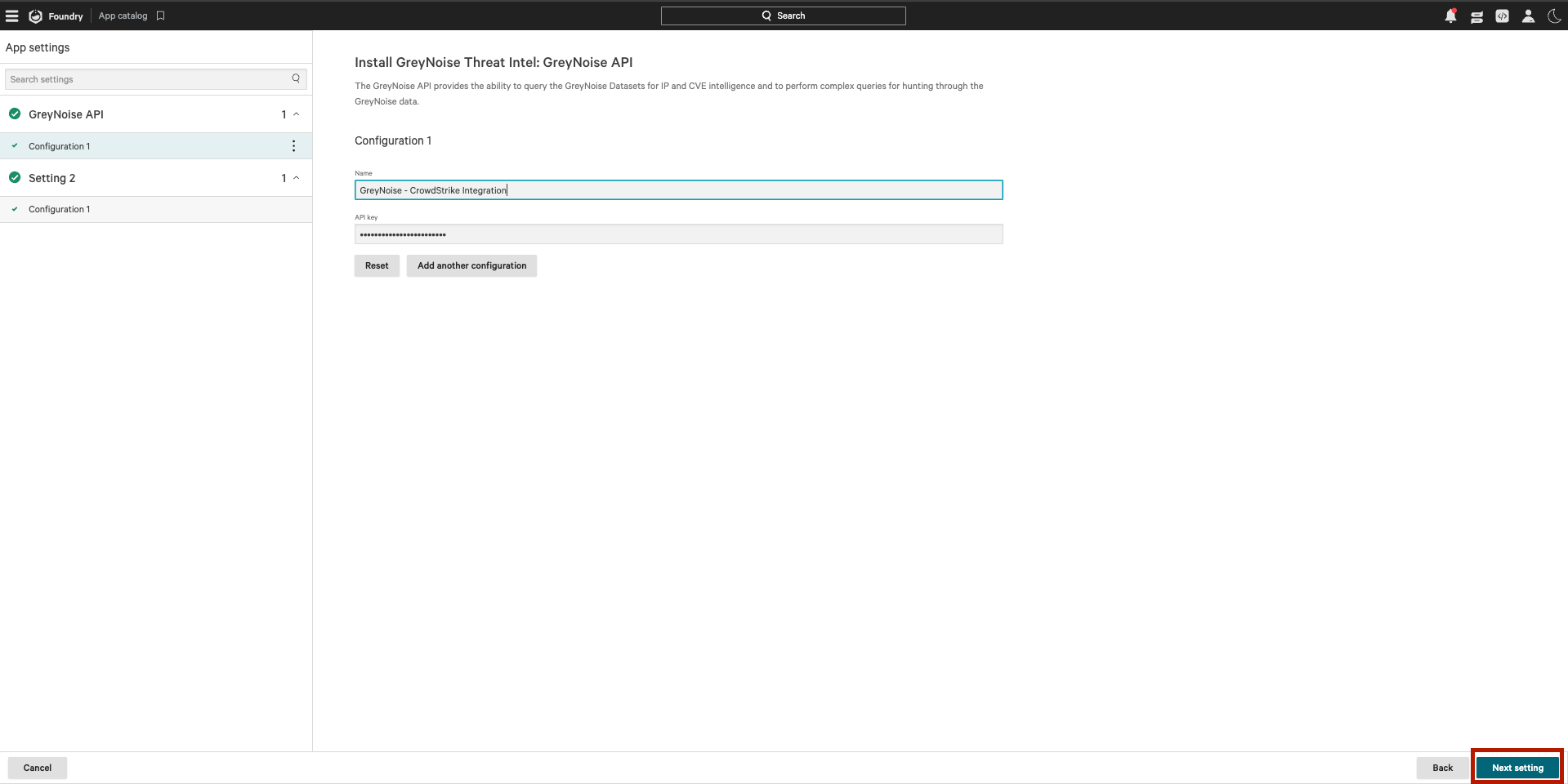
After installing the Foundry App, two primary configuration sections must be set up.
- GreyNoise API Configuration: This section includes two values and enables the authentication for adding GreyNoise API actions into Fusion SOAR workflows.
-
Name: Enter a name for the API credentials to help identify them, for example, GreyNoise - CrowdStrike Integration.
-
API Key: Enter your valid GreyNoise API Key.
-
Workflow Settings: This section provides the necessary settings for the automated workflow that creates and uploads the CSV file daily into the NG-SIEM Lookup files section.
-
API Key: Enter your valid GreyNoise API Key received from the GreyNoise visualizer.
-
Max Indicator Count: This option sets a limit on the maximum number of indicators stored in the lookup file. Ideally, this number should be larger than the total number of indicators in the defined query if you desire the file to contain all indicators from the query. If the ingest workflow is erroring or if the file won't upload because it is too big, try reducing this value to a smaller number as a troubleshooting method.
-
Query: The GreyNoise Query (GNQL) retrieves indicators from the GreyNoise API. By default, it is recommended to use:
last_seen:1d -classification:unknownwhich imports all recent scanners with a known classification. Additional common queries for smaller datasets are:- All recently malicious IPs:
last_seen:1d last_seen_malicious:1d classification:malicious - All observed IPs from the last day:
last_seen:1d - IPs observed with Vendor (replace VENDOR with vendor name) attack tags in the last day:
last_seen_malicious:1d AND classification:malicious AND spoofable:false AND tags:VENDOR
- All recently malicious IPs:
-
Repository: This is the NG-SIEM lookup file repository name where the Lookup File will be uploaded. The default value of search-all is recommended.
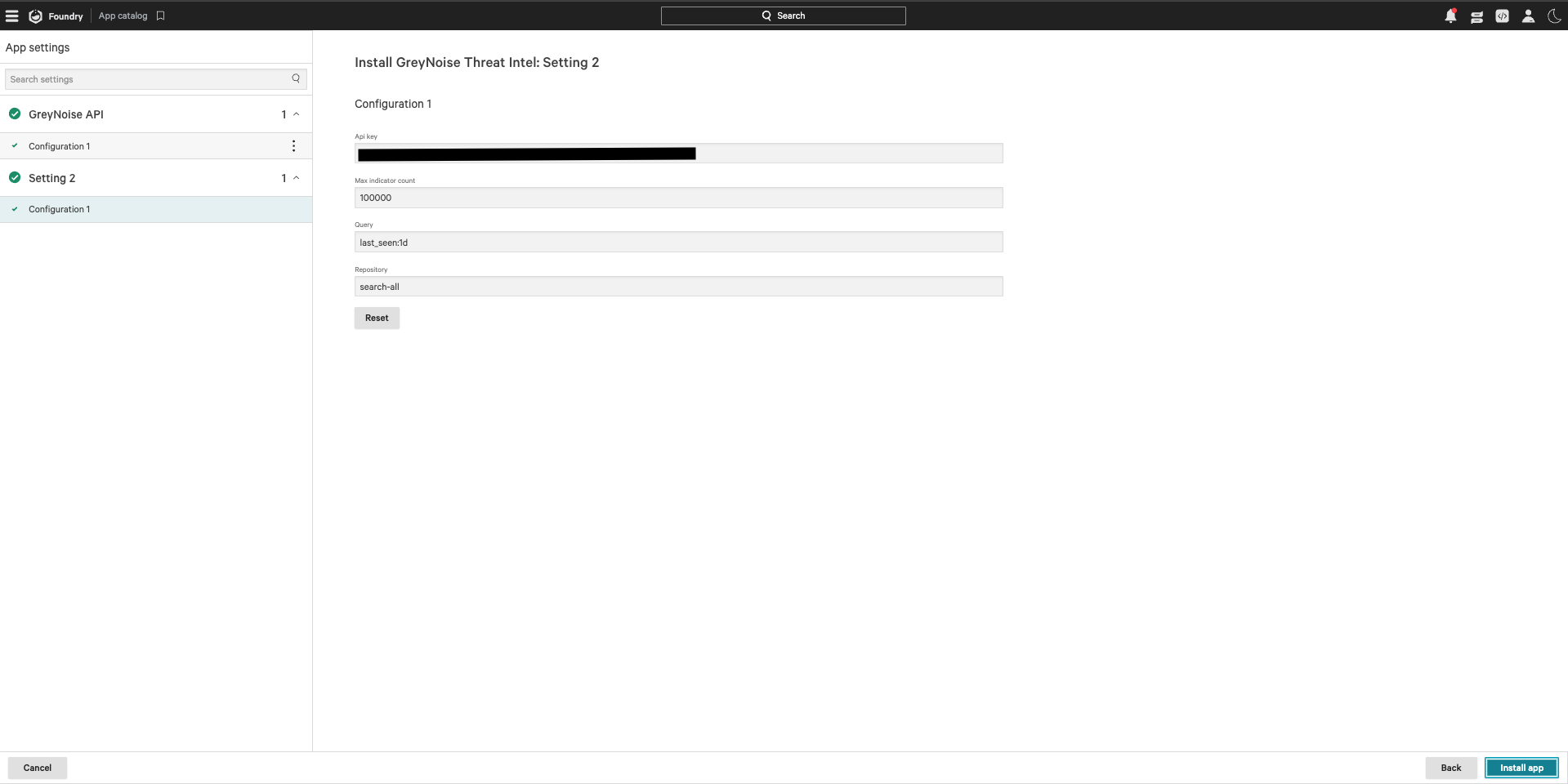
- Click on Install app.
Upgrading the App
To upgrade the existing version to GreyNoise v1.5.0, follow the steps below:
Upgrading from the Foundry App Catalog
-
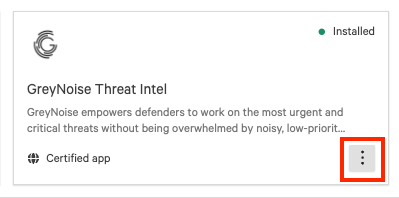
Click on the three dots icon on the right side below.
-
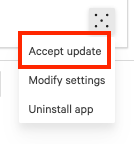
Click the Accept Update.
-
Click on Accept and continue.
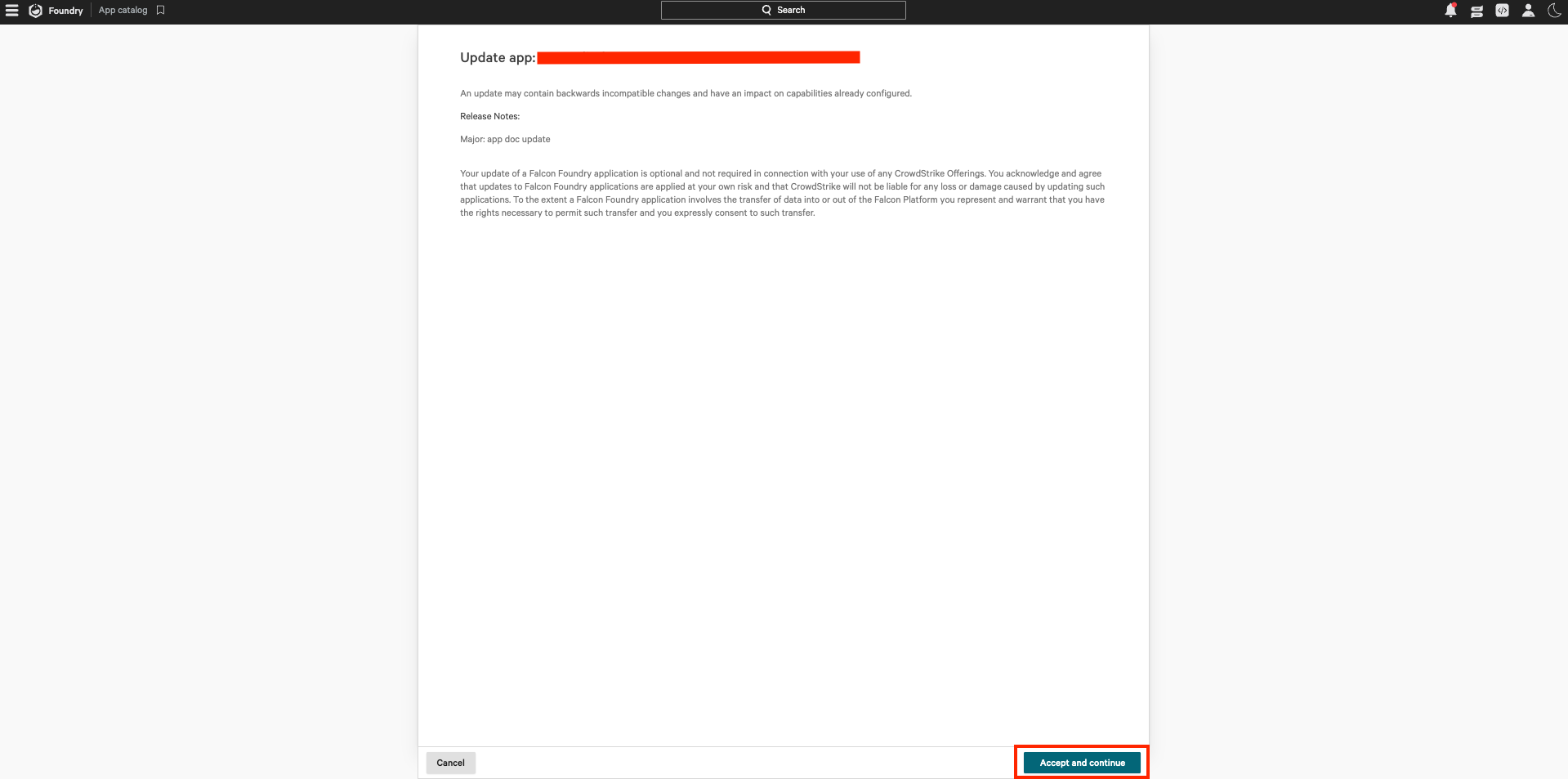
-
Update the configuration settings, if required.
-
Click on the Update app to apply the upgrade.
Lookup File Workflow
The Foundry App installs and automatically enables a workflow to update the GreyNoise Lookup file daily.
The workflow includes the following components:
- Workflow: GreyNoise Indicator Import Scheduler.
- Function: greynoise-ti-bulk-import.
Once the settings are configured, the workflow can be found in the Fusion SOAR Workflows section and should be marked as enabled:

The execution log will show the state of each of the workflow runs:
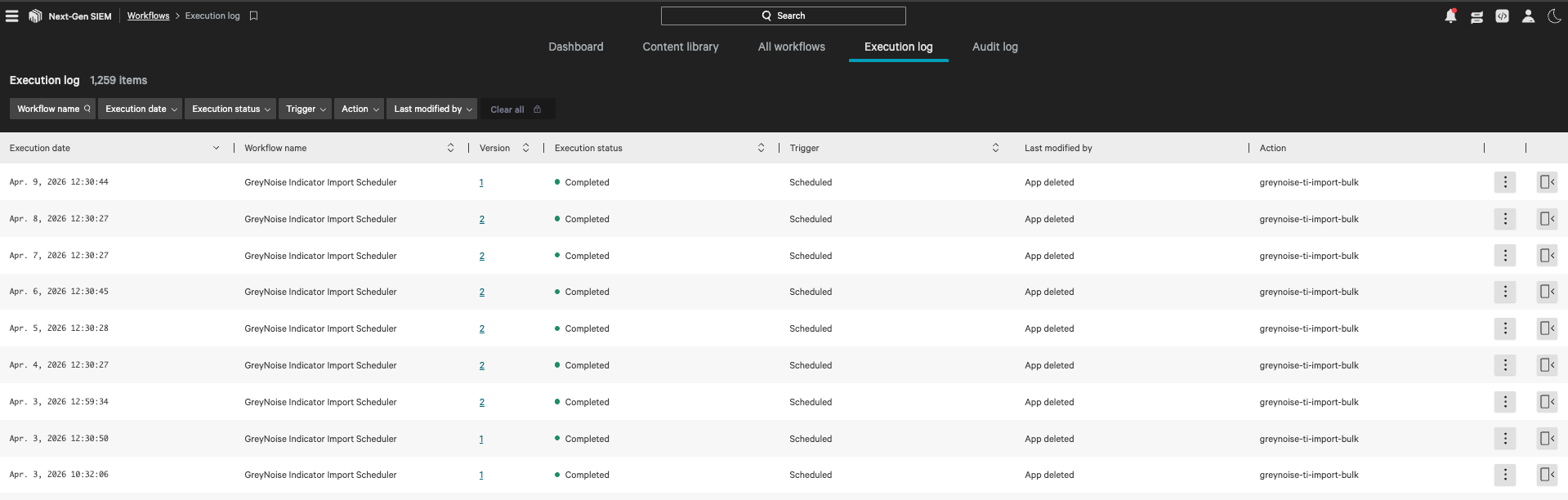
This will then generate and update the ti_greynoise_indicators.csv file within NG-SIEM:

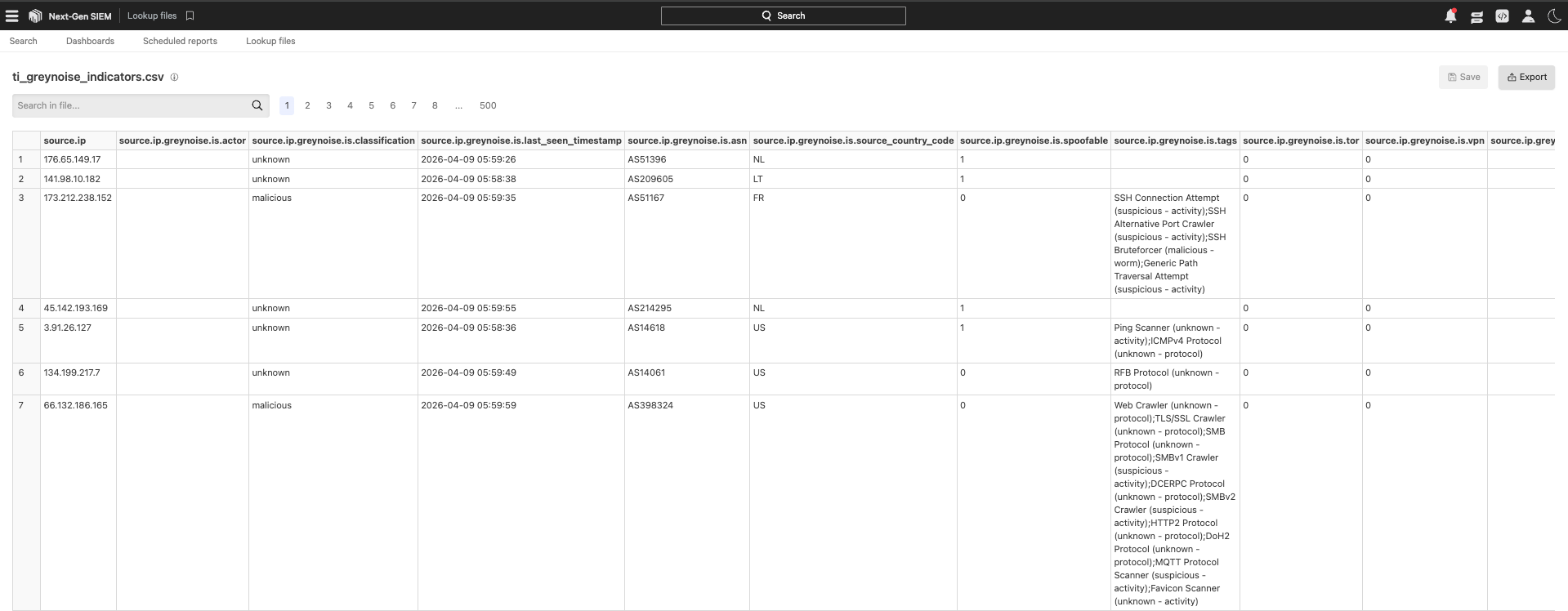
Verify Integration
Verify Workflow is Enabled
-
Go to Next-Gen SIEM → Workflows.
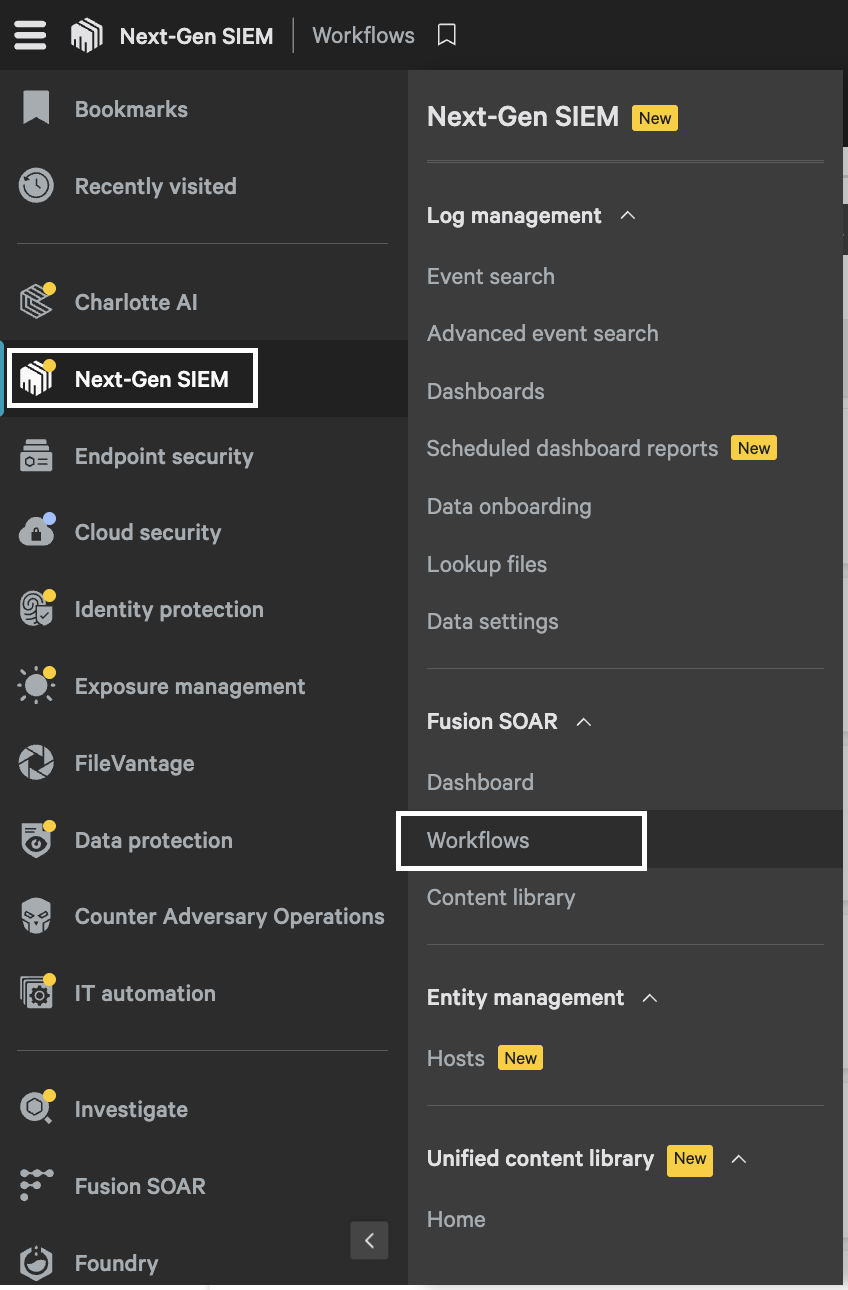
-
Verify the workflow status is set to ON.

Verify the Lookup file exists
-
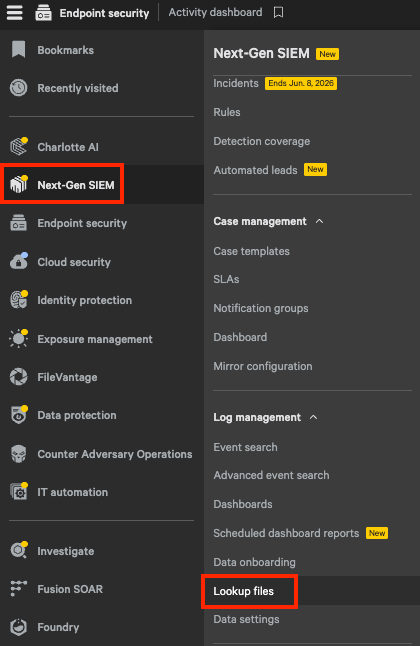
Go to Next-Gen SIEM → Lookup files.
-
Search for the
ti_greynoise_indicators.csvfile. It should appear in the results.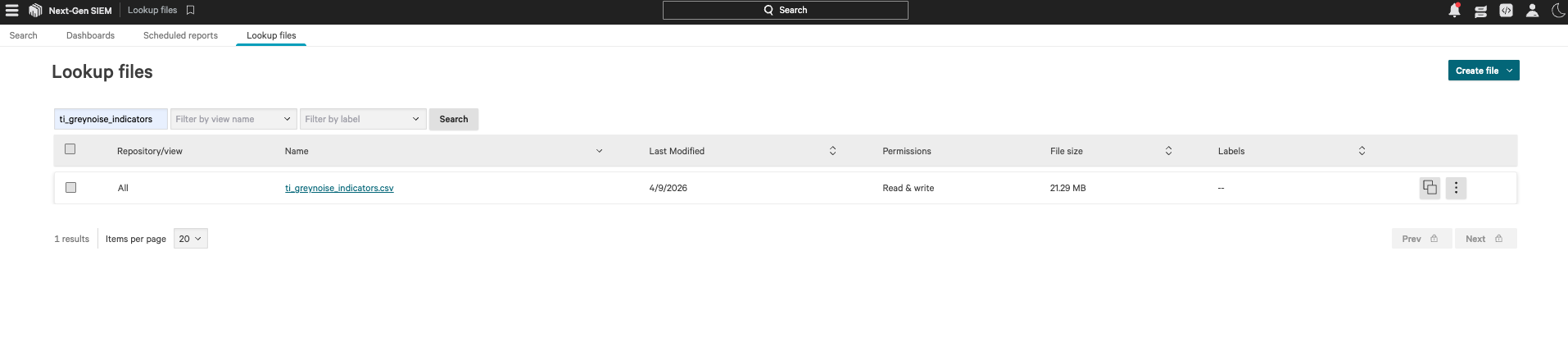
-
If the lookup file is not yet available, either wait for the scheduled workflow to run automatically or trigger the workflow manually.
Incorporating the Lookup File
The lookup file uses the match() function to incorporate the GreyNoise data into NG-SIEM searches. This additional metadata can then be used to filter out unnecessary events or to create additional alert types, depending on the use case.
Sample Search Query
The following is a sample search incorporating the lookup file:
Note: Replace <VENDOR_NAME> with your vendor name provided by your firewall logs provider.
#Vendor=<VENDOR_NAME>
| match(file="ti_greynoise_indicators.csv", field=[source.ip], column=[source.ip])
Dashboards
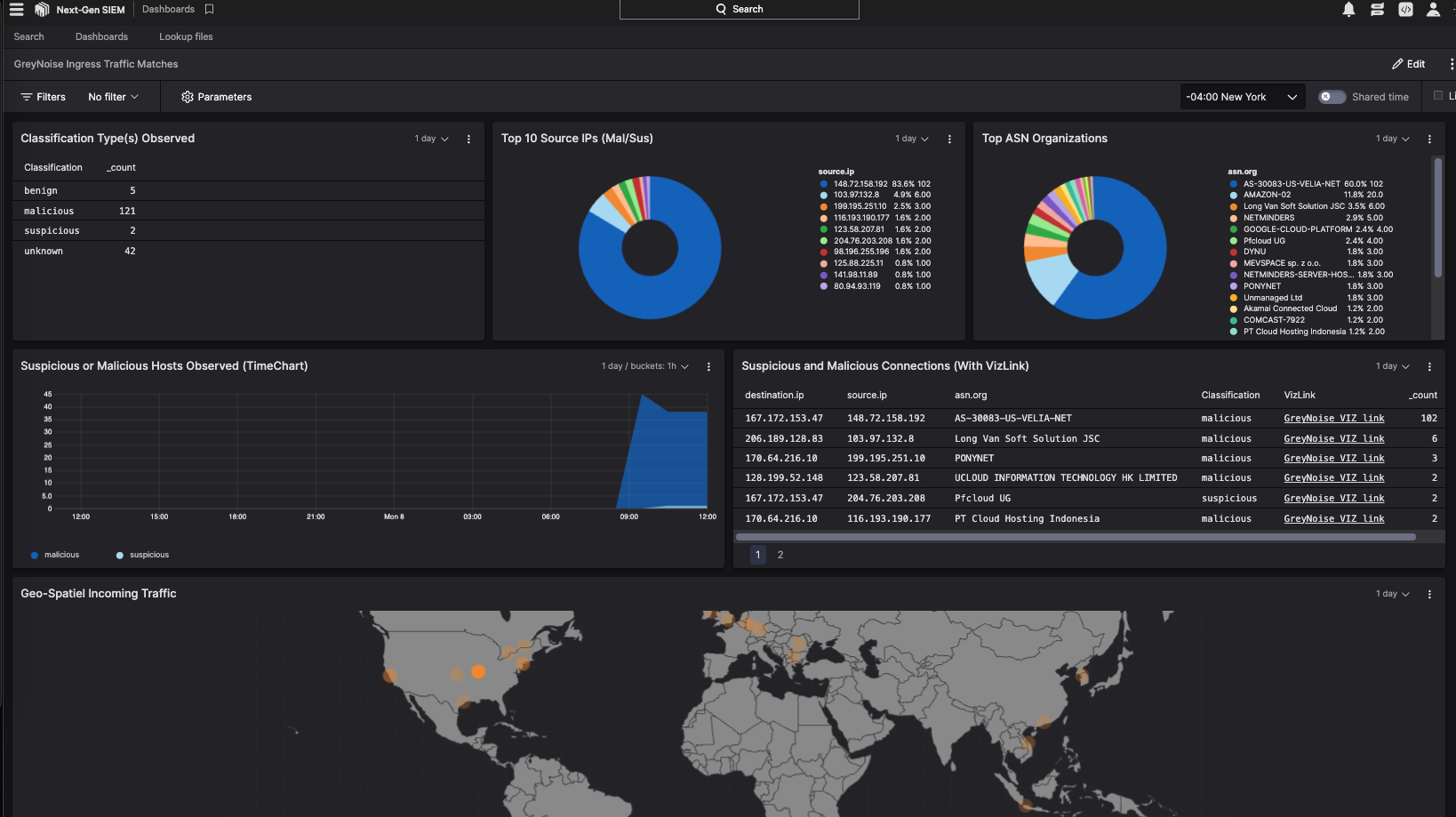
GreyNoise intelligence can be incorporated into dashboards to monitor data sources and surface important information for analysts.
Changelog
v1.5.0
- Python requirements update: Updated Python requirements for core functions to enhance stability and performance.
v1.3.2
- Initial release for Global App Support.
Updated 4 months ago