
Microsoft Sentinel Use Case Guide 1
Reducing Alert Volume and Surfacing Targeted Threats
Reducing Alert Volume and Surfacing Targeted Threats
Overview
Every internet-facing organization is bombarded by automated scanners, bots, and opportunistic exploitation tools, generating thousands of firewall alerts per day that are not real threats. This leads to alert fatigue that overwhelms SOC analysts, causing them to ignore alerts and miss real targeted attacks that get buried in the noise.
The GreyNoise Solution
GreyNoise maintains a global sensor network that observes which IPs are conducting mass, indiscriminate internet scanning. By integrating GreyNoise threat indicators directly into Microsoft Sentinel, it can automatically identify and remove known mass-scanning traffic from your Sentinel alert queue. The residual traffic after filtering, traffic that is unknown to GreyNoise, carries a higher probability of being a genuine, targeted attack against your organization.
The core logic is simple:
"If an IP is hitting everyone on the internet, it is not targeting YOU. Filter it out."
Prerequisites
Ensure your environment meets these prerequisites before beginning the setup:
Tools and Access
| Prerequisites | Details |
|---|---|
| Microsoft Sentinel | An active Microsoft Sentinel workspace in Azure. |
| GreyNoise Solution | GreyNoise Enterprise is installed from the Sentinel Content Hub. |
| GreyNoise Threat Intelligence | GreyNoise Threat Intelligence connector installed from the Sentinel Content Hub. |
| API Key | GreyNoise API key configured during connector deployment. |
| Classification Setting | Connector deployed with Classification parameter set to: malicious, unknown, benign, suspicious. |
| Firewall Logs | CommonSecurityLog (CEF-based logs from Palo Alto, Check Point, Fortinet, etc.) |
| Log Fields | Logs must contain: SourceIP, CommunicationDirection fields |
Table
The entire GreyNoise data is stored in this one table:
| Table | Purpose |
|---|---|
| ThreatIntelIndicators | Stores GreyNoise IP indicators ingested daily. |
Implementation Steps
Step 1: Connectivity Verification of the GreyNoise Data Connector
To verify connectivity, follow the steps below:
- Open the Microsoft Sentinel Workspace
- Under the Configuration > open Data Connectors.
- Search for "GreyNoise", and verify whether the connector shows a Connected status with recent indicator ingestion.
- Confirm the ThreatIntelIndicators table is populated by running the following validation query in Log Analytics:
ThreatIntelIndicators
| extend d = parse_json(Data)
| where tostring(d.name) has "GreyNoise"
| extend ThreatType = tostring(d.indicator_types[0])
| summarize Count = count() by ThreatType
| order by Count desc
Expected result: You should see rows for the malicious, unknown, suspicious, and benign classification types, each with a recent ingestion timestamp. If any expected classification rows are missing, check the Classification parameter in the Azure Function App configuration and ensure all required classifications are included, including malicious, suspicious, unknown, and benign.
Step 2: Verify Your Firewall Logs are Indexed
Confirm your logs are in Sentinel and the required fields are populated.
CommonSecurityLog
| take 5
| project TimeGenerated, SourceIP, DestinationIP, DestinationPort, CommunicationDirection, DeviceAction
Expected result: You should see SourceIP, DestinationIP, etc., populated in the results before proceeding.
Step 3: Run the Full Detection Search
This is the full production-ready KQL detection query. It pulls inbound firewall logs, joins each source IP with GreyNoise's known internet-scanning indicators, and surfaces only the events that require analyst attention: IPs that are completely unidentified in GreyNoise's global scanning dataset yet repeatedly hitting your environment.
// Create a variable that stores IP addresses of known scanners from GreyNoise threat intel
let KnownScanners = ThreatIntelIndicators
   | extend d          = parse_json(Data)
 // Filter to only include records where the 'name' field contains "GreyNoise"
	 | where tostring(d.name) has "GreyNoise"
   | distinct ObservableValue;
// Start querying the CommonSecurityLog table for actual network traffic
CommonSecurityLog
// Filter to only inbound traffic (CommunicationDirection == 0 means inbound)
   | where CommunicationDirection == 0
   | where isnotempty(SourceIP)
// Perform a left anti-join: keep inbound traffic where SourceIP is NOT in KnownScanners list=
   | join kind=leftanti KnownScanners on $left.SourceIP == $right.ObservableValue
   | summarize
    Count = count()
    by SourceIP
// Filter to only keep source IPs that have 10 or more inbound connections
   | where Count >= 10
// Sort the results by Count in descending order
   | sort by Count desc
Step 4: Automate as a Sentinel Analytics Rule
Once the query is verified end-to-end, save it as a recurring Sentinel Analytics Rule for continuous automated monitoring:
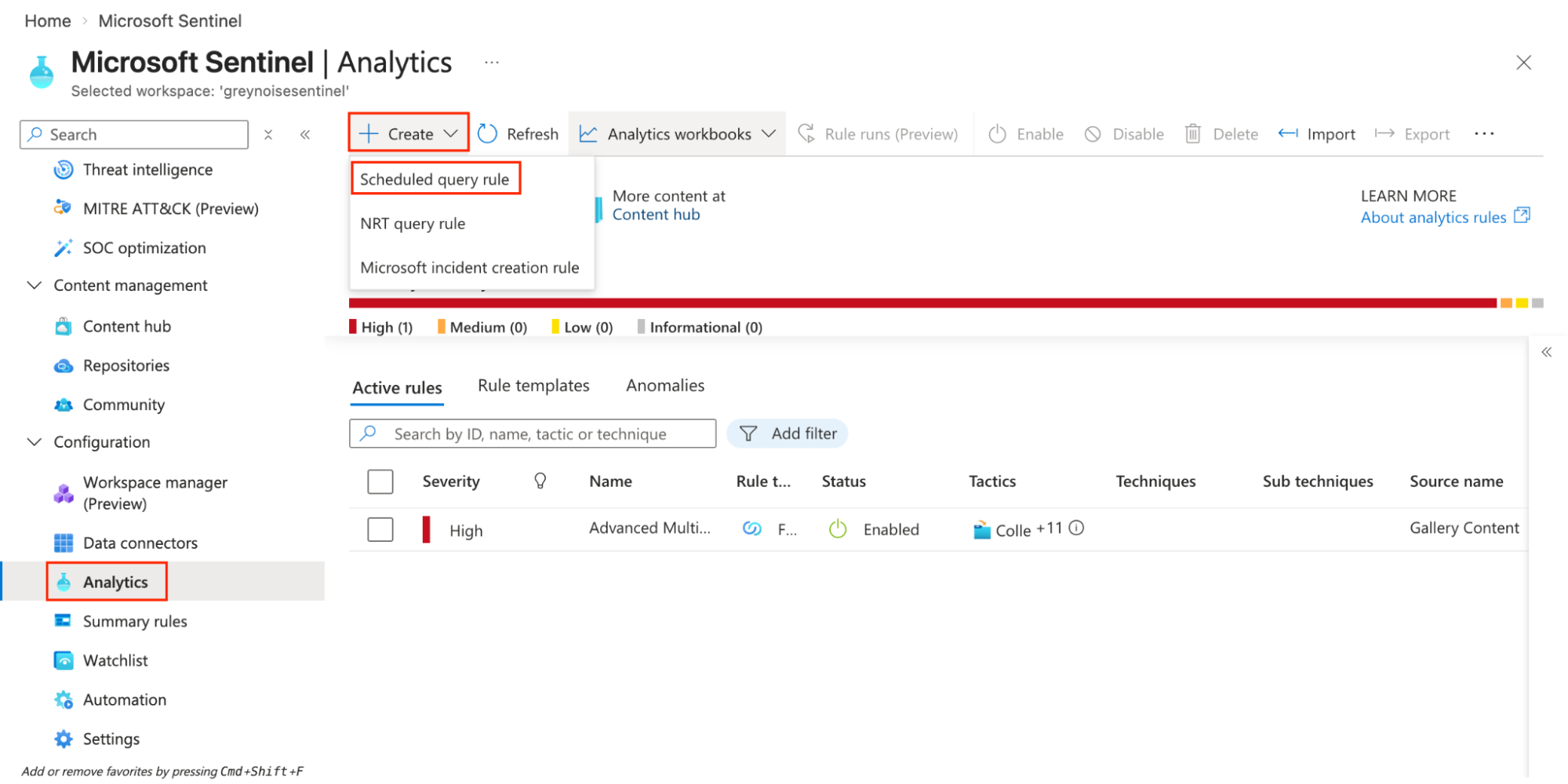
- Navigate to Microsoft Sentinel Workspace → Analytics → Create → Scheduled query rule.
-
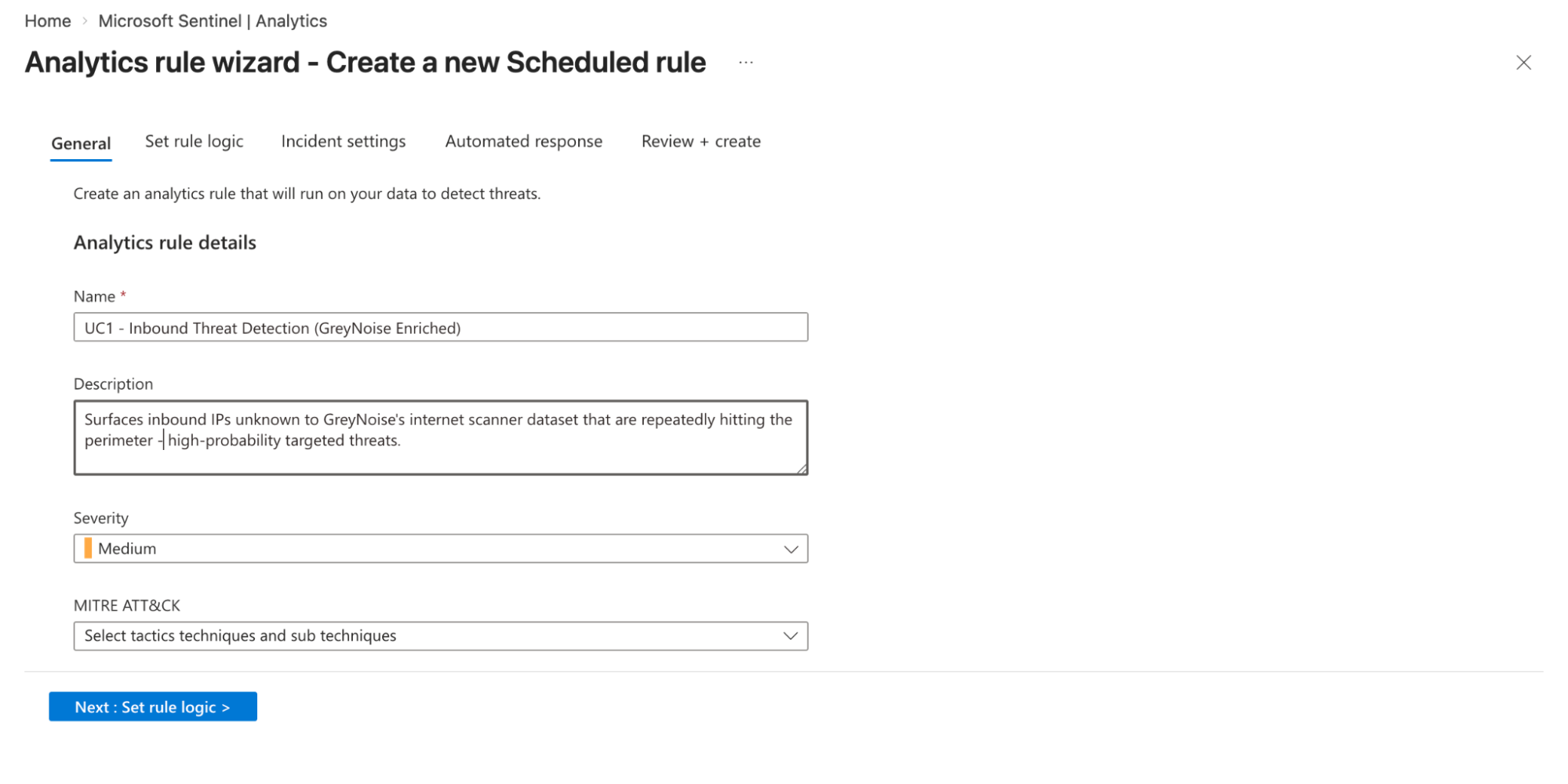
Title: UC1 - Inbound Threat Detection (GreyNoise Enriched)
-
Description: Surfaces inbound IPs that are unidentified in GreyNoise's internet scanner dataset and are repeatedly hitting the perimeter - high-probability targeted threats.
-
Severity: Select desired severity
-
MITRE ATT&CK: Select tactics, techniques, and sub-techniques.
-
Tactics: Reconnaissance
-
Technique: T1595 - Active Scanning
-
Sub-Technique: T1595.001 - Scanning IP Blocks
-
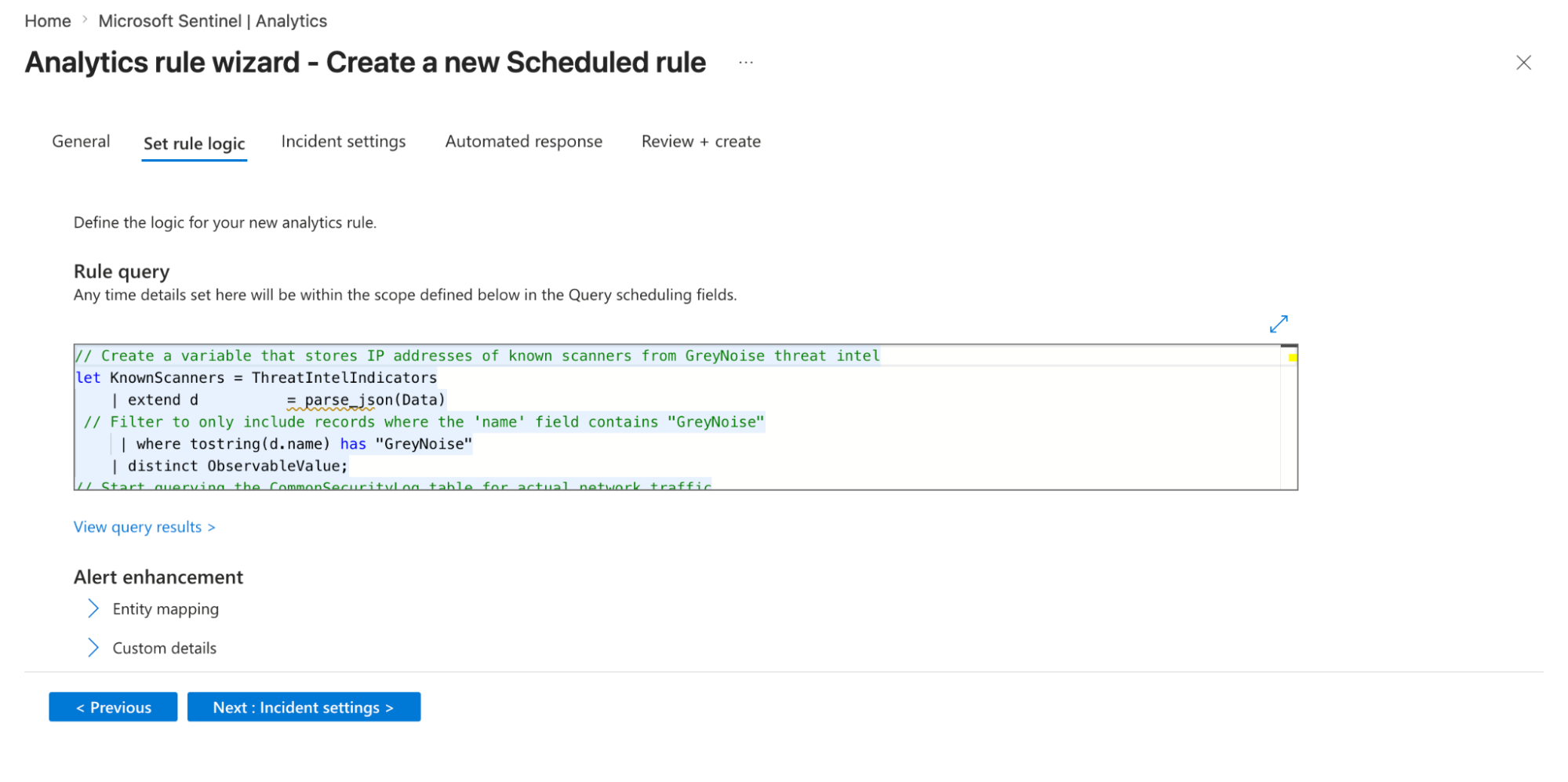
Click on Next: Set rule logic option
-
Rule query: Provide the query created in step-3
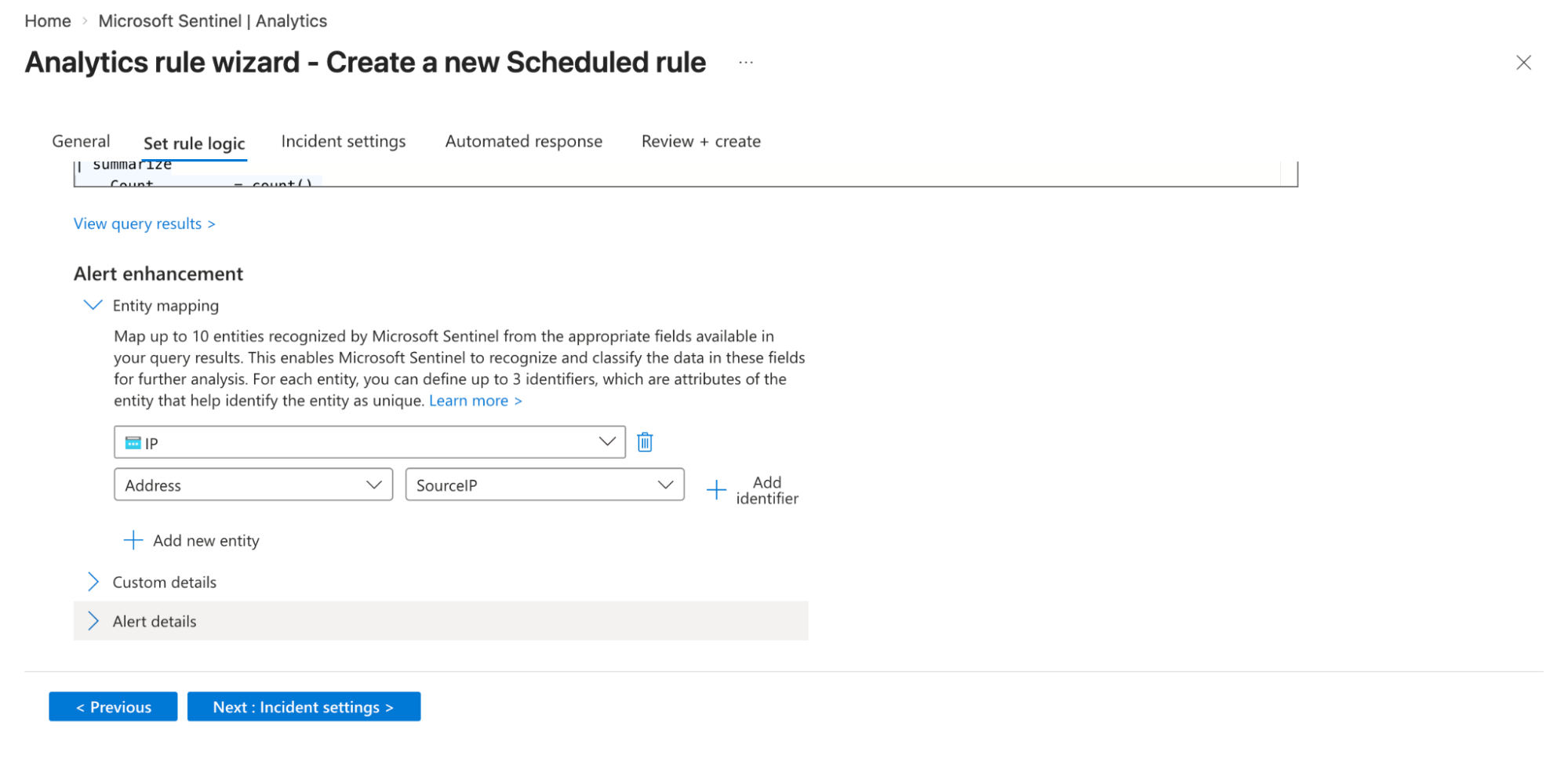
- Entity Mapping:
- Map relevant fields from your query results to Sentinel entities (for example, map
SourceIPto the IP entity type). This allows Sentinel to enrich alerts with context and helps in investigation and correlation within incidents.
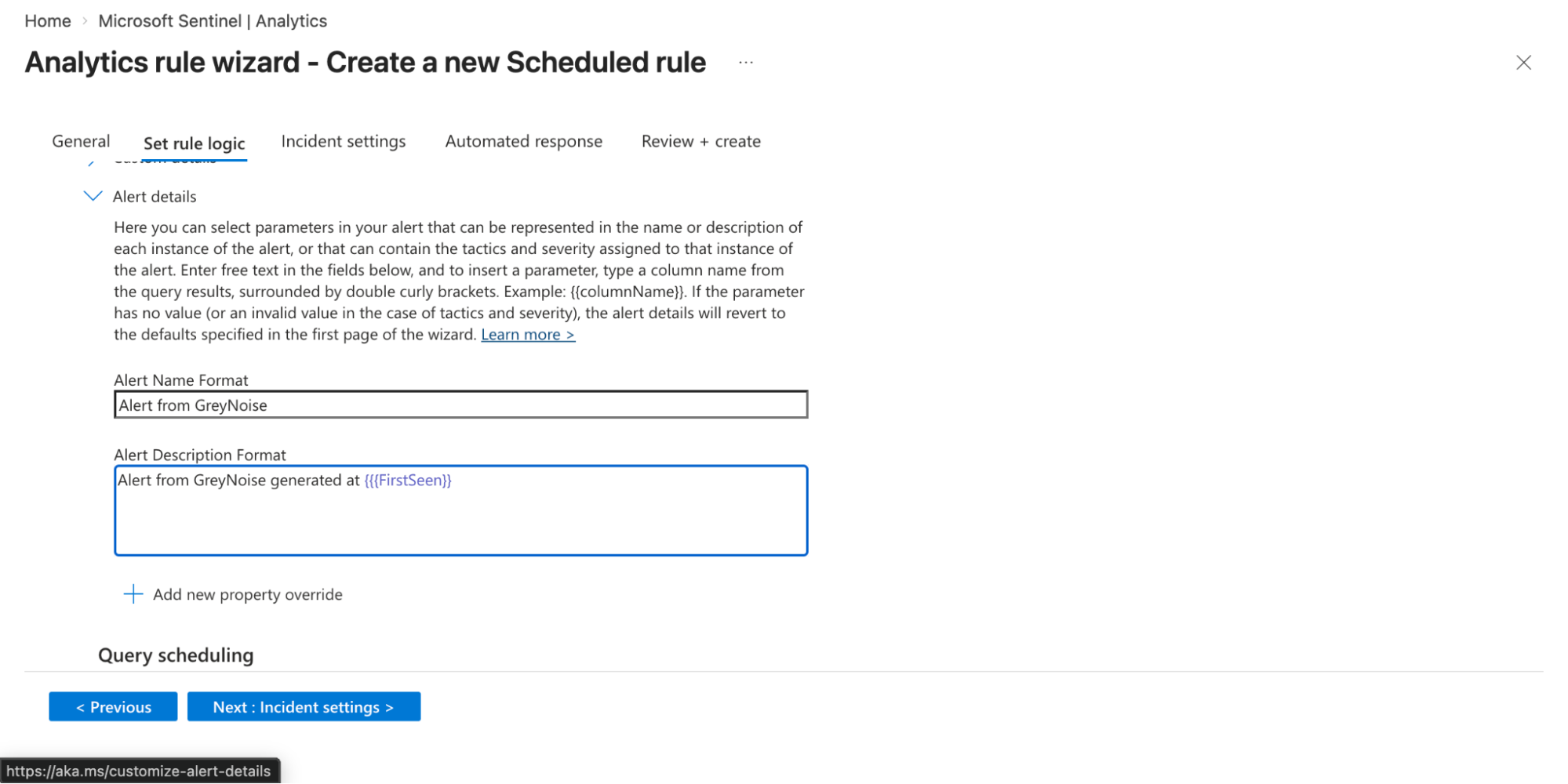
- Alert details:
- Provide a meaningful alert name and description. You can also dynamically customize these using query fields (e.g., include IP addresses or usernames) so each alert provides better context during investigation.
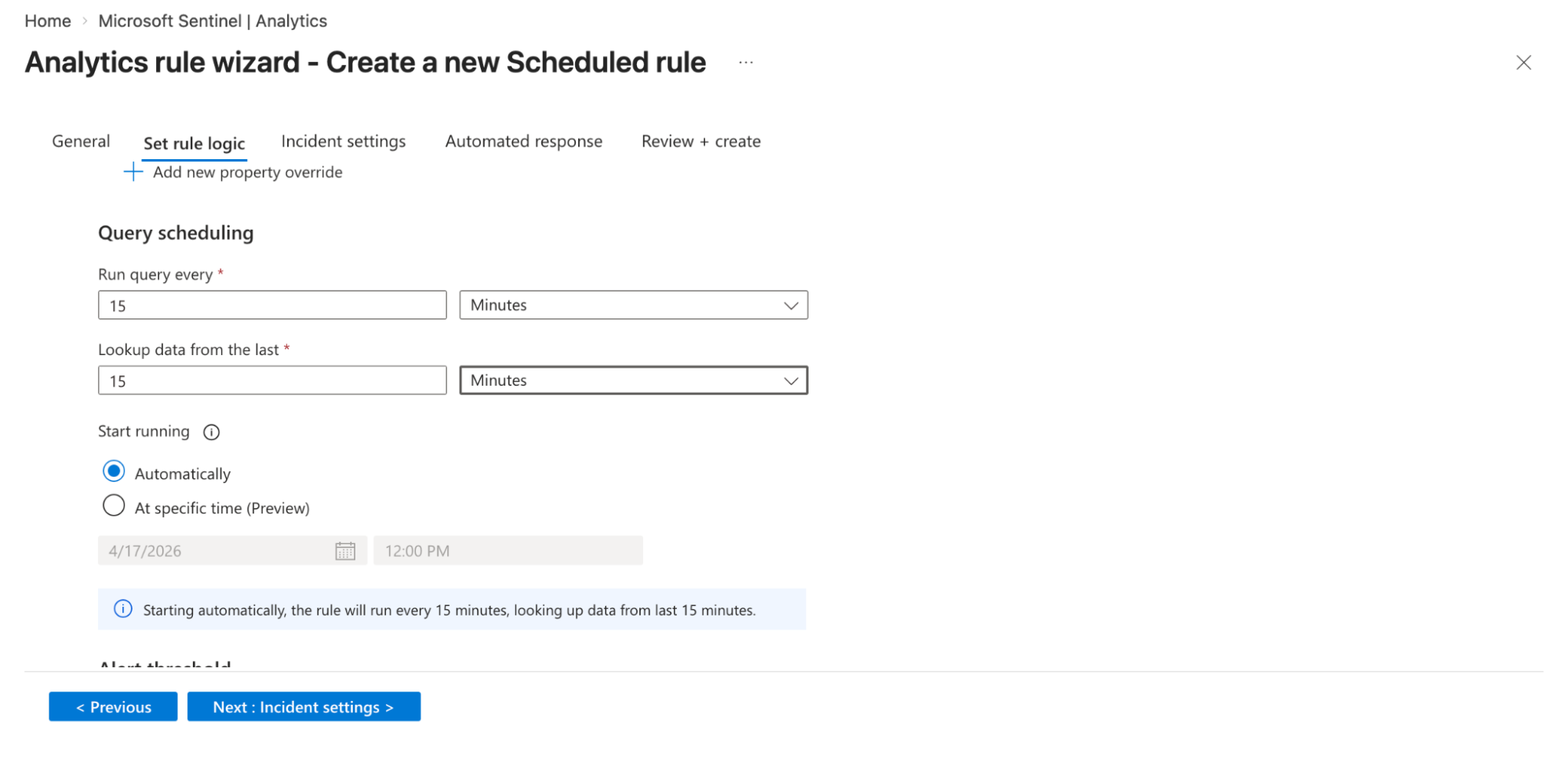
- Query scheduling
- Set how frequently the rule runs in the Run query every text box.
- Enter the amount of historical data it analyzes in the Lookup data text box. The lookback period should be at least as long as the run interval to avoid missing events.
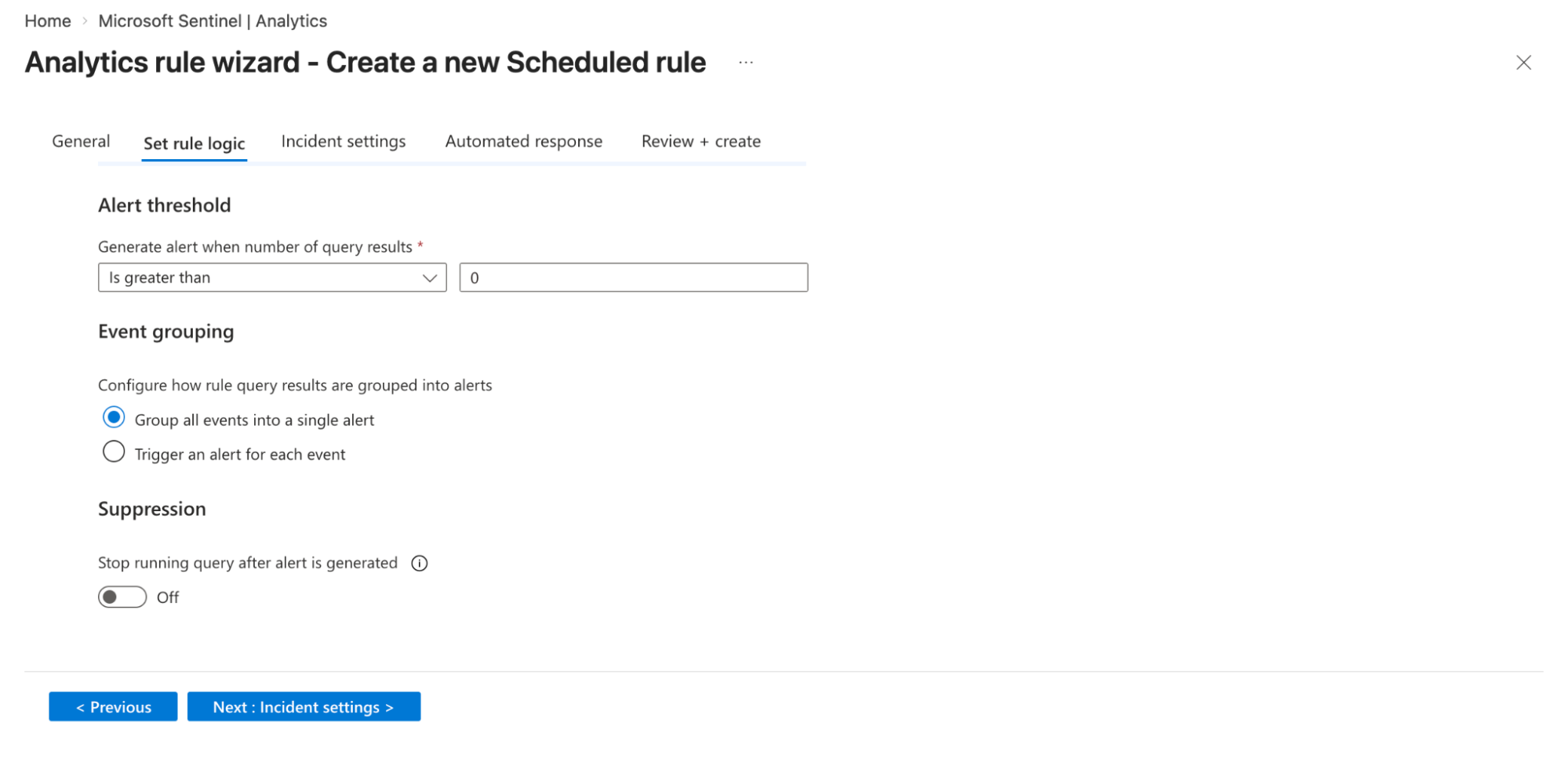
- Alert threshold
- Define when an alert should be generated based on query results in the Generate alerts when number of query results option. (e.g., trigger an alert when results are greater than a defined number). This helps control noise and adjust detection sensitivity.
- Decide how alerts are generated from query results:
- Group all events into a single alert: Creates one alert summarizing all matching events.
- Trigger an alert for each event: Generates a separate alert for each event for granular visibility.
- You can enable suppression to stop the rule from running after an alert is triggered.
-
Click on Next: Incident settings option.
-
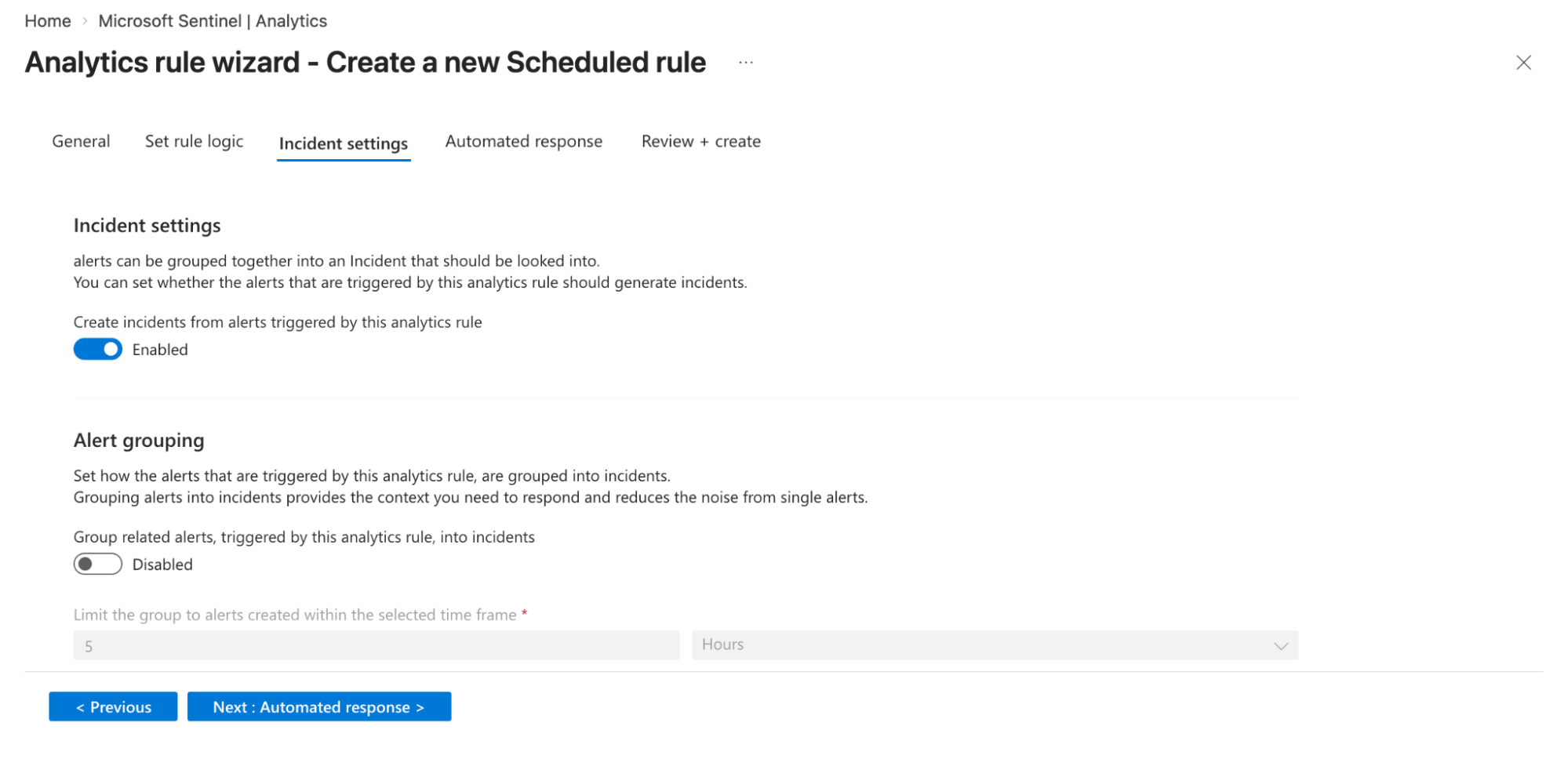
Incident Settings Tab
- Configure the rule to automatically create incidents from generated alerts. This ensures alerts are grouped into incidents for SOC investigation workflows.
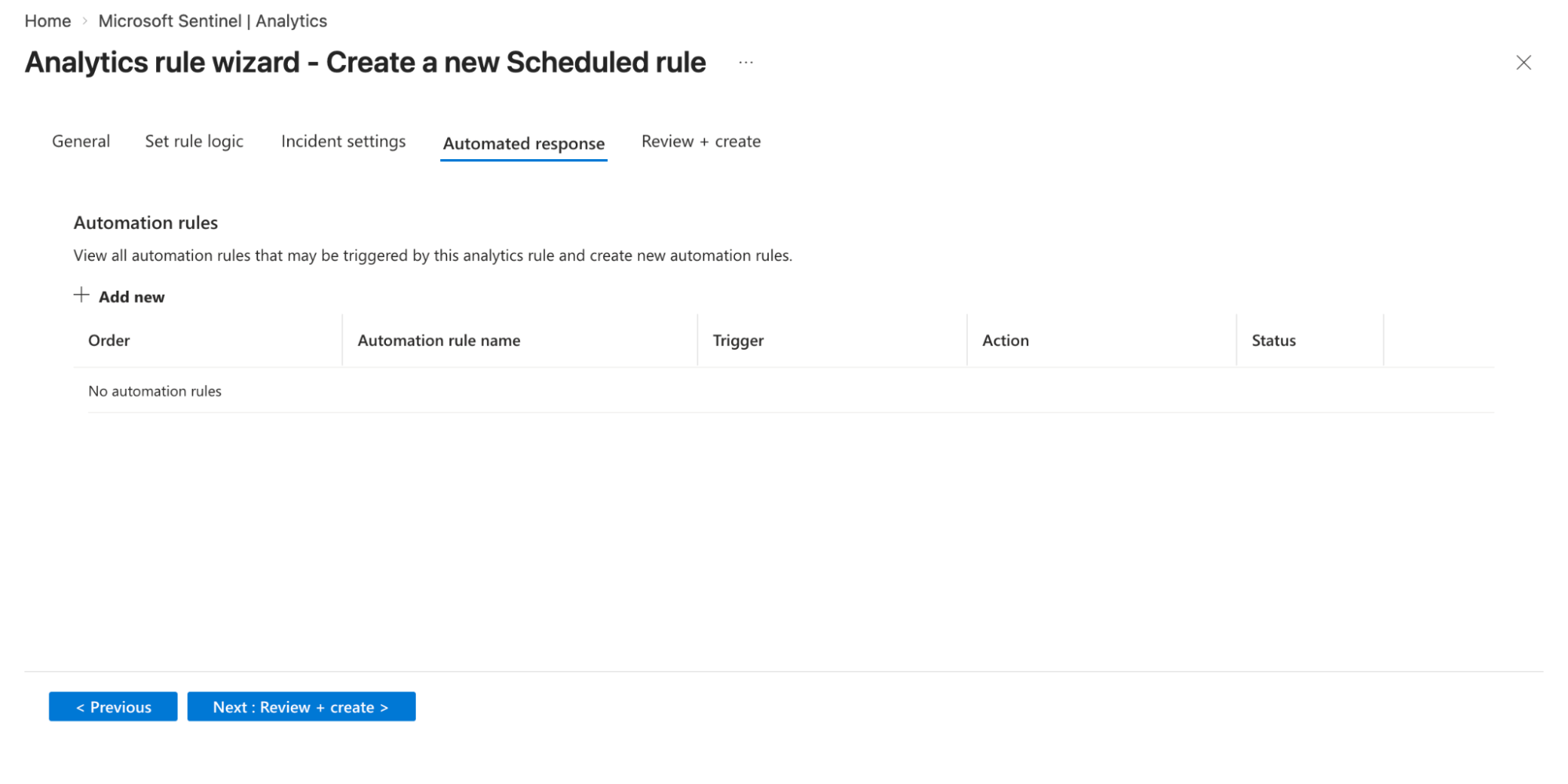
- Automation rules
- Attach automation rules or playbooks (Logic Apps) to trigger actions such as blocking IPs, sending notifications, or enriching alerts. You can define conditions, triggers, and execution order for these automated responses.
- Click on the Save option.
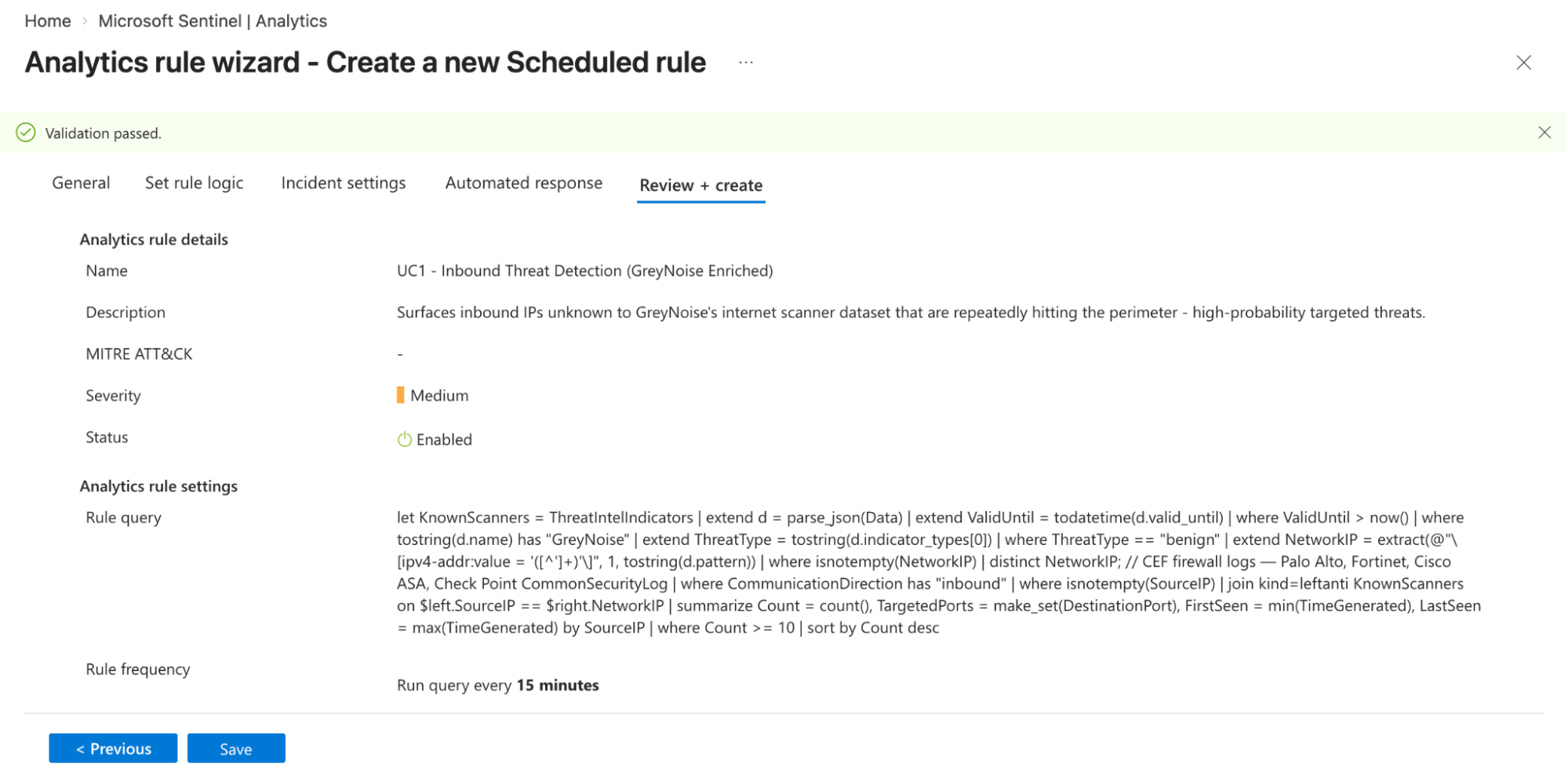
Note: You can adjust the Schedule and Lookup durations as needed.
Understanding the Output
The KQL query joins every inbound source IP against the GreyNoise ThreatIntelIndicators table, then applies progressive filters as follows:
- Targets only inbound direction traffic from firewall log sources.
- Excludes all IPs GreyNoise recognizes as known internet scanners via a left anti-join - Shodan, Censys, mass crawlers are dropped.
- Retains only IPs with 10 or more hits - eliminating low-frequency opportunistic noise.
- Sorts by count descending - most active IPs surface first.
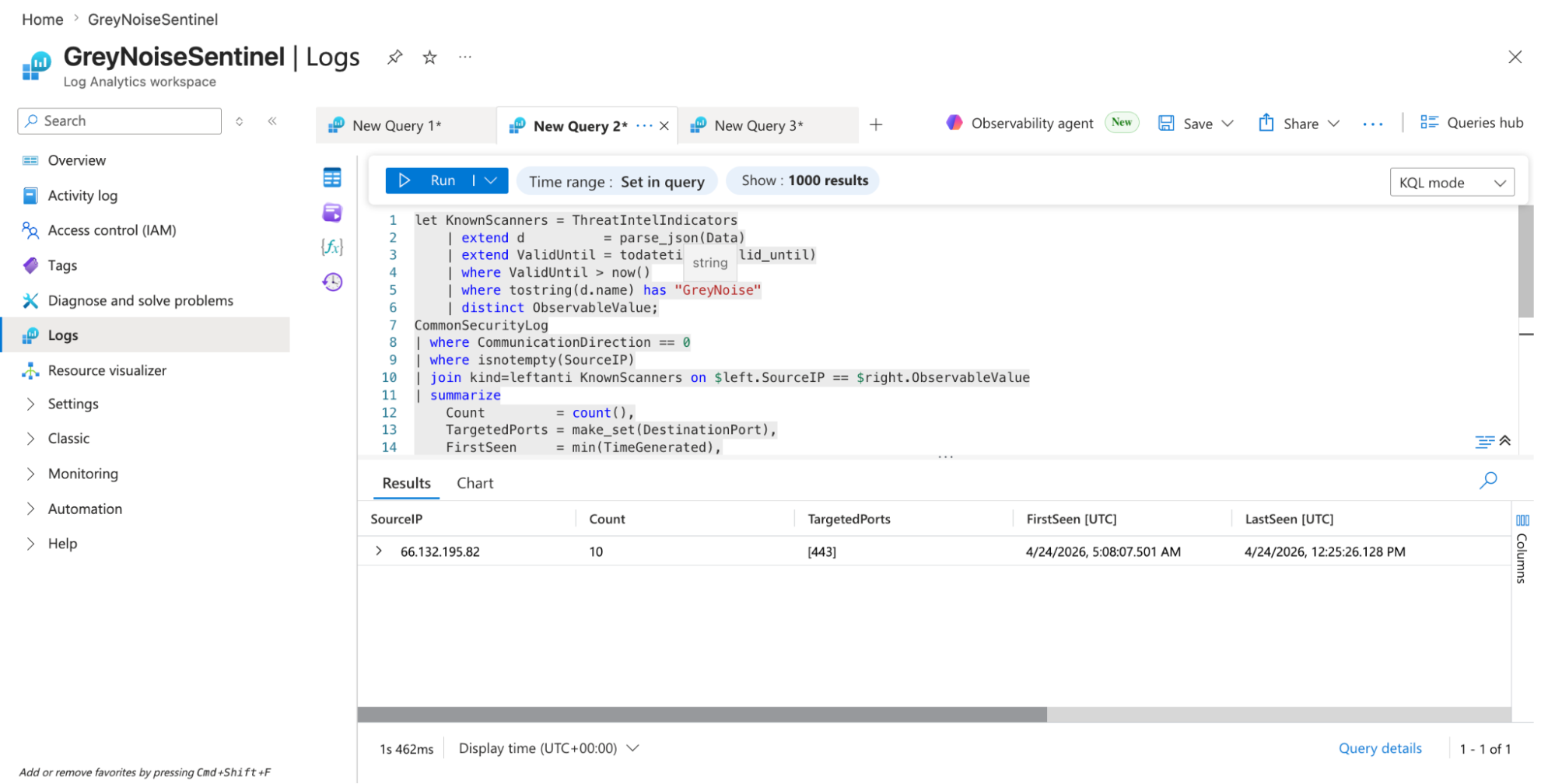
Result: What remains is a tightly focused list of inbound IPs that are unrecognized by GreyNoise's scanner intelligence yet repeatedly hitting your environment. Out of hundreds of raw inbound events, only a handful of IPs survive all filters, making them the highest priority candidates for immediate investigation.
Alert Volume Reduction
| Filter / Logic | What it Removes | Impact on Alert Volume |
|---|---|---|
| CommunicationDirection == 0 (Inbound) | Internal noise & standard outbound browsing traffic. | High: Keeps analysts laser-focused on external threats rather than internal noise. |
| join kind=leftanti | Removes common IPs that have already been identified by GreyNoise. | Maximum: Eliminates known "internet background noise" that can mask real threats. |
| where count >= 10 | One-off port scans and opportunistic "drive-by" pings. | High: Drops low-frequency anomalies; retains only persistent, targeted activity. |
| The Net Result | 15 out of 16 events dropped | 94% Reduction: Only 1 high-risk IP requires human investigation. |
Results and Impact
Before vs After GreyNoise
| Before GreyNoise | After GreyNoise |
|---|---|
| 16 inbound events | 1 IP after filtering |
| Analysts must manually check all events across threat intel feeds. | Analysts ignore known internet noise automatically. |
| 0% suppression of known noise | 94% suppression of known noise |
| Manual investigation takes 30–45 minutes per shift | Investigation time reduced to minutes with pre-ranked IPs |
Benefits for the SOC Team
-
Significant Reduction in Event Volume: Known internet scanners, confirmed mass-scanning actors, and single-event probes are automatically filtered before they reach the analyst queue. Analysts are presented only with events that genuinely require human evaluation, preventing critical alerts from being buried.
-
Automated Triage via Threat Intelligence Matching: Source IPs are automatically evaluated against GreyNoise's globally observed scanner dataset. Routine classifications - benign cloud services, known research tools, and mass crawlers - are resolved without human intervention. Only true anomalies are escalated.
-
Elimination of Manual Enrichment Time: Classification data and tag context from GreyNoise are directly available via the ThreatIntelIndicators Data column join. This removes the need for manual lookups and external pivot searches, saving hours of investigative time per shift.
-
Immediate Identification of Targeted Threats: By stripping away the background noise of the internet, the detection layer automatically elevates stealthy, targeted reconnaissance that has no prior reputation. True anomalies are instantly spotlighted rather than being lost in a sea of routine internet traffic.
-
Structural Eradication of Alert Fatigue: The reduction in noise scales with the environment. As inbound traffic grows, the threat intelligence join layer absorbs the volume. The analyst queue remains lean and focused, reducing burnout and the risk of missing a real breach due to volume overload.
Conclusion
GreyNoise not only adds intelligence to your alerts but also eliminates those that are not worthy of investigation in the first place. By incorporating a single ThreatIntelIndicators join within your existing Sentinel firewall detection query, your SOC team goes from looking at raw, noisy events without context to seeing a clean, prioritized, enriched queue where every remaining alert is genuinely worth their time.
The core value of this use case is to reduce the noise between your analysts and the threats that actually matter.
Updated 4 months ago