
Managing Workspace Members
Workspace owners can view and manage who has access to their workspace directly in the GreyNoise Visualizer. Owners can invite new members, resend or cancel pending invitations, and remove members without contacting GreyNoise support.
ImportantThis capability is only available in the new Visualizer experience. If the navigation menu appears on the left side of the screen, you’re on the new version.
Who Can Manage Members
Each workspace has one owner: the person whose email address is set as the workspace's contact email. What you see on the Workspace page depends on whether you're the owner and how your workspace handles sign-in.
| Standard workspace | SSO-managed workspace | |
|---|---|---|
| Workspace owner | View and manage members | View members only |
| Other members | Page shows "Managed by [owner email]" | Page shows "Managed by SSO" |
Tip: If someone else on your team should manage members, contact GreyNoise to change the workspace owner.
Viewing Members
Log in to the GreyNoise Visualizer --> Click on your name on the bottom left --> Plan details
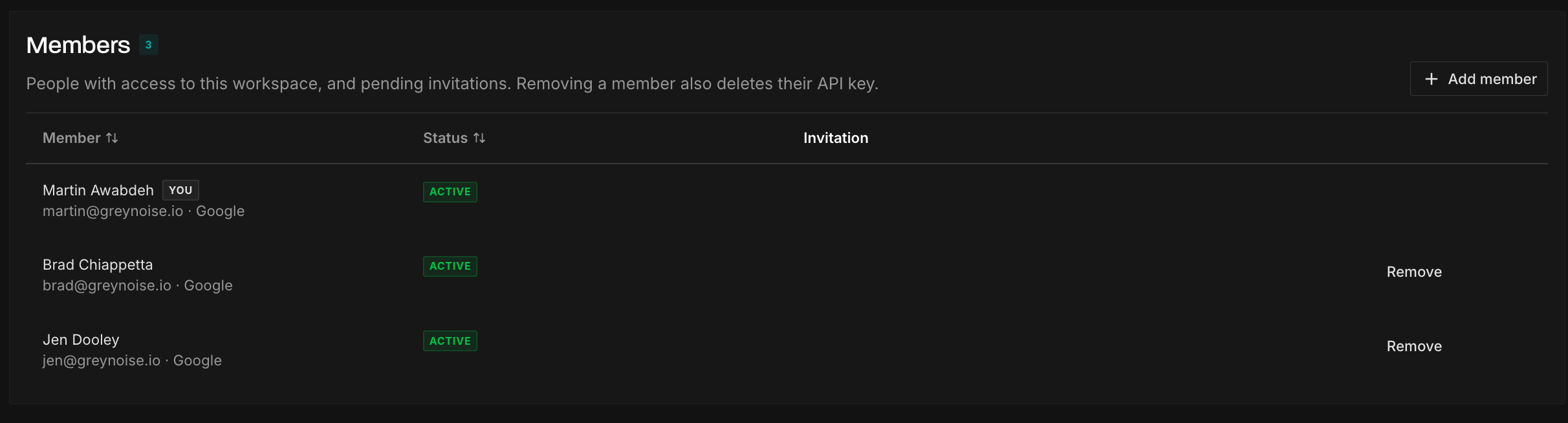
The Members card lists everyone with access to the workspace, along with any pending invitations. Each entry shows the person's name, email address, sign-in method (such as Google, Password, or SSO), and status. You can sort the list by Member or Status.
Adding a Member
- In the Members card, click Add member.
- Enter the email address of the person you want to invite.
- Click Send invitation.
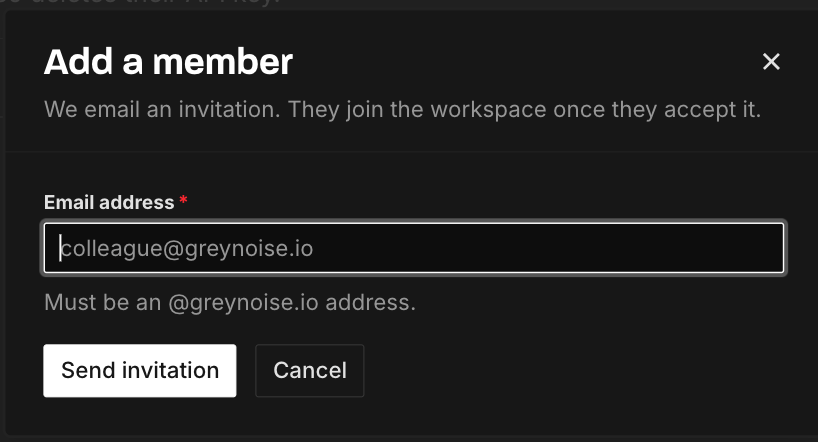
GreyNoise emails an invitation to that address. The person joins the workspace once they accept it. Until then, the invitation appears in the Members card as pending.
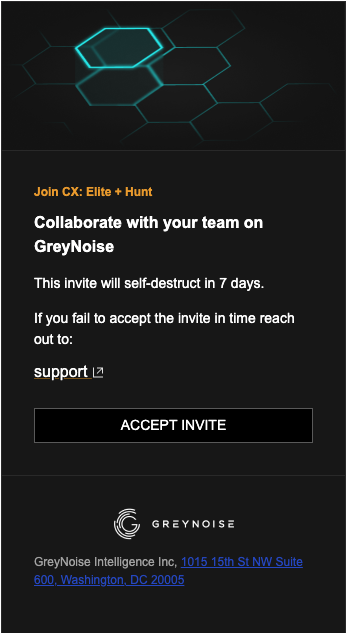
ImportantYou can only invite people with an email address on the workspace owner's email domain. For example, if the owner's email is
[email protected], invitees must have an@example.comaddress. To add someone from a different domain, such as a contractor, contact [email protected].
Managing Pending Invitations
Pending invitations appear in the Members card alongside active members. From the Invitation column, you can:
- Resend the invitation if the invitee can't find the original email
- Cancel the invitation if it was sent to the wrong address or is no longer needed
Removing a Member
- In the Members card, find the member you want to remove.
- Click Remove.
The member loses access to the workspace. The workspace owner can't be removed from the Members card.
ImportantRemoving a member also deletes their API key for this workspace. Any integrations, scripts, or tools using that member's key will stop working. Before removing someone, confirm that none of your production integrations depend on their key.
SSO-Managed Workspaces
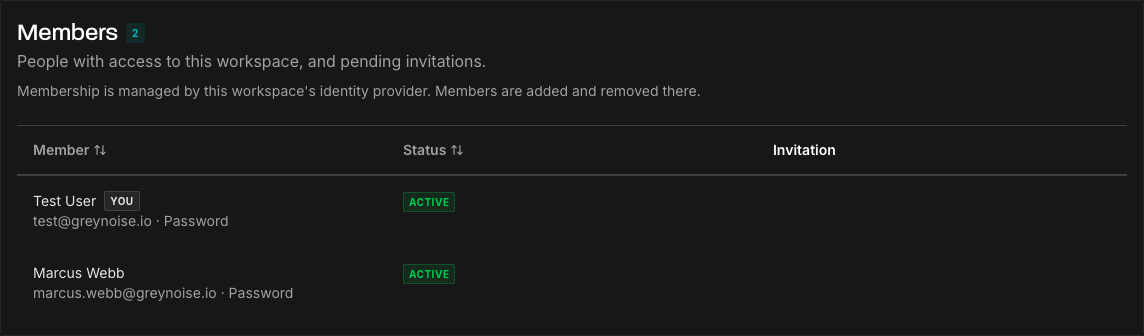
If your workspace uses Single Sign-On, membership is controlled by your identity provider (IdP). The workspace owner can view the member list in the Members card, but the Add member and Remove options aren't available.
To grant or revoke access, manage the user and their gn_ group membership in your IdP. Changes take effect the next time the user signs in. For details, see Single Sign On Support.
Changing the Workspace Owner
To change who manages your workspace's members, contact your Customer Success Manager or email [email protected]. Include:
- Your workspace name and workspace ID (shown at the top of the Workspace page)
- The email address of the new owner
Once GreyNoise updates the workspace's contact email, the new owner will see and be able to use the Members card.
Updated 20 days ago